- SaaS
- AI
- Email Marketing
Brew
Making an AI-powered email product easier to read, trust, and return to, so small teams can send on-brand emails without fear of getting it wrong.
- Deliverables
- UX Audit
- Web App UI
- Interactive Prototype
- Component Library
- Figma Handover
- Timeline
- February–July 2026
- Roles
- Product Strategy
- UX Research
- UX Design
- UI Design
- Design System
- Design Engineering Collaboration
- SaaS
- AI
- Email Marketing
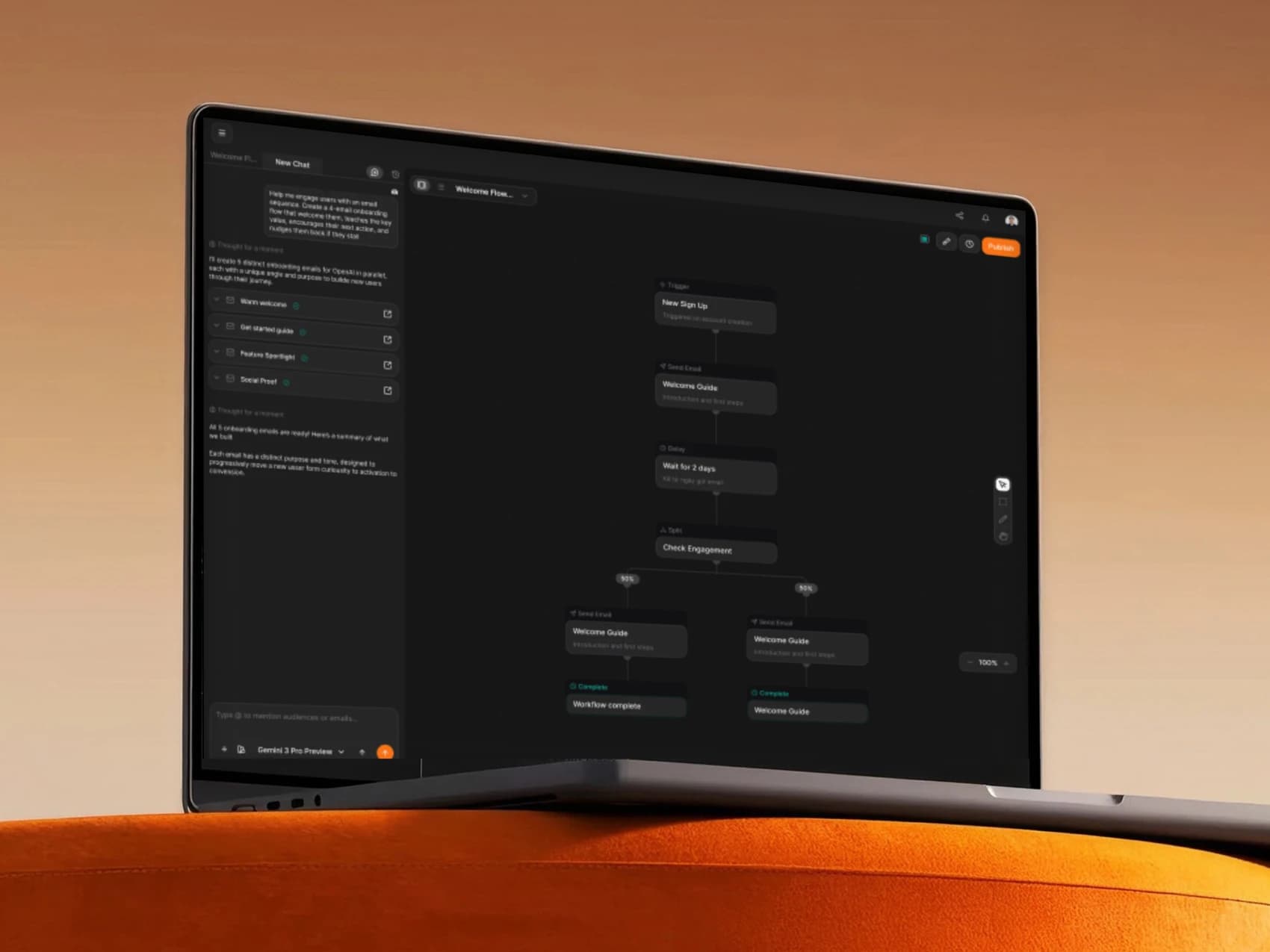
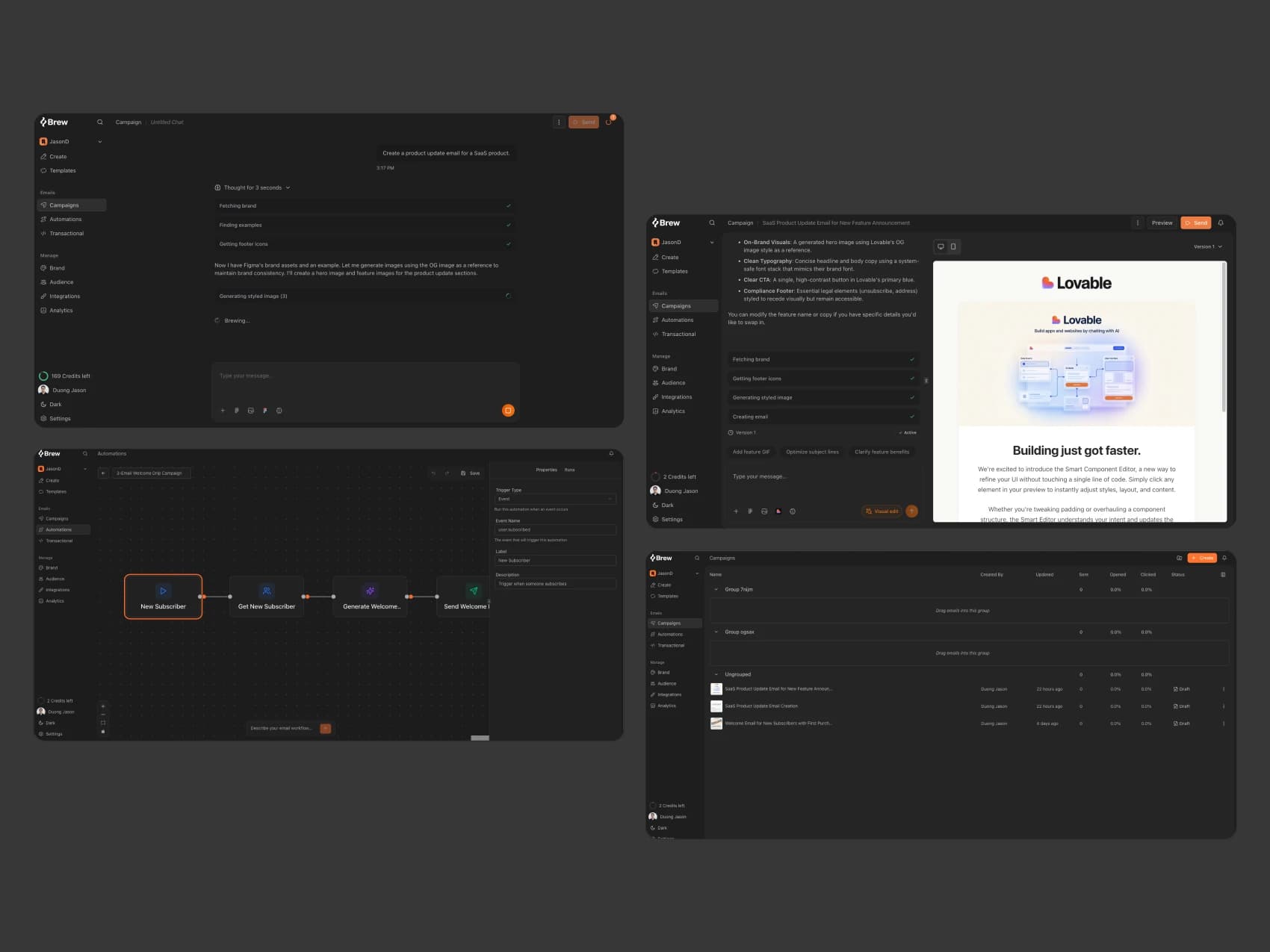
Brew is an AI-powered email marketing product. People describe what they need in chat, Brew writes and builds an on-brand email, and they can then send it as a campaign or run it automatically from an event.
The context
Brew serves founders, SaaS marketers, and small marketing teams that need to send email regularly without an in-house copywriter or designer. MonoGray worked as part of the Brew team while the product moved toward Brew 3.0, auditing the product, redesigning core in-app flows, and handing work over close to engineering.
The Challenge
Brew already had strong AI capabilities. The problem was that people did not yet feel confident enough to press send.
Chat and canvas were hard to follow together. When AI was working, people could not tell what was happening, whether it had finished, or where an error had occurred.
Automation spoke in developer language, with JavaScript expressions and technical event names that marketers could not comfortably read.
There was no reliable safety checkpoint before sending to a real audience, onboarding exposed too many advanced choices, and people returning after a few weeks had to re-learn their own setup.
The Solution
We redesigned the in-app experience around one principle: people should always know where they are, what AI is doing, and what the safe next step is.
The new product shell brings Campaigns, Automations, and Transactional email into the primary navigation, while chat can collapse to make room for the canvas.
Automations use plain language, structured conditions, email previews on each node, and a pre-flight check before publishing. Setup, domains, brand settings, and audience import are all broken into clearer, safer steps.
Competitive Research & Insight
We analysed Loops and Audienceful across onboarding, email creation, automation, and publishing to establish the category baseline. The research pointed to four decisions: simplicity is the baseline, brand should be set once and used everywhere, trust comes from checks before email is sent, and Brew’s differentiator is an AI-and-canvas workflow that stays understandable and easy to edit.

Loops
An email platform for SaaS teams, bringing marketing, product, and transactional email together.

Audienceful
Modern email marketing for startups, creators, and small teams, with a Notion-style editor.
Product Audit
We used Brew as a new customer and documented friction across landing, onboarding, first entry, creation, adjustment, and post-send. For automation, we asked whether people could find a starting point, understand the trigger, create without fear, trust that it was running, and return to edit it weeks later.
User Research & Synthesis
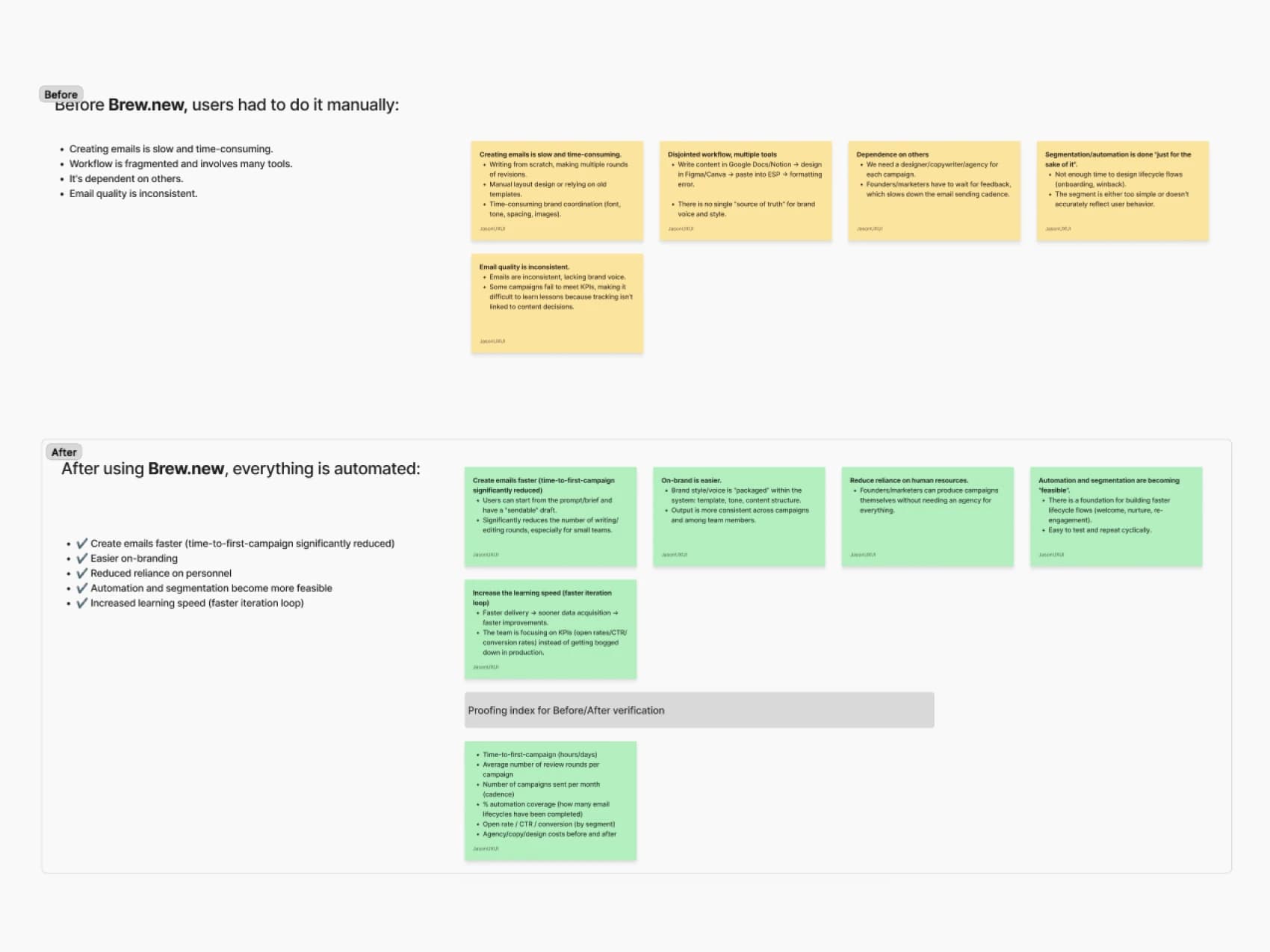
Across solo founders, SaaS marketers, growth teams, agencies, and non-technical business owners, the shared need was to move quickly with less effort and fewer mistakes. The work established three principles: AI must be easier to edit than writing from scratch, re-entry must stay understandable, and people need control rather than an AI that acts beyond their intent. The before-and-after synthesis maps the problem space to the intended product response.
User Journey
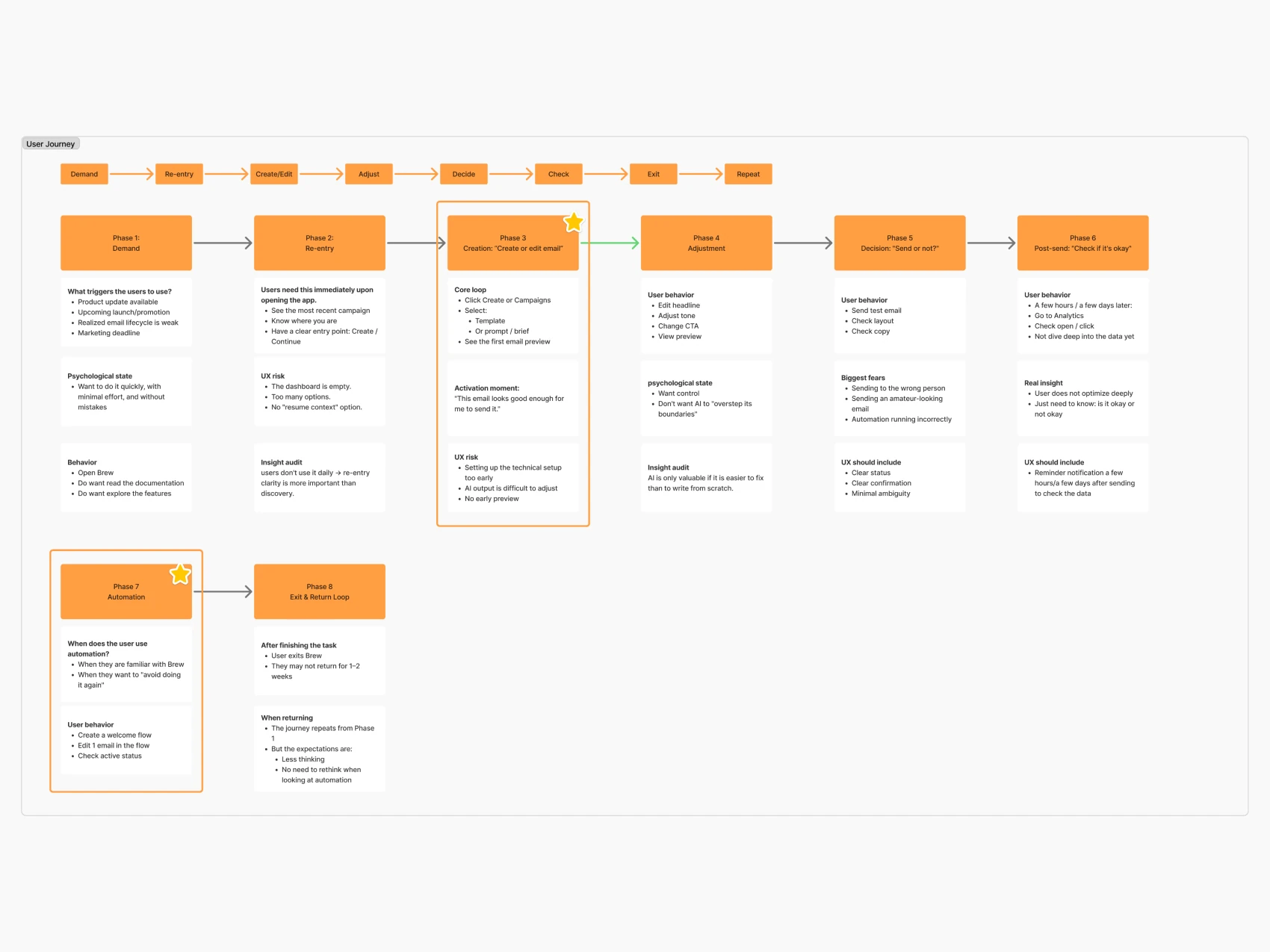
The journey follows people from demand and re-entry through creating, checking, automating, and returning. The critical moment is when an email feels good enough to send, so each stage makes the next action clear and safe.
Information Architecture
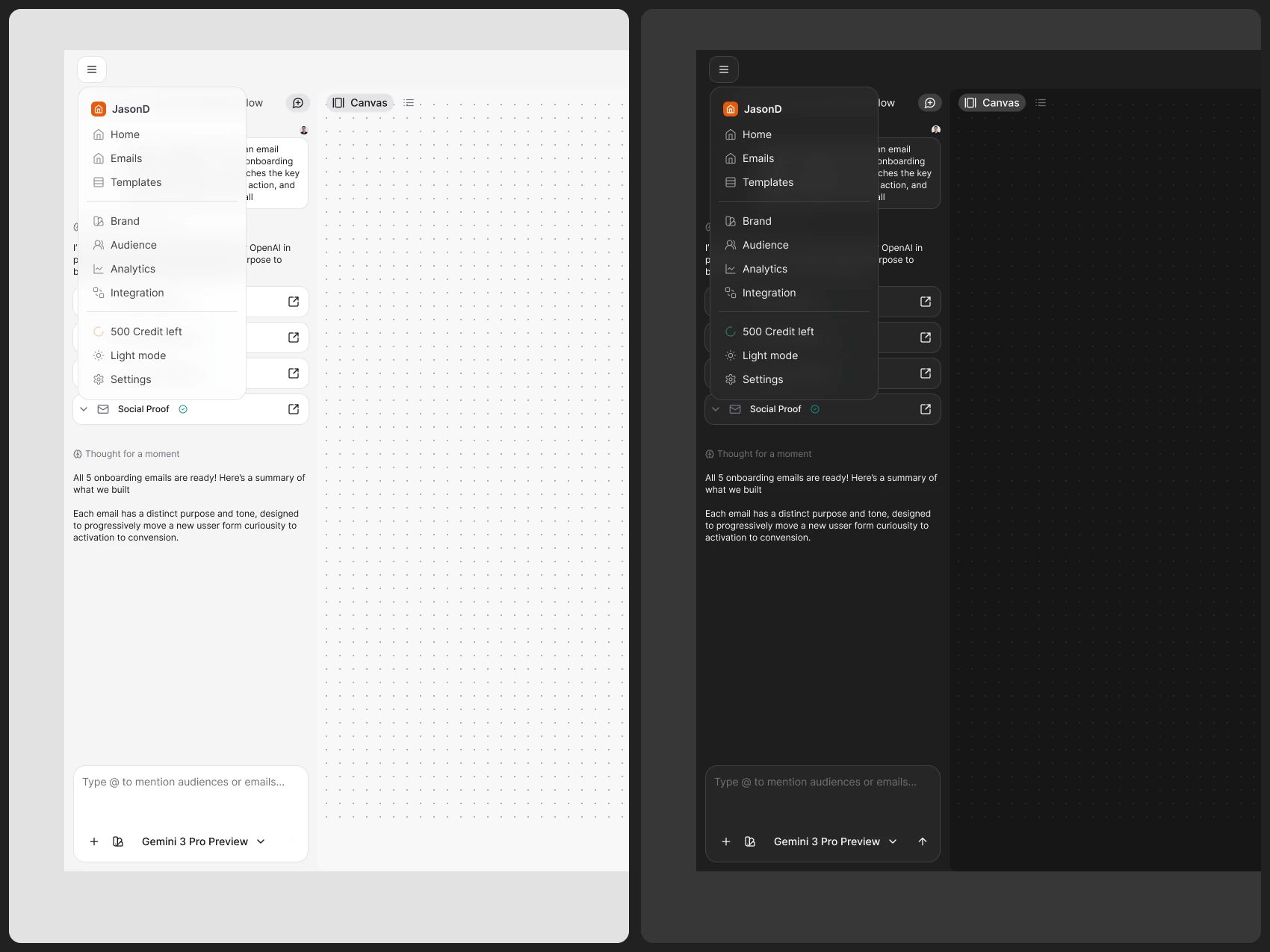
The previous sidebar treated every area as equal. We separated daily work — Campaigns, Automations, and Transactional email — from shared foundations such as Templates, Brand, Audience, Integrations, and Analytics, making the first action clear: start something new or continue work in progress.
Wireframing & Iteration
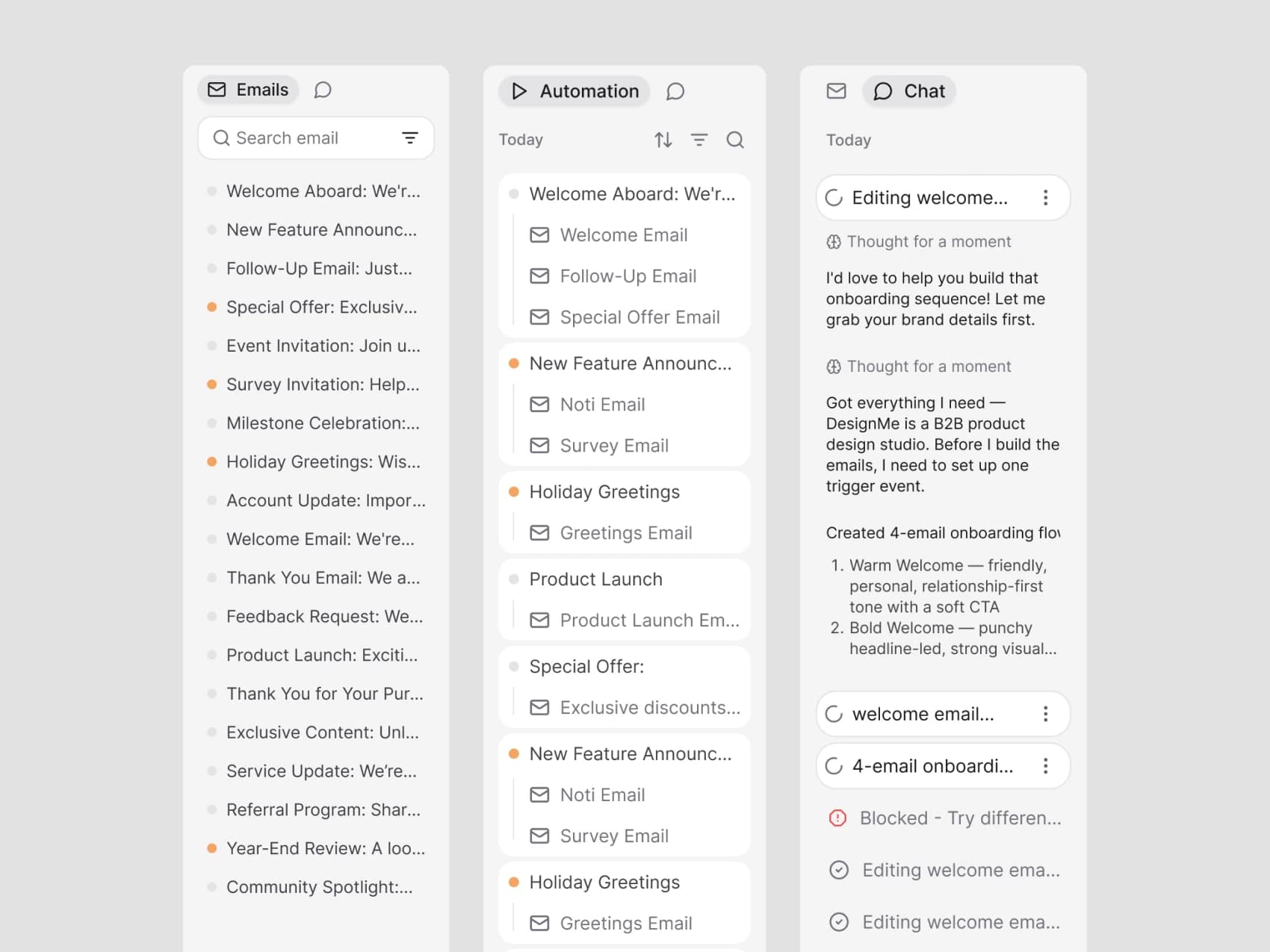
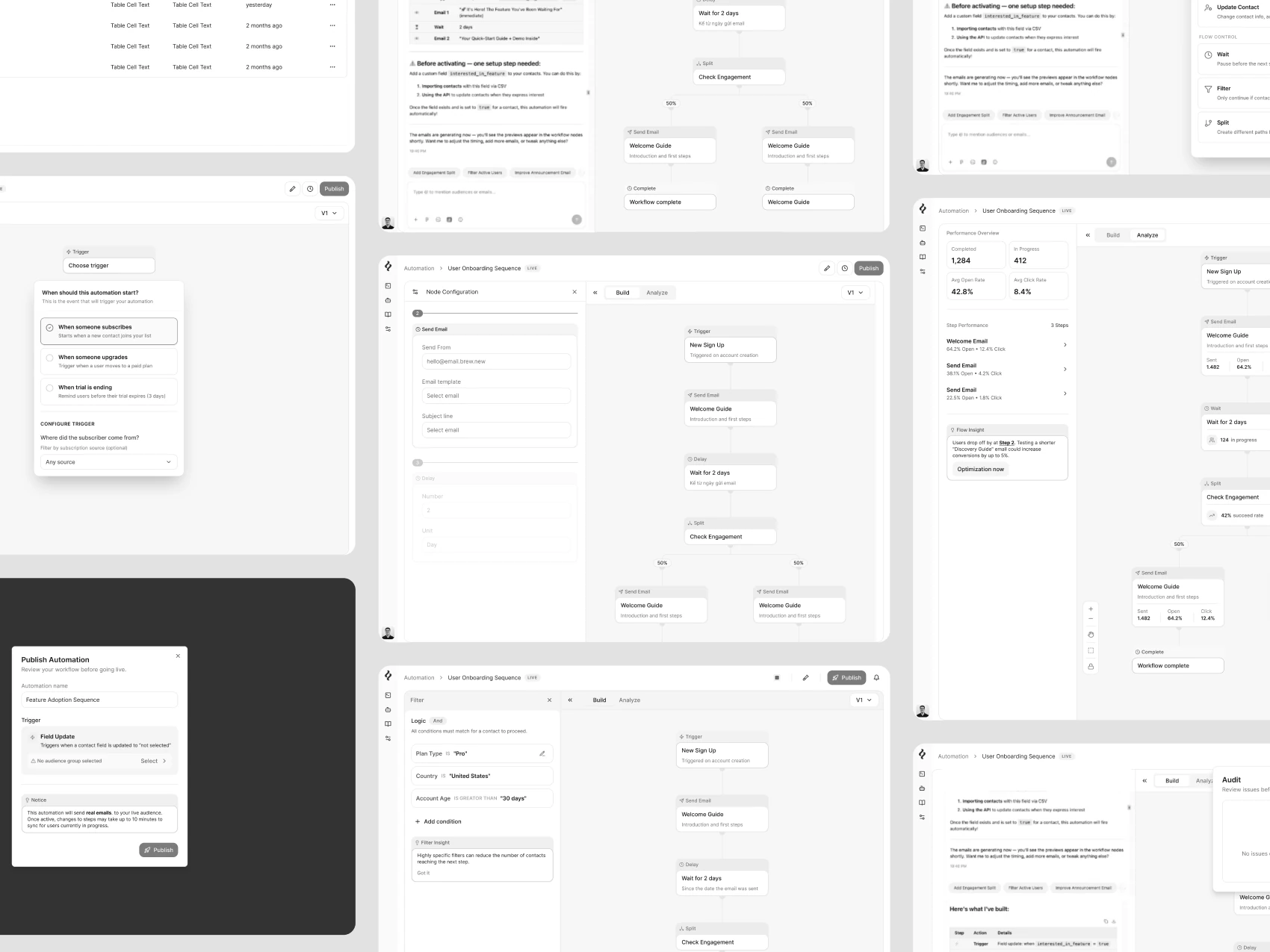
Early concepts were reviewed in daily standups with Brew’s CEO and CTO, then refined the same day. Automation evolved through multiple rounds, from early build and analyse screens to trigger configuration, node settings, pre-flight checks, and the final dark canvas with AI chat.
Product Shell: Sidebar, Chat, and Canvas
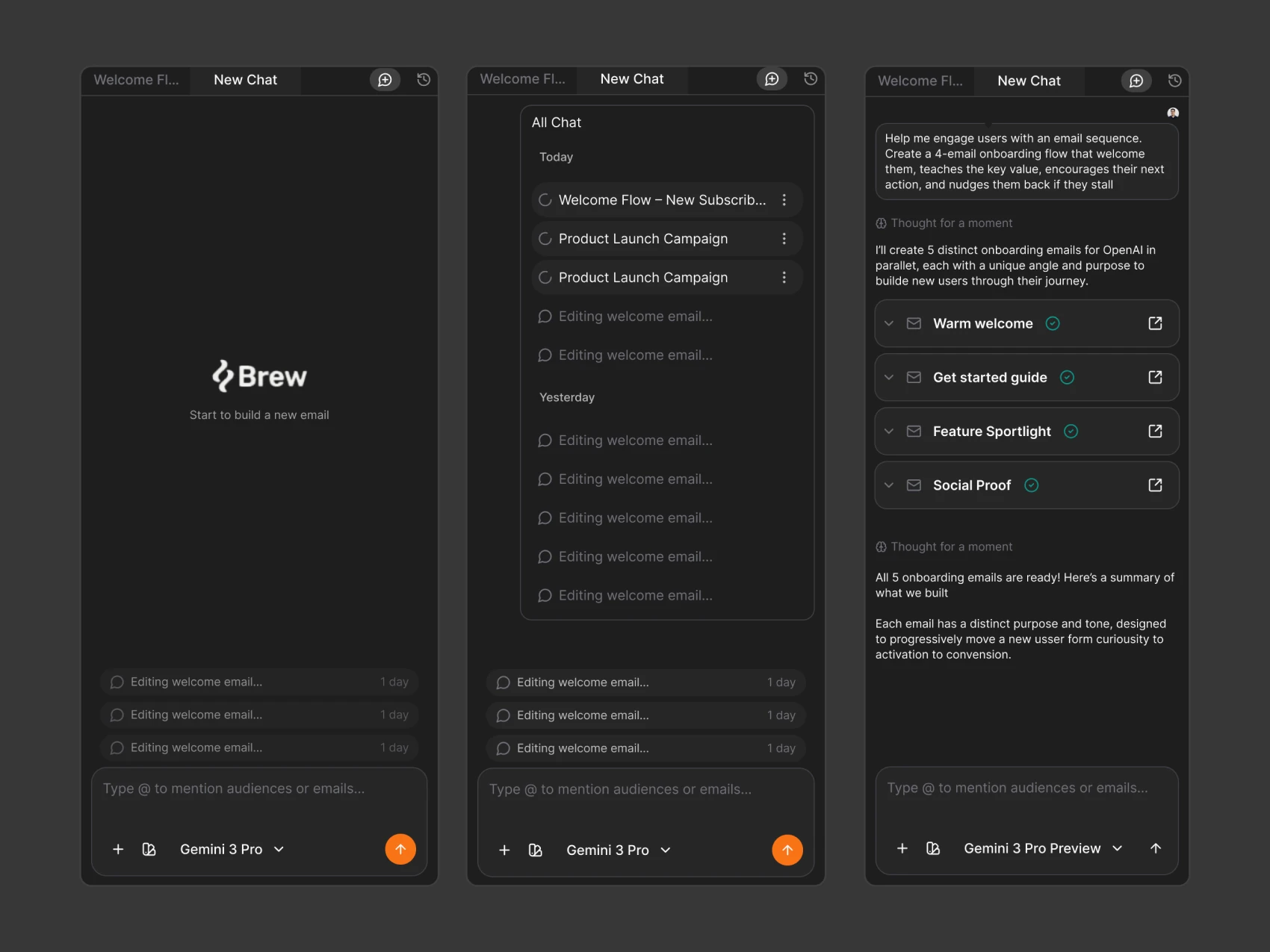
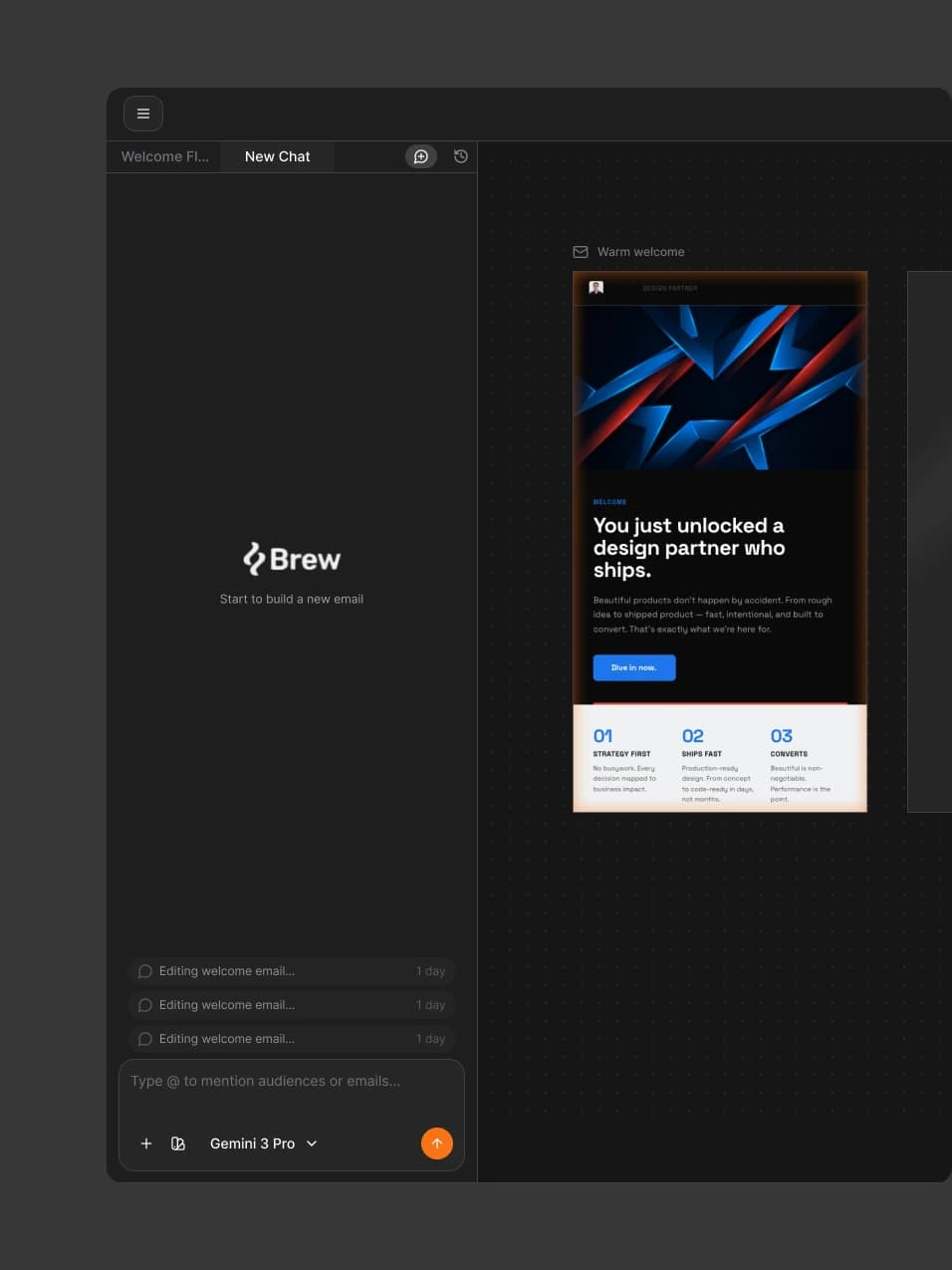
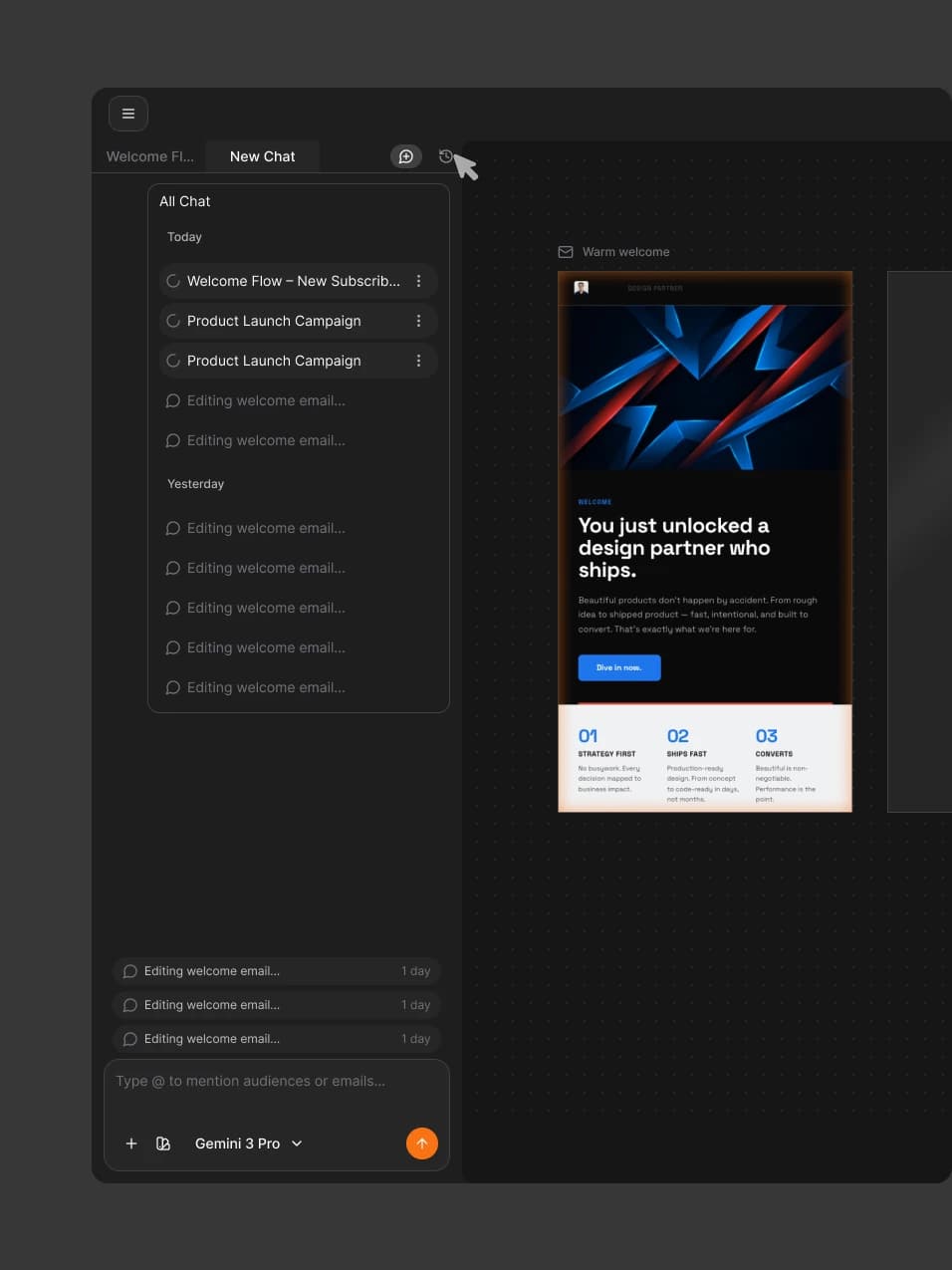
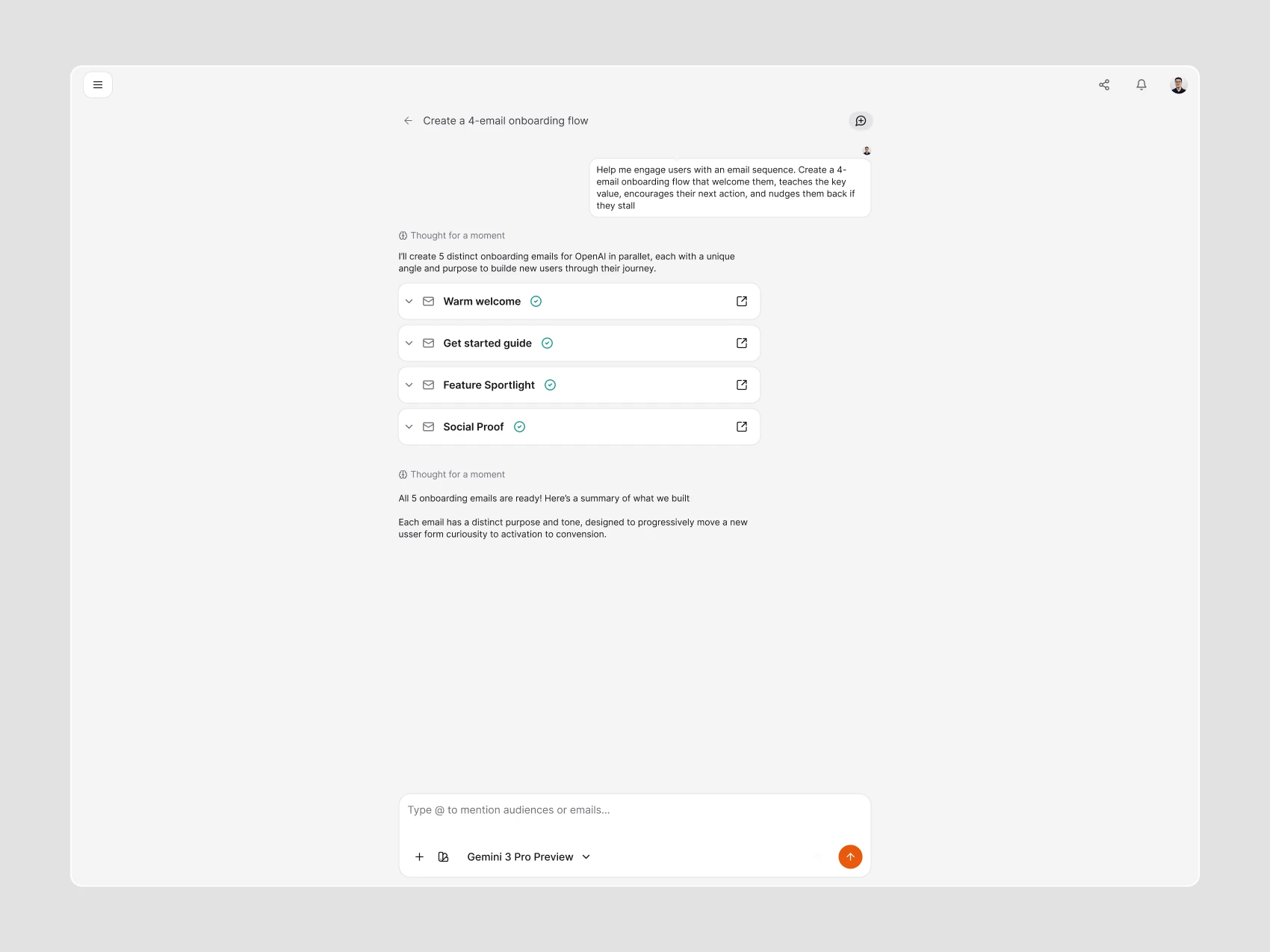
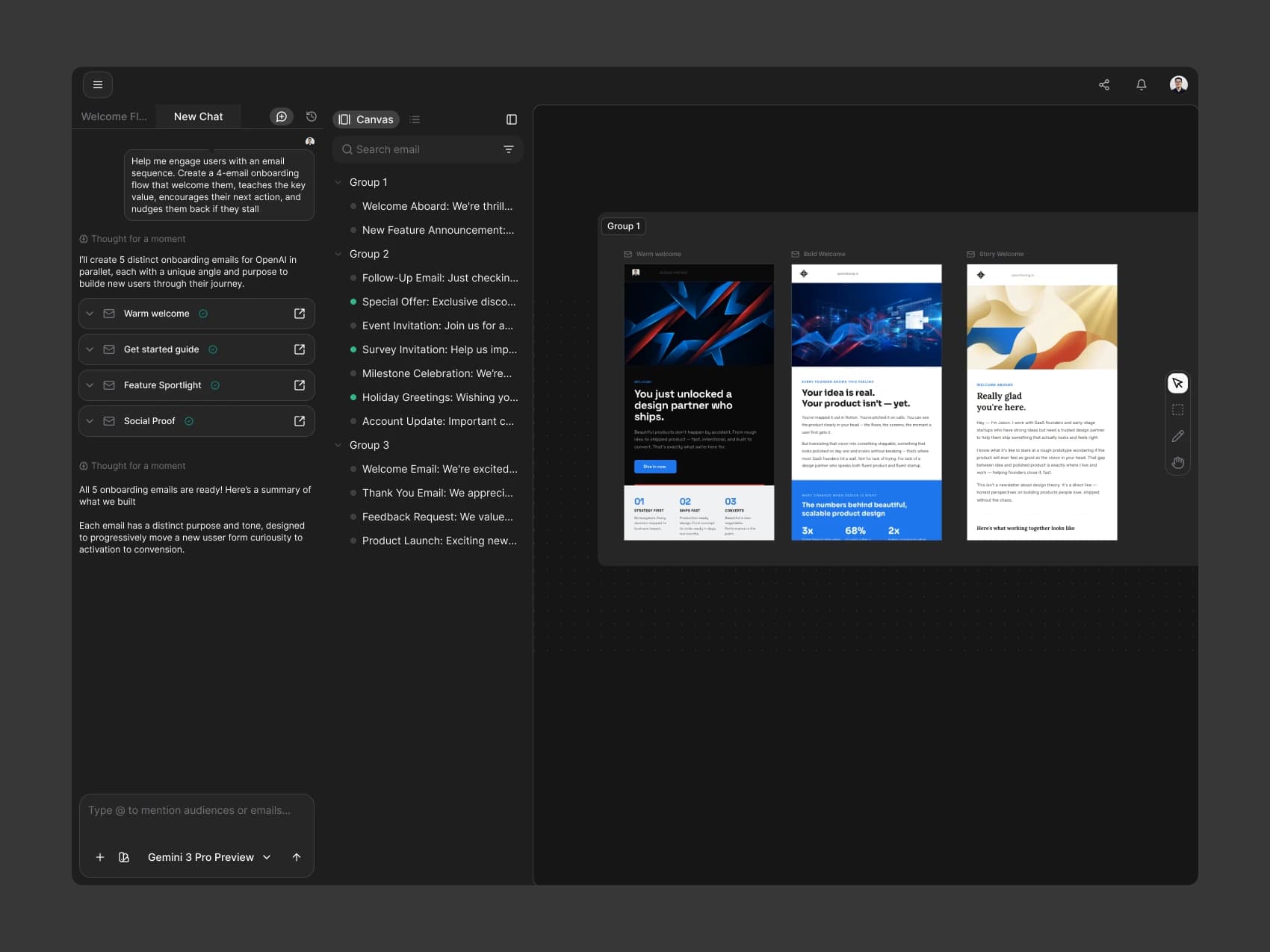
Chat and canvas can be read together. Chat collapses when people need more space, conversations are grouped by day, and each session communicates whether it is working, complete, or blocked. Selecting a conversation takes people directly to the work AI completed.
A Clearer Starting Point for Email Creation
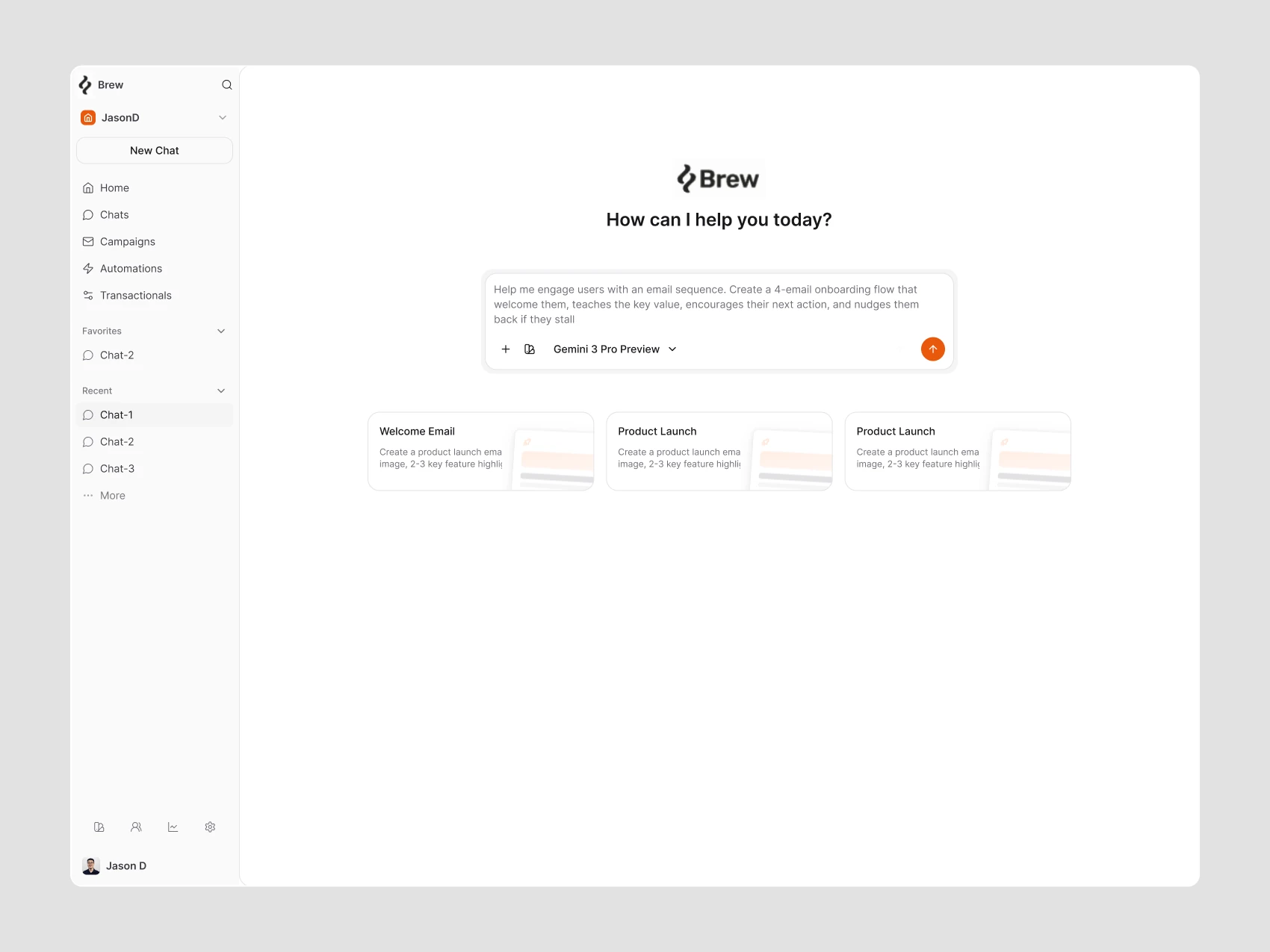
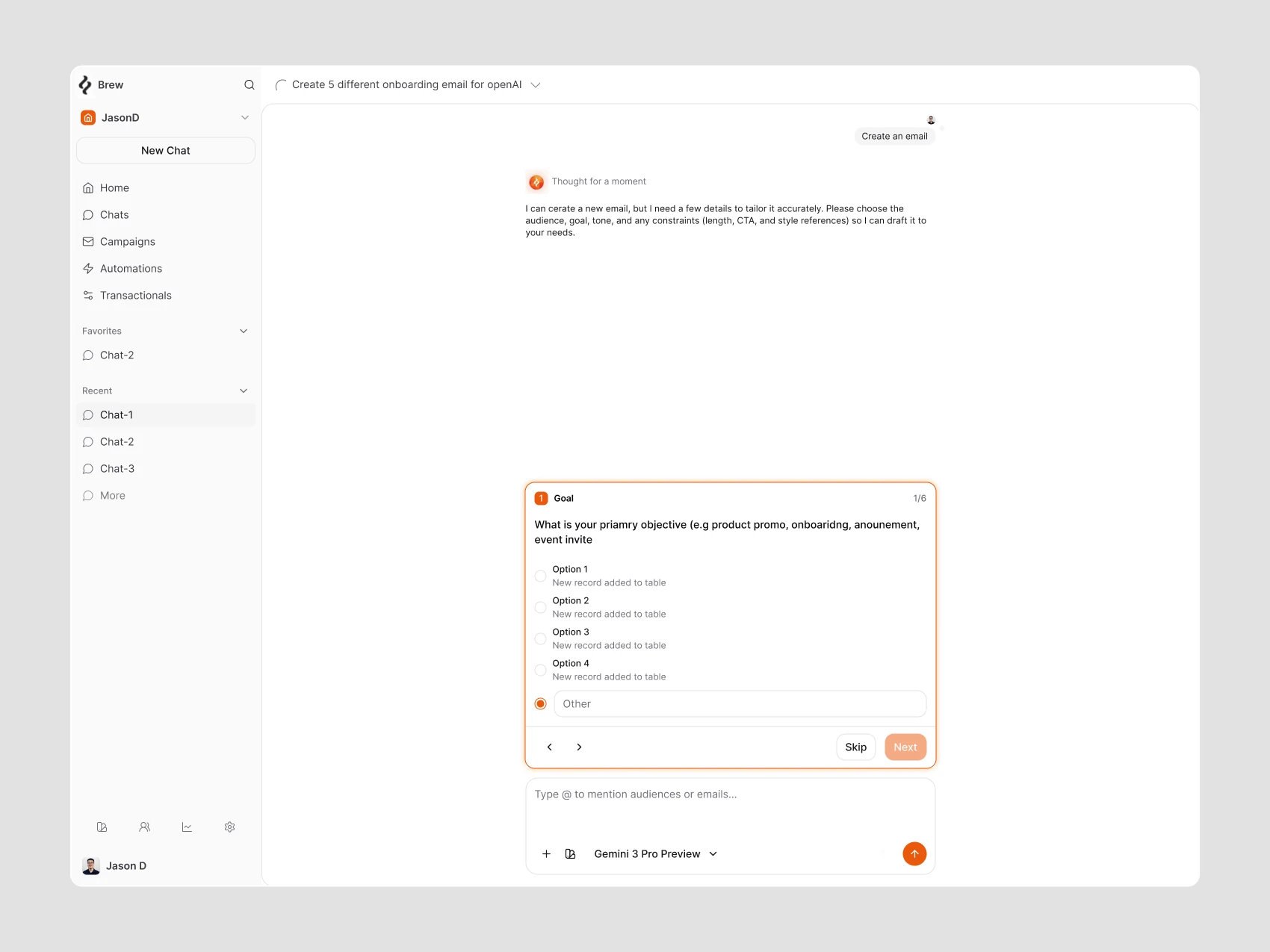
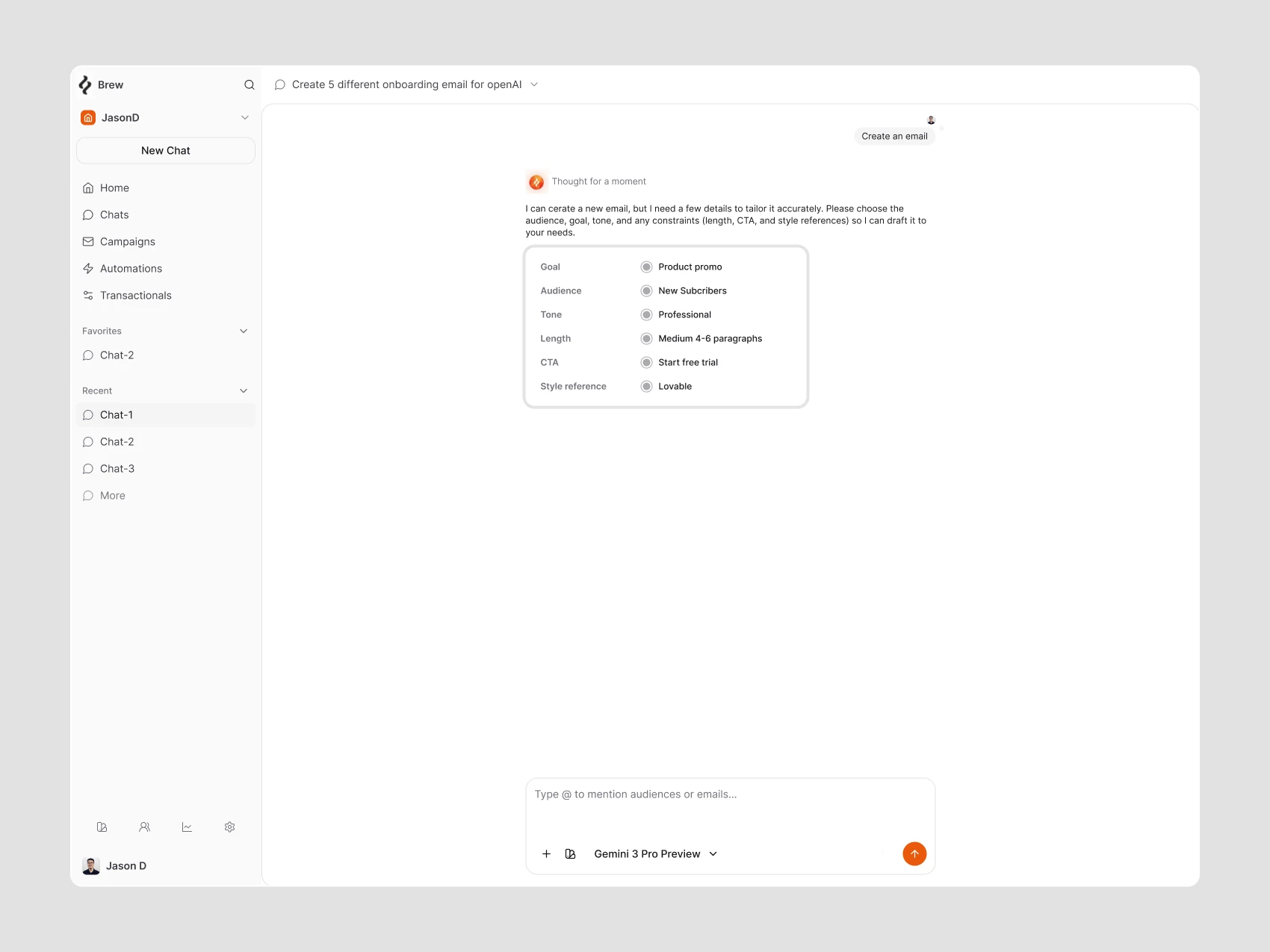
An open-ended prompt is not always enough to get started. The new chat offers prompt suggestions, while a guided brief asks for the goal and brings the audience, tone, length, CTA, and style reference into one readable summary before the email is created.
Another Starting Point
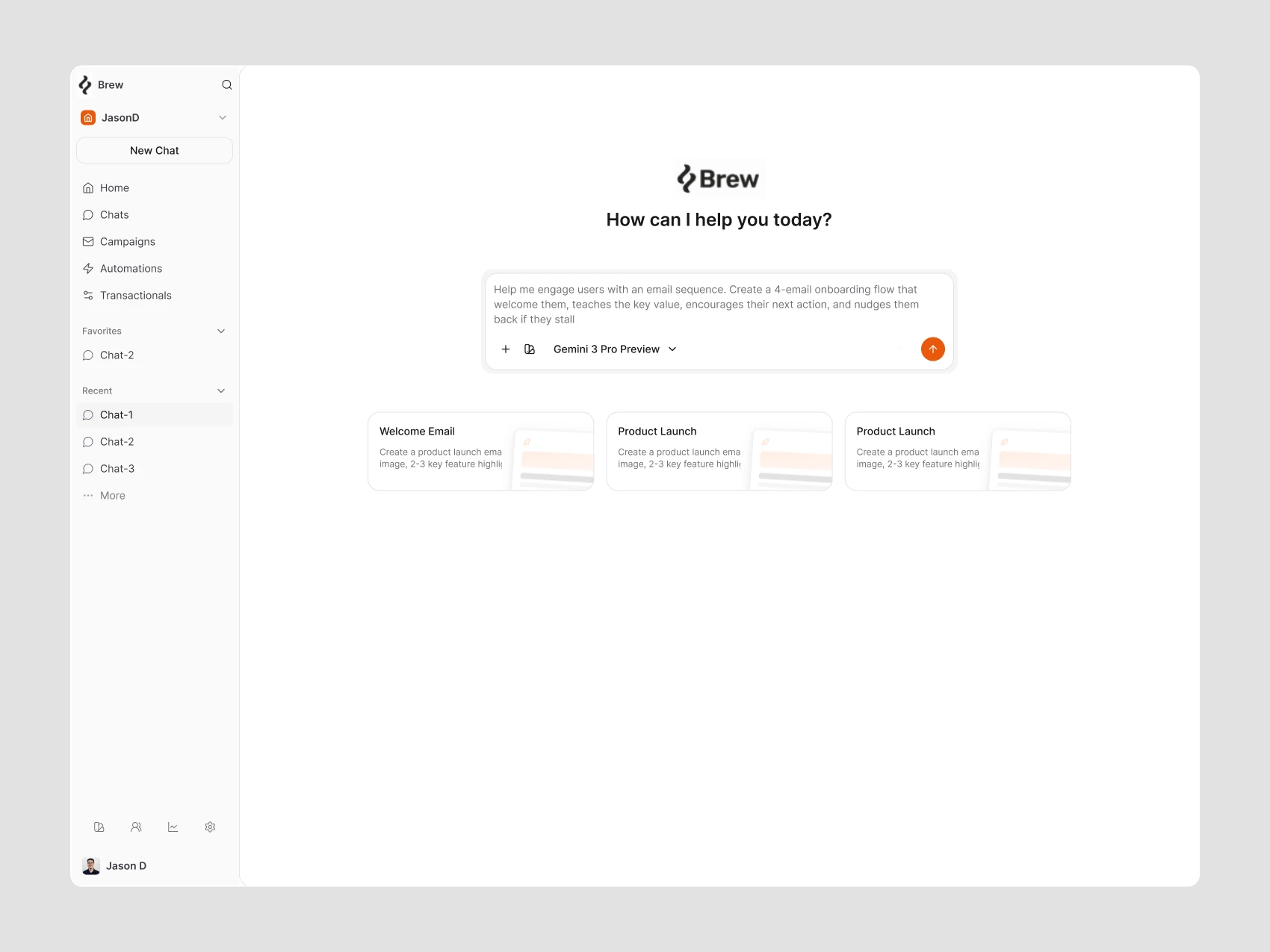
An alternate starting-screen composition keeps prompt suggestions visible before a conversation begins.
AI Streaming People Can Follow
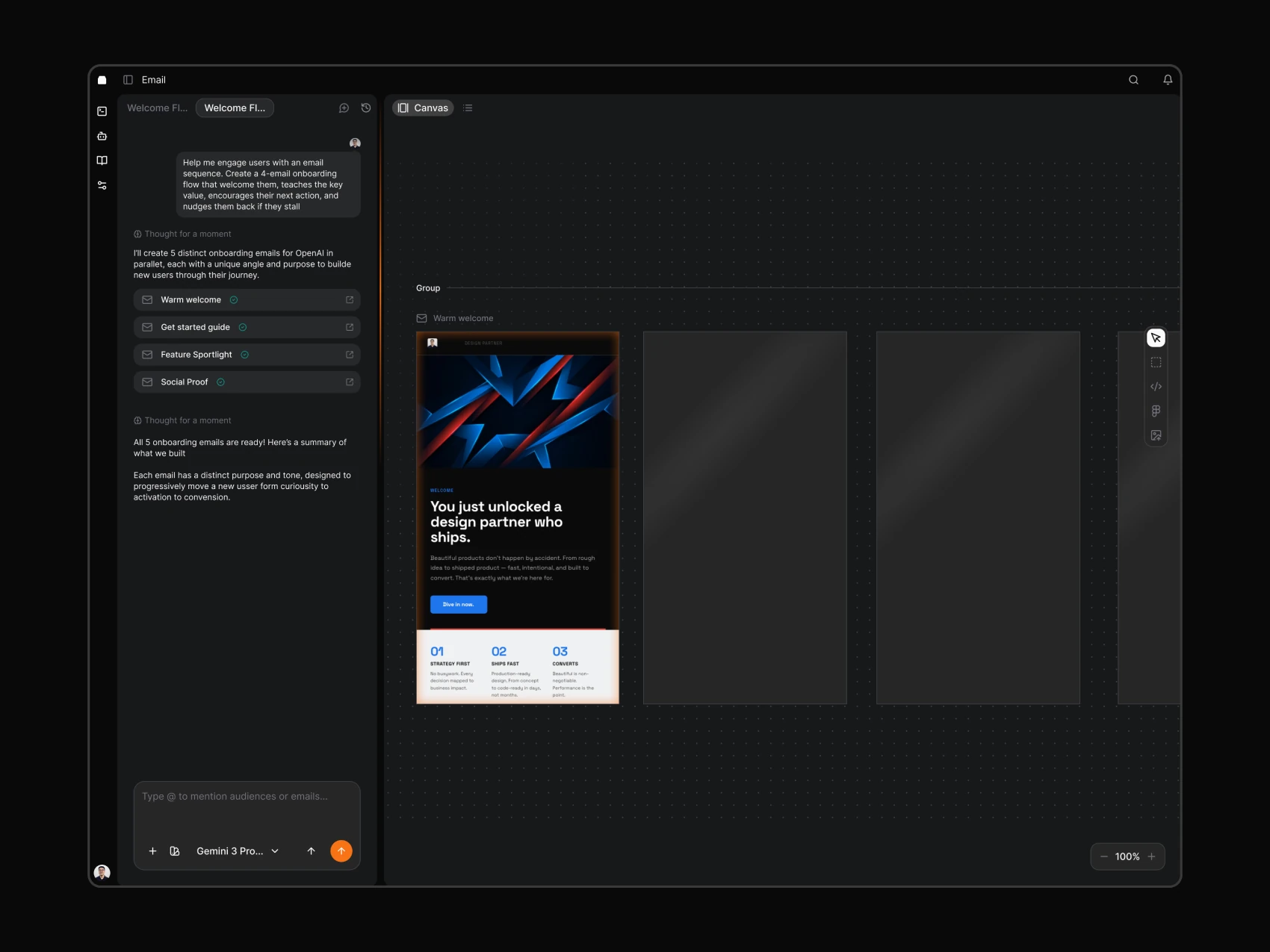
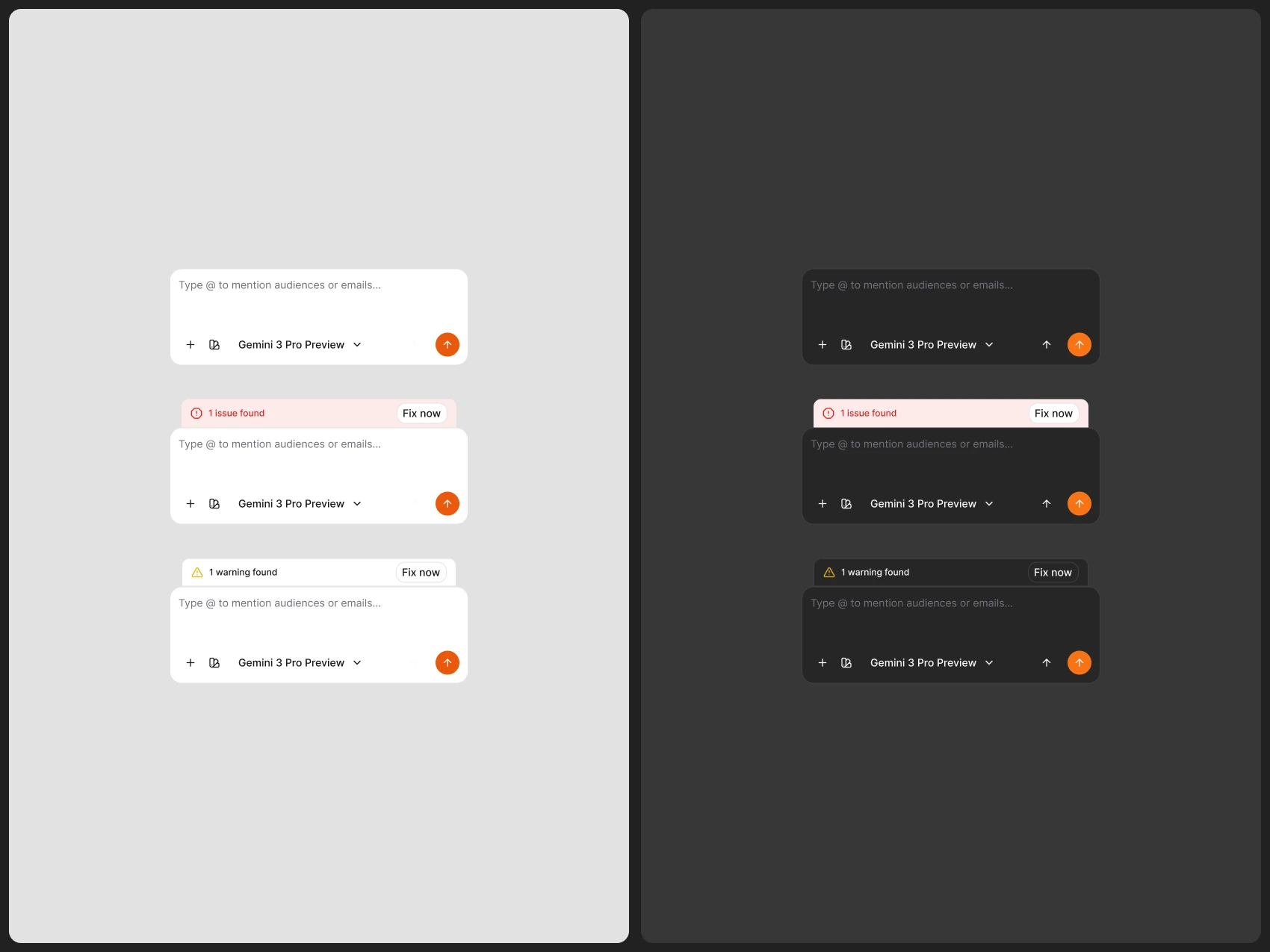
When AI is working, Brew shows the important intent behind each step instead of a wall of technical information. People can cancel when they change their mind. If something fails, the product suggests another way to prompt, returns them to the input, and supports undo and retry.
Finding and Returning to Campaigns
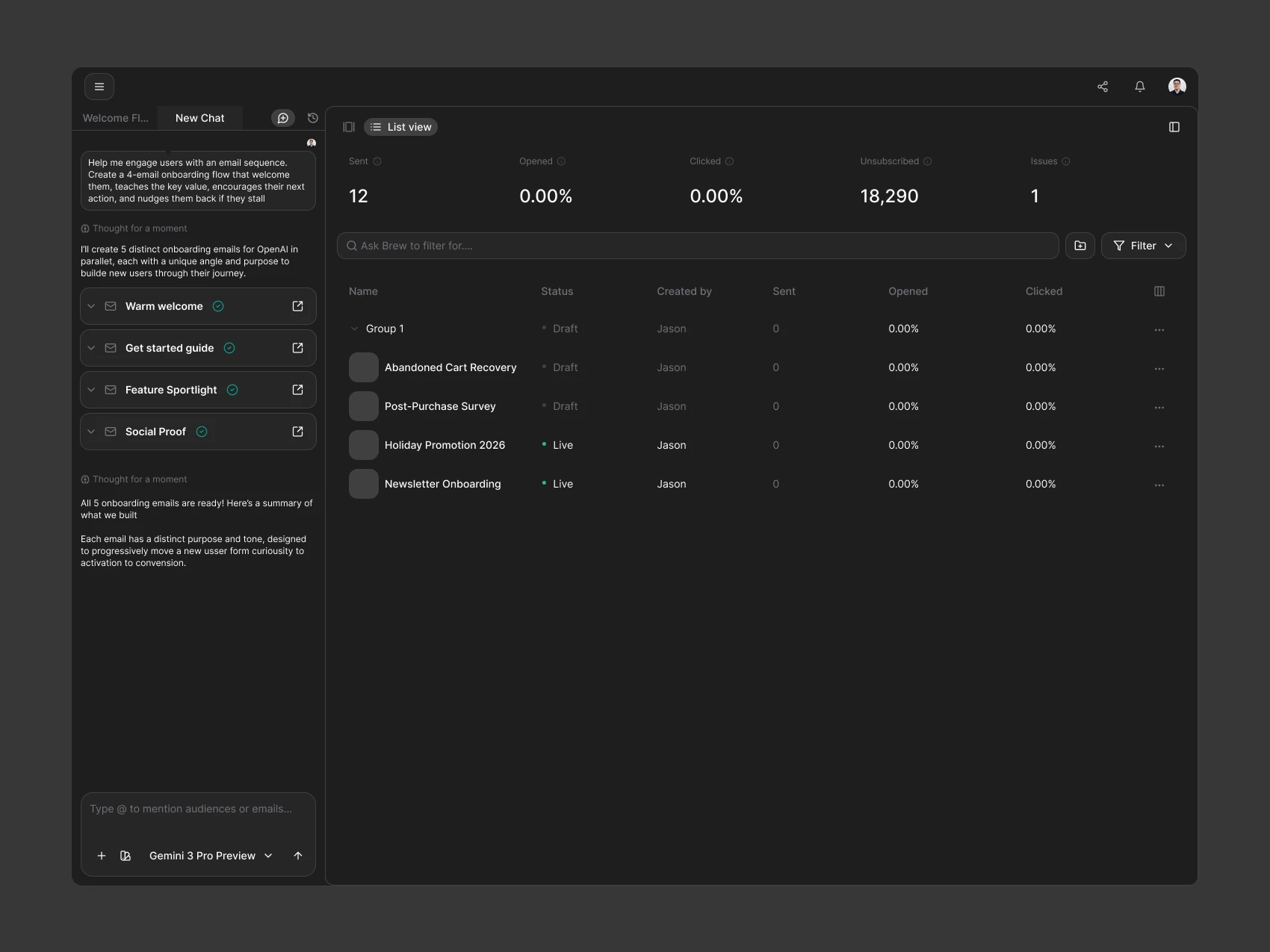
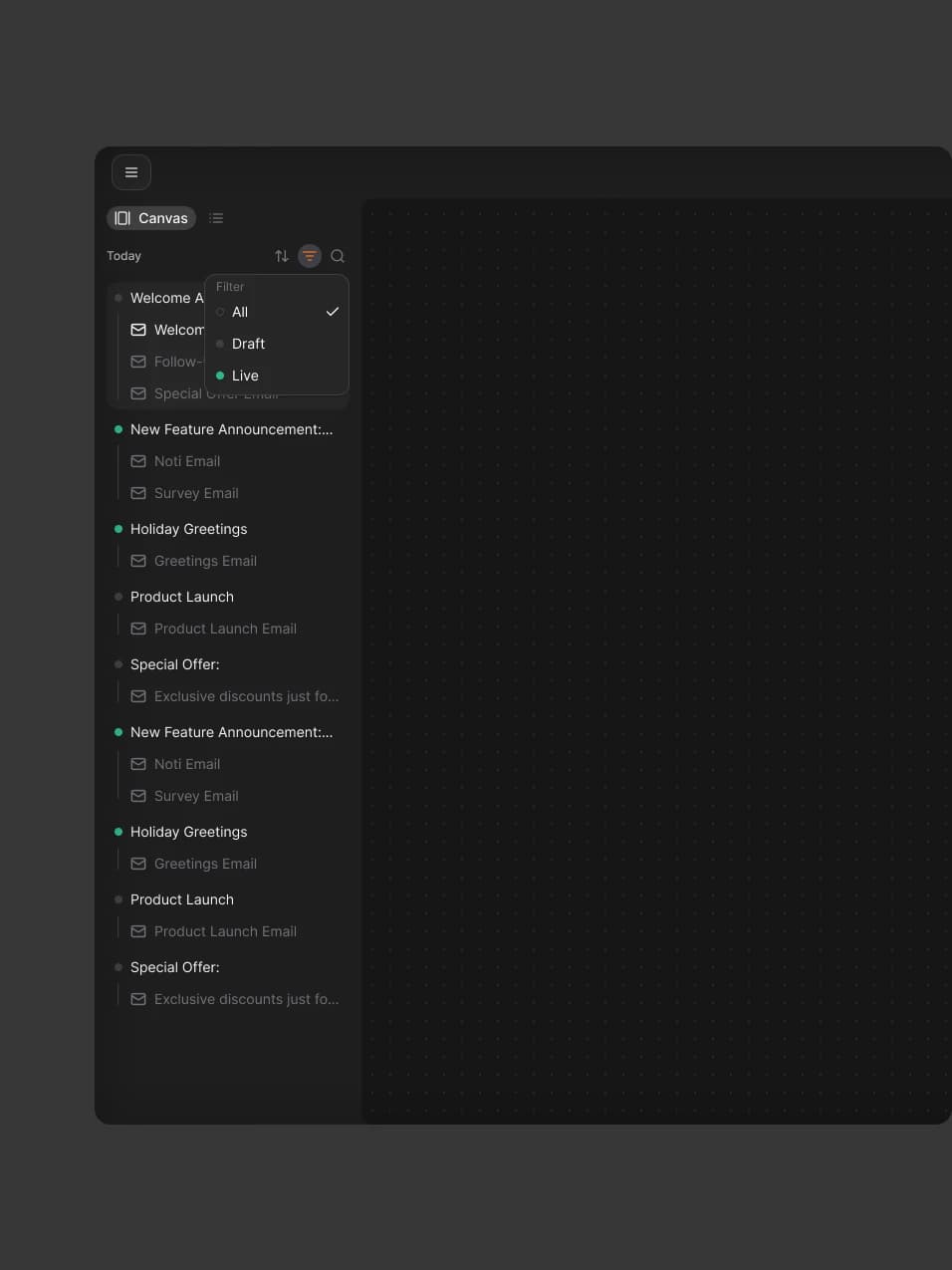
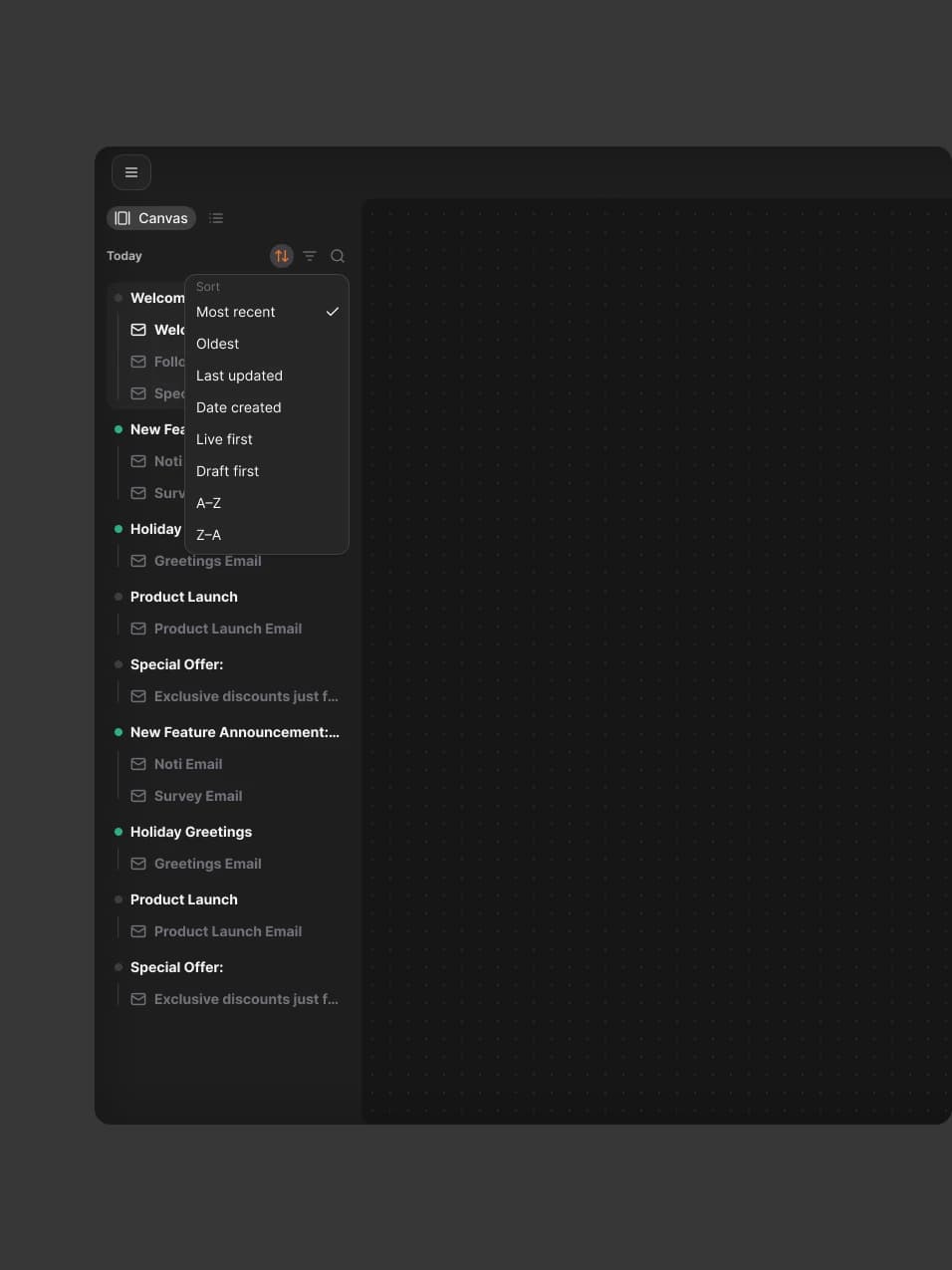
Campaigns can be read as a list alongside AI chat. Filter and sort controls make it easier to separate drafts from live work and find an email to continue, without relying on the order in which AI created it.
Campaign Canvas
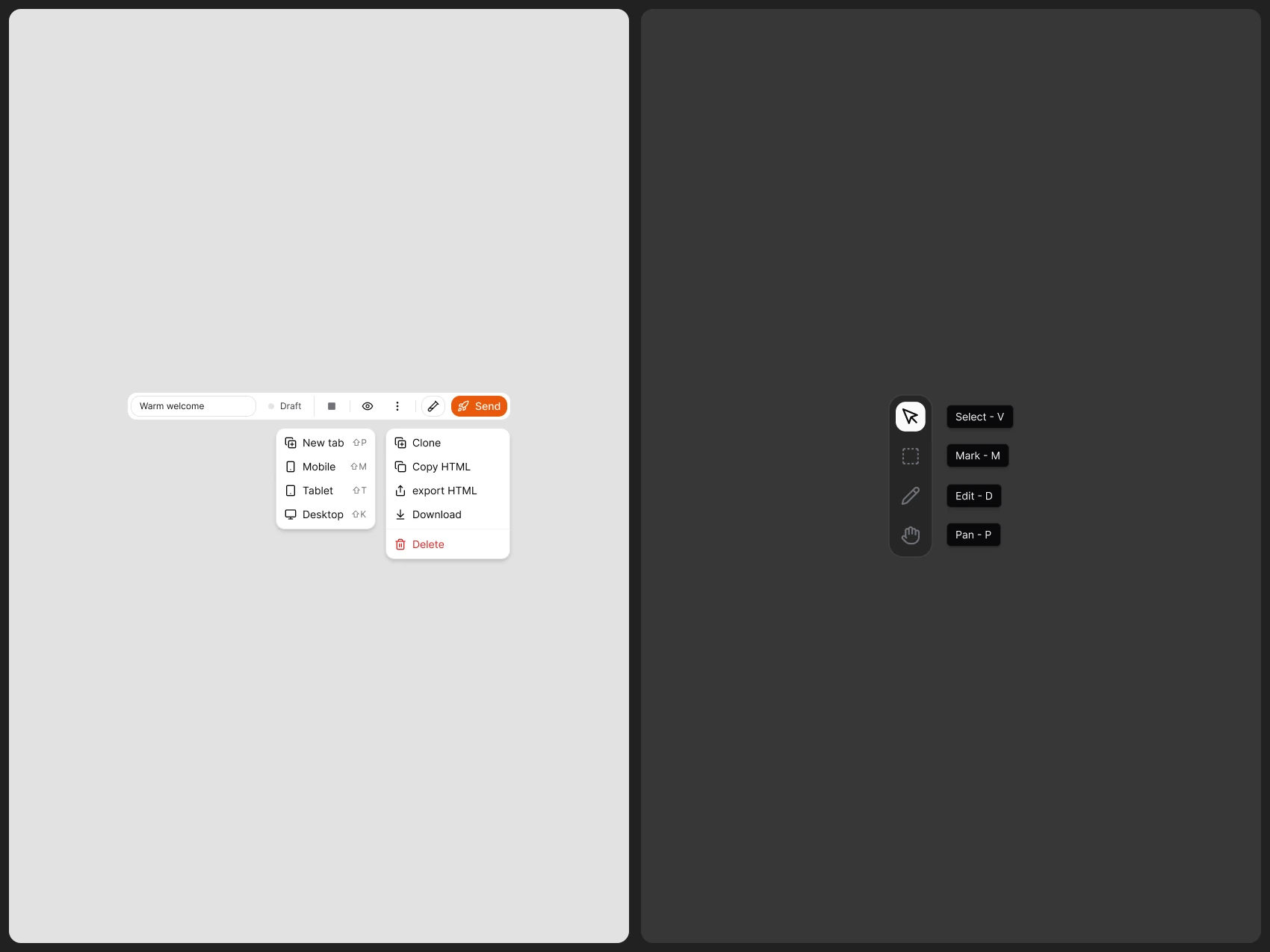
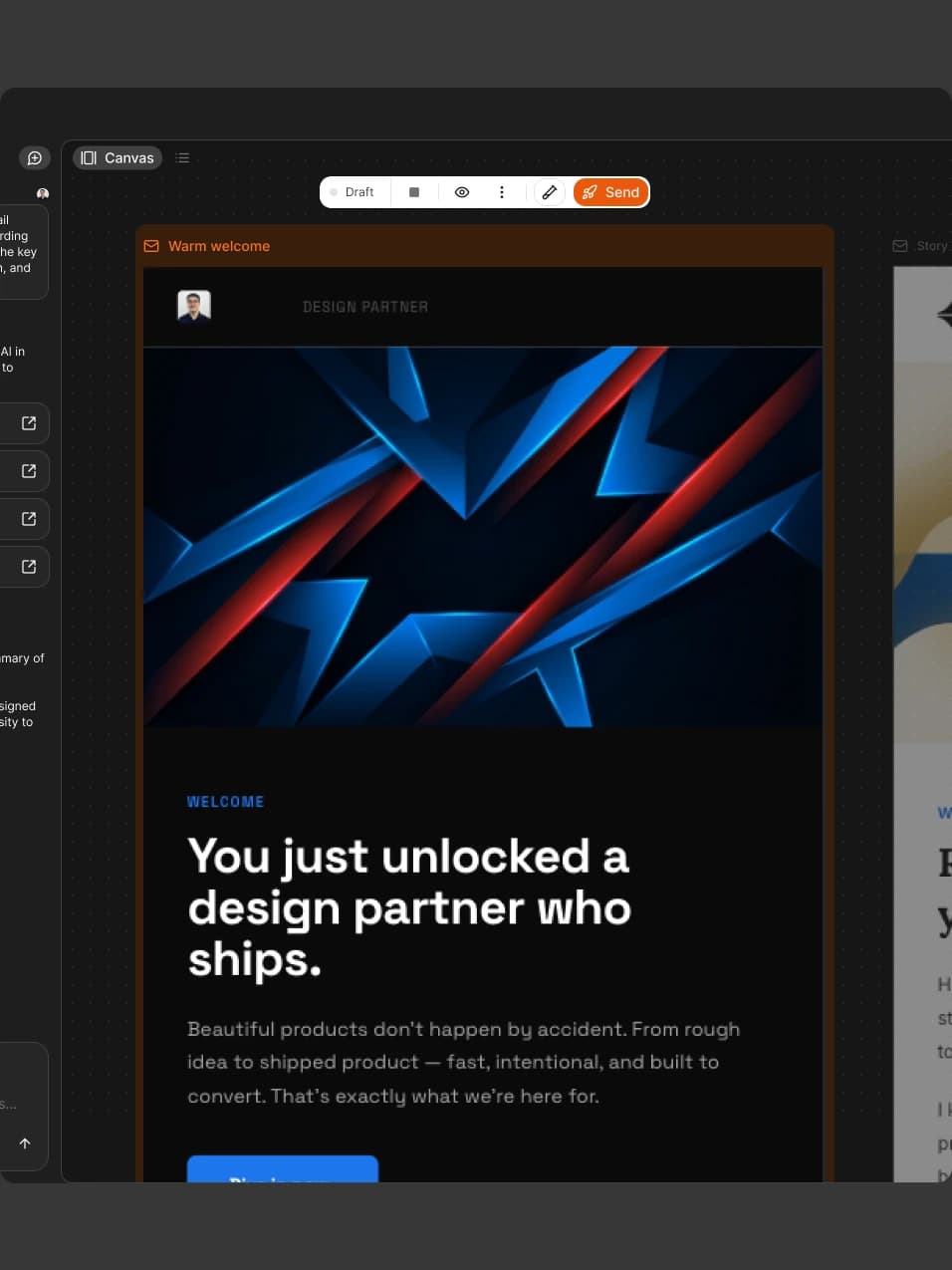
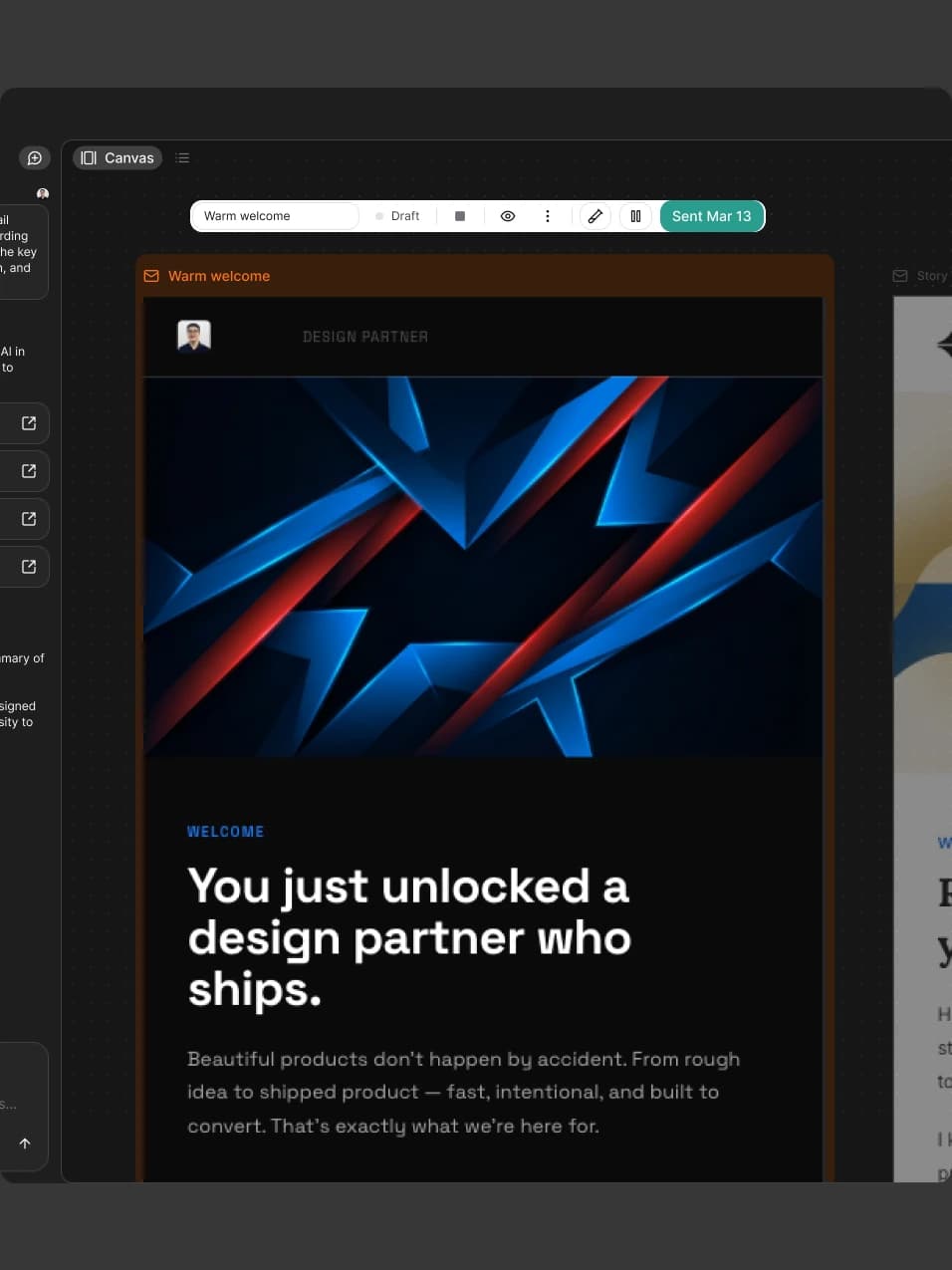
The canvas includes Select, Mark, Edit, and Pan tools. Selecting an email element highlights it in the prompt, so people can describe a precise edit. The right panel groups key actions for draft and live emails: preview, open preview in a tab, send, copy or download HTML, duplicate, and delete.
Giving AI a Precise Editing Context
Selecting an email group on the canvas brings that selection into the prompt as visible context. People can refer to the work they want to change instead of describing its position or repeating the whole brief.
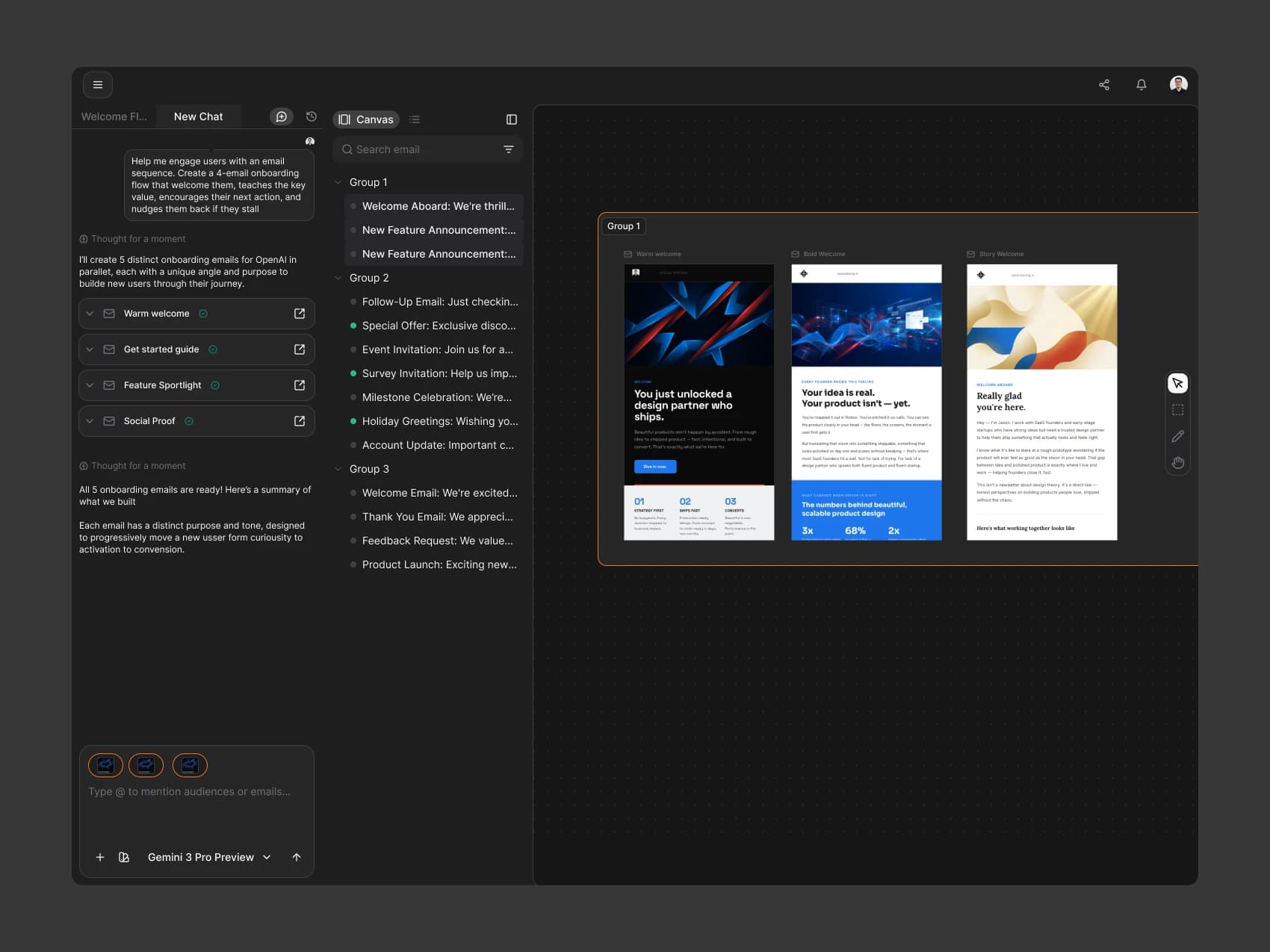
Campaign Canvas Compositions
These compositions show how the email canvas presents generated content alongside the conversation that created it.
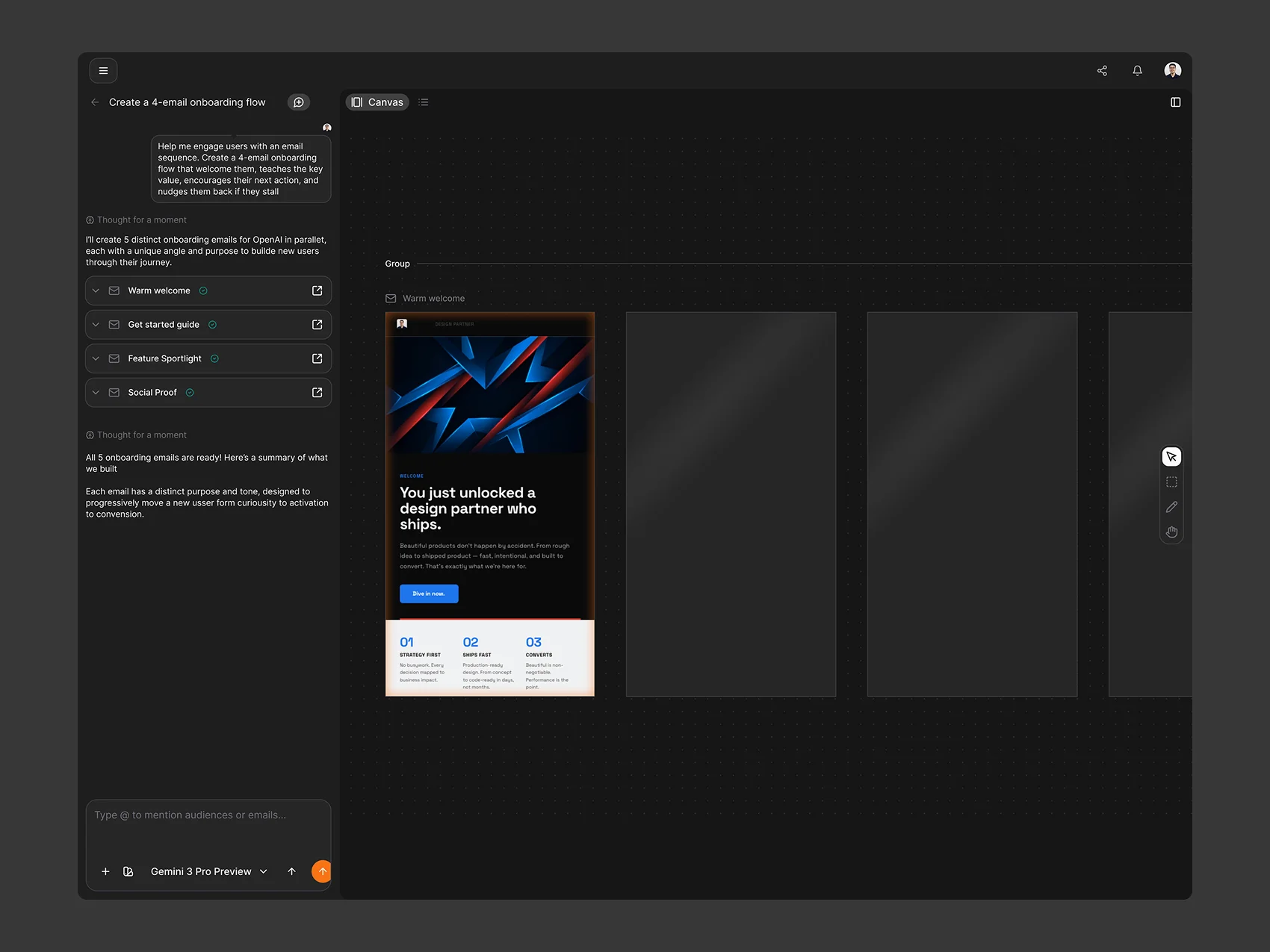
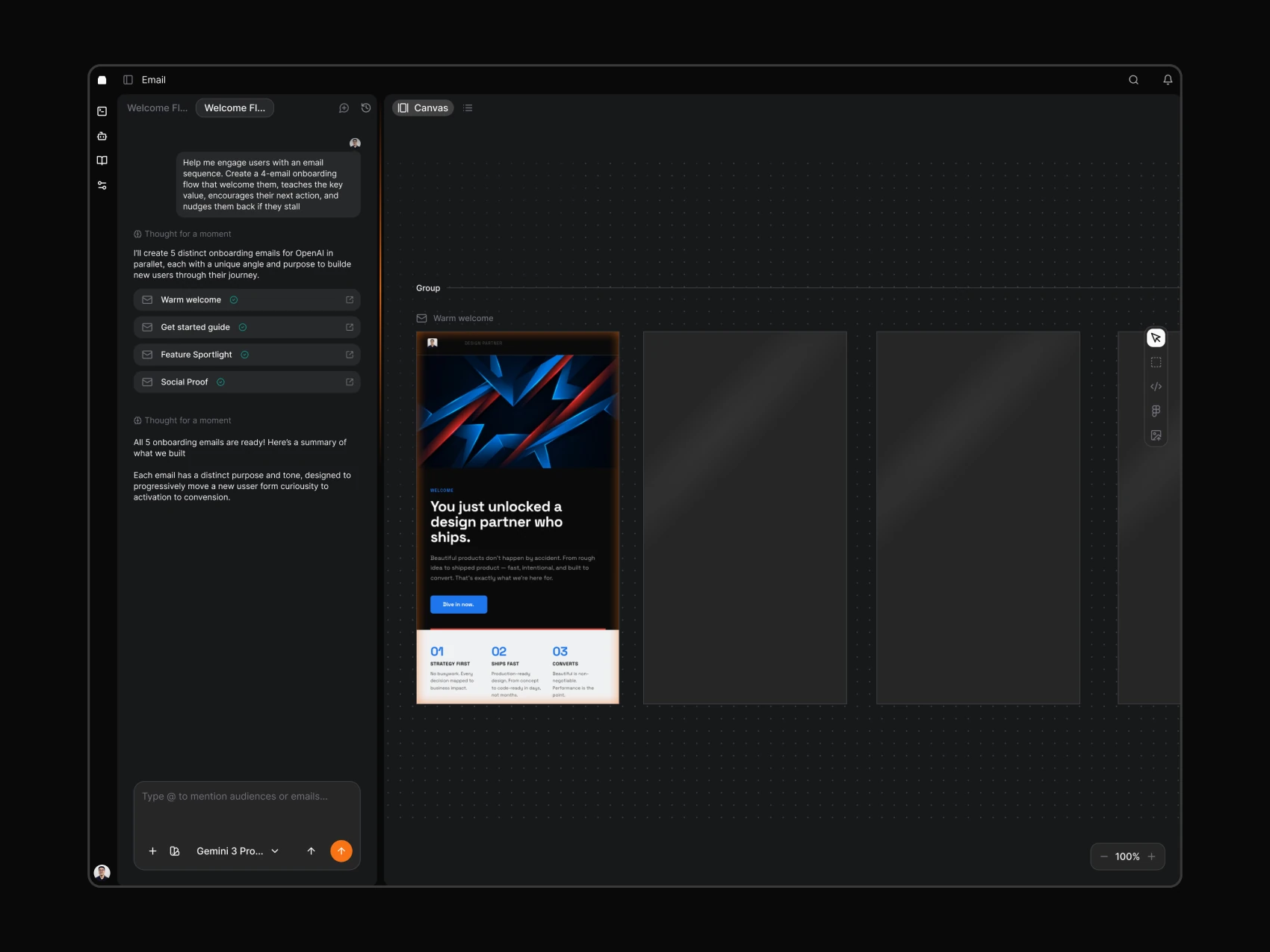
Automation in Human Language
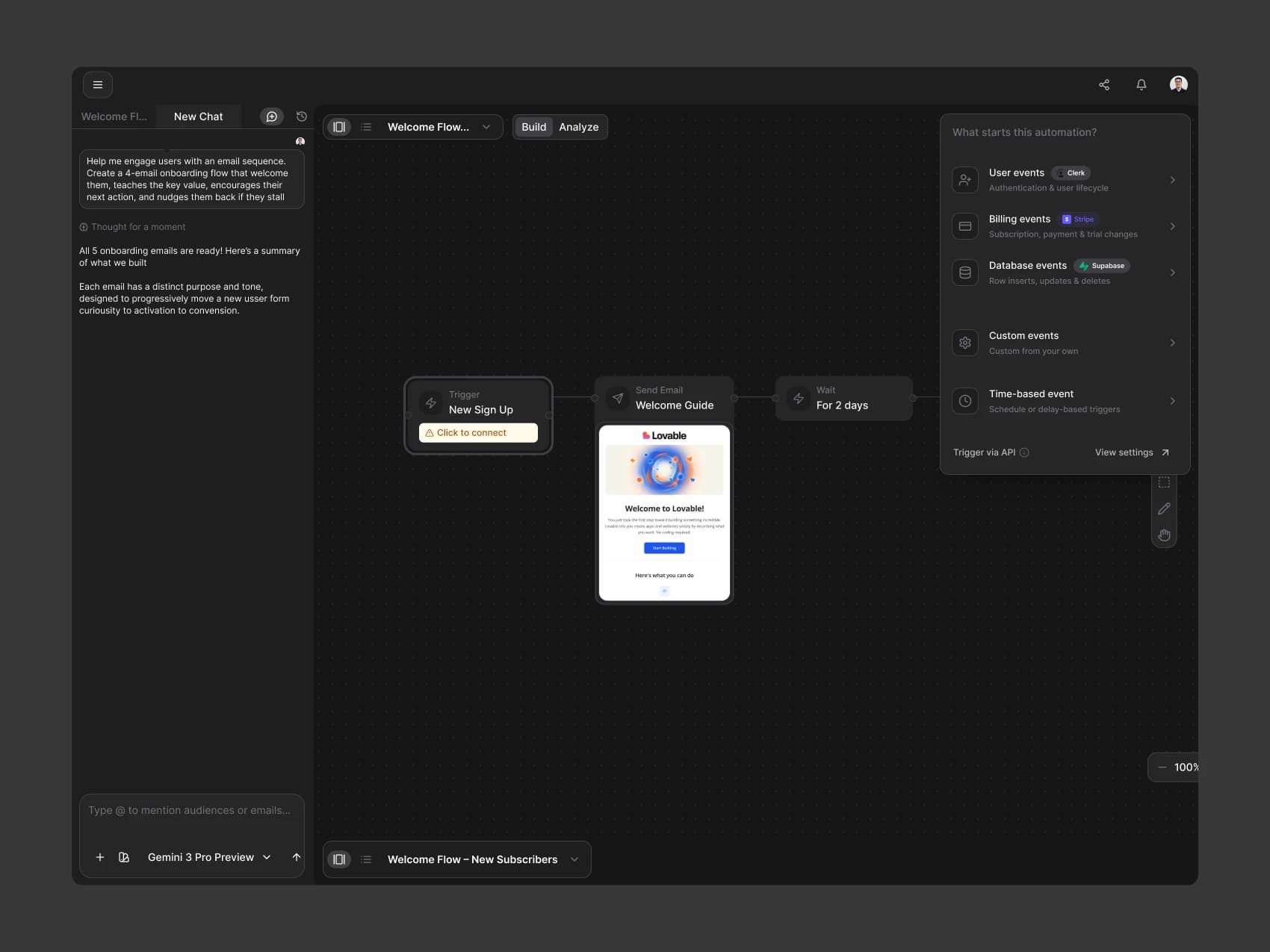
People think, “when someone does X, send Y,” not in terms of triggers. Brew suggests triggers as clear sentences, groups actions and flow control, and builds conditions from a subject, operator, and value. Each condition explains itself in plain language, while the Send Email node includes a preview.
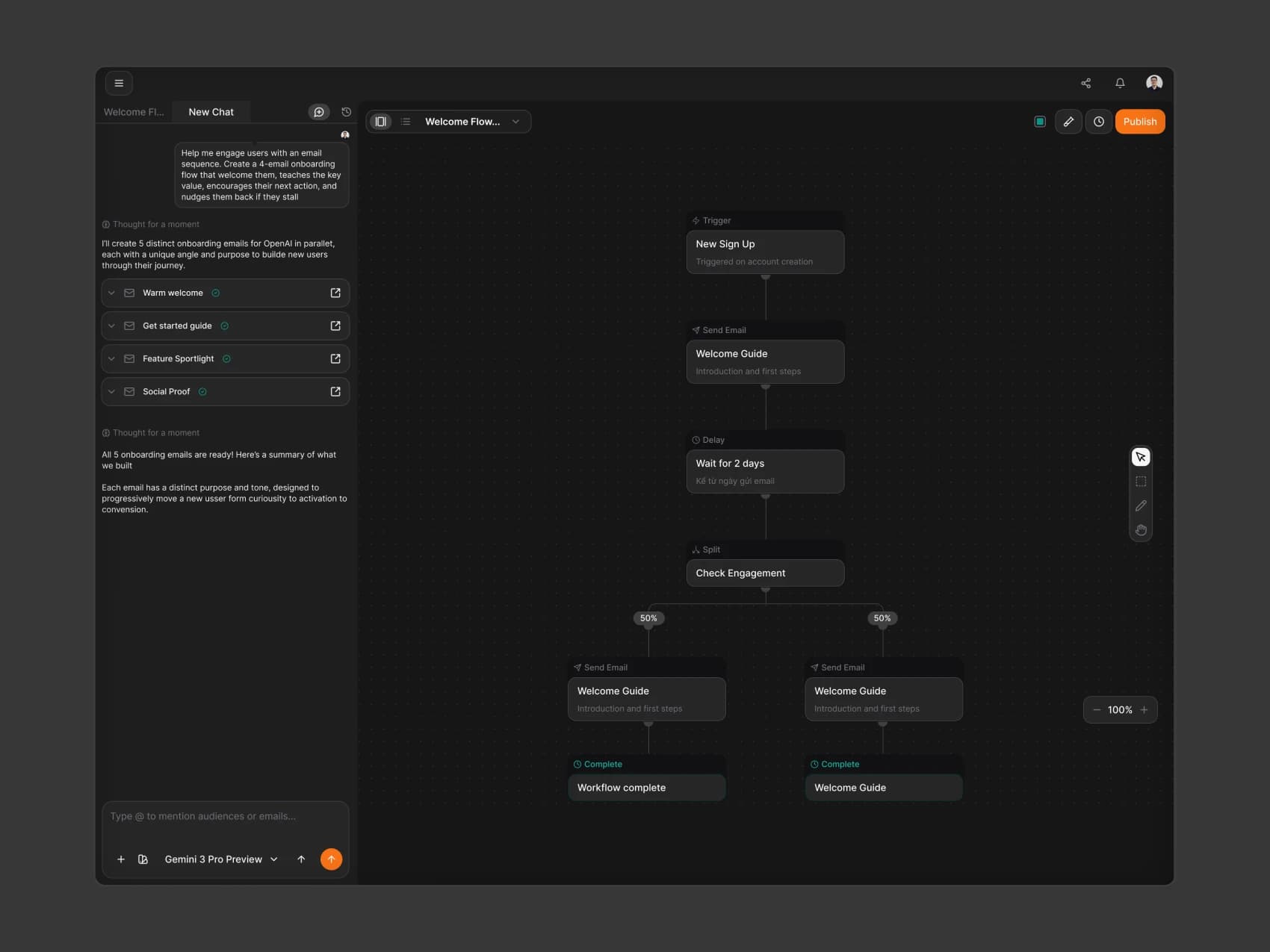
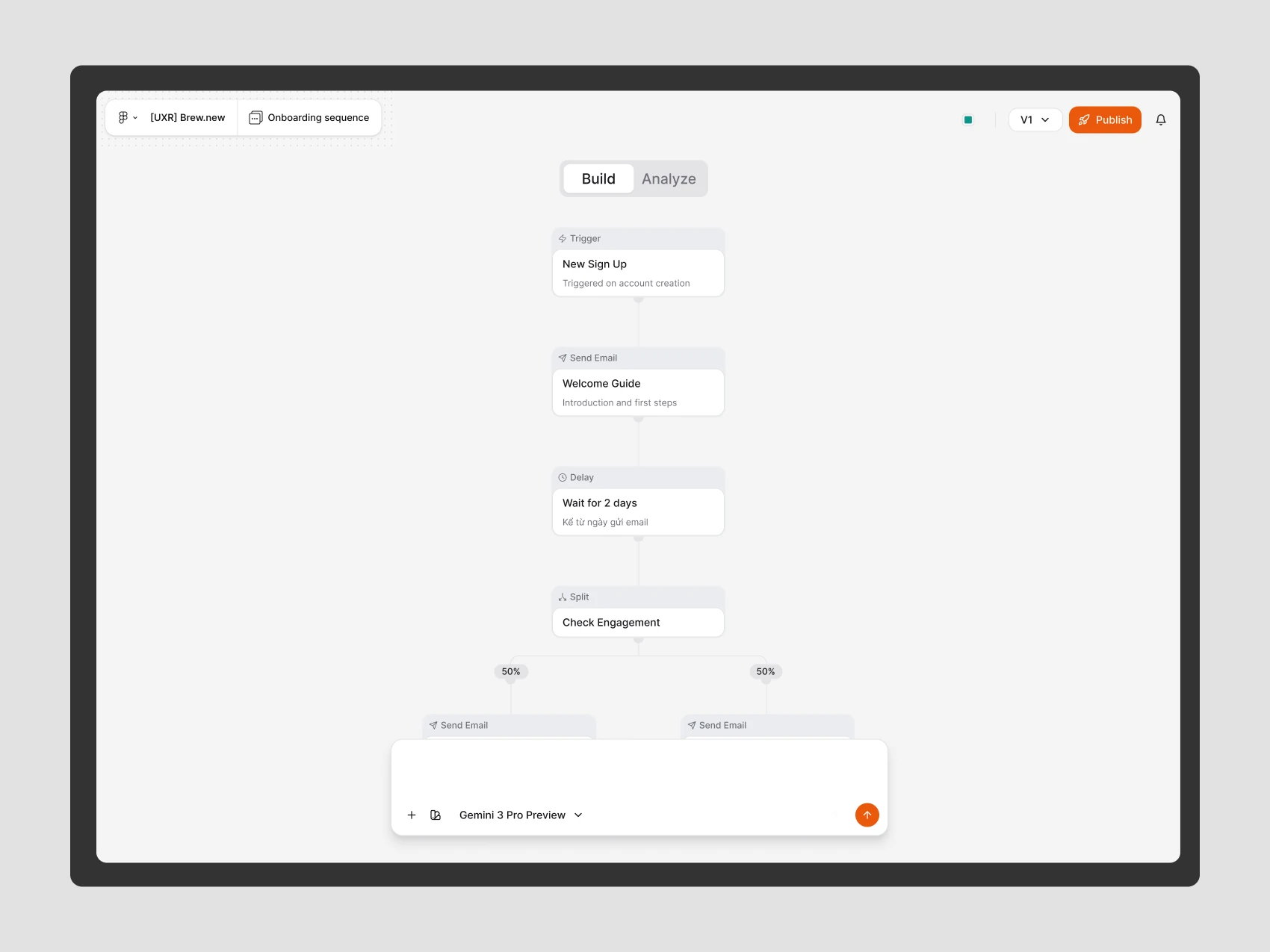
Building an Automation with AI
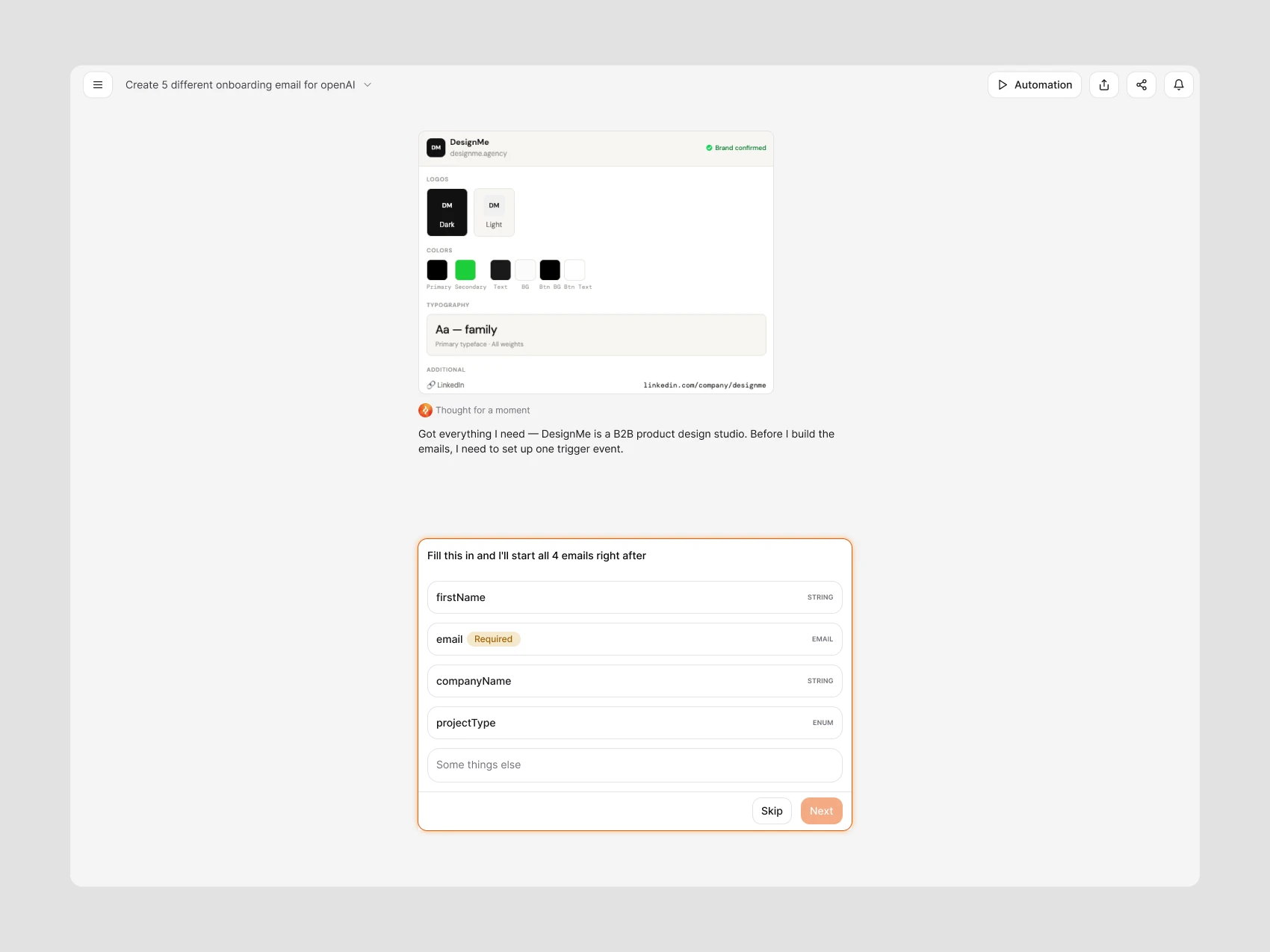
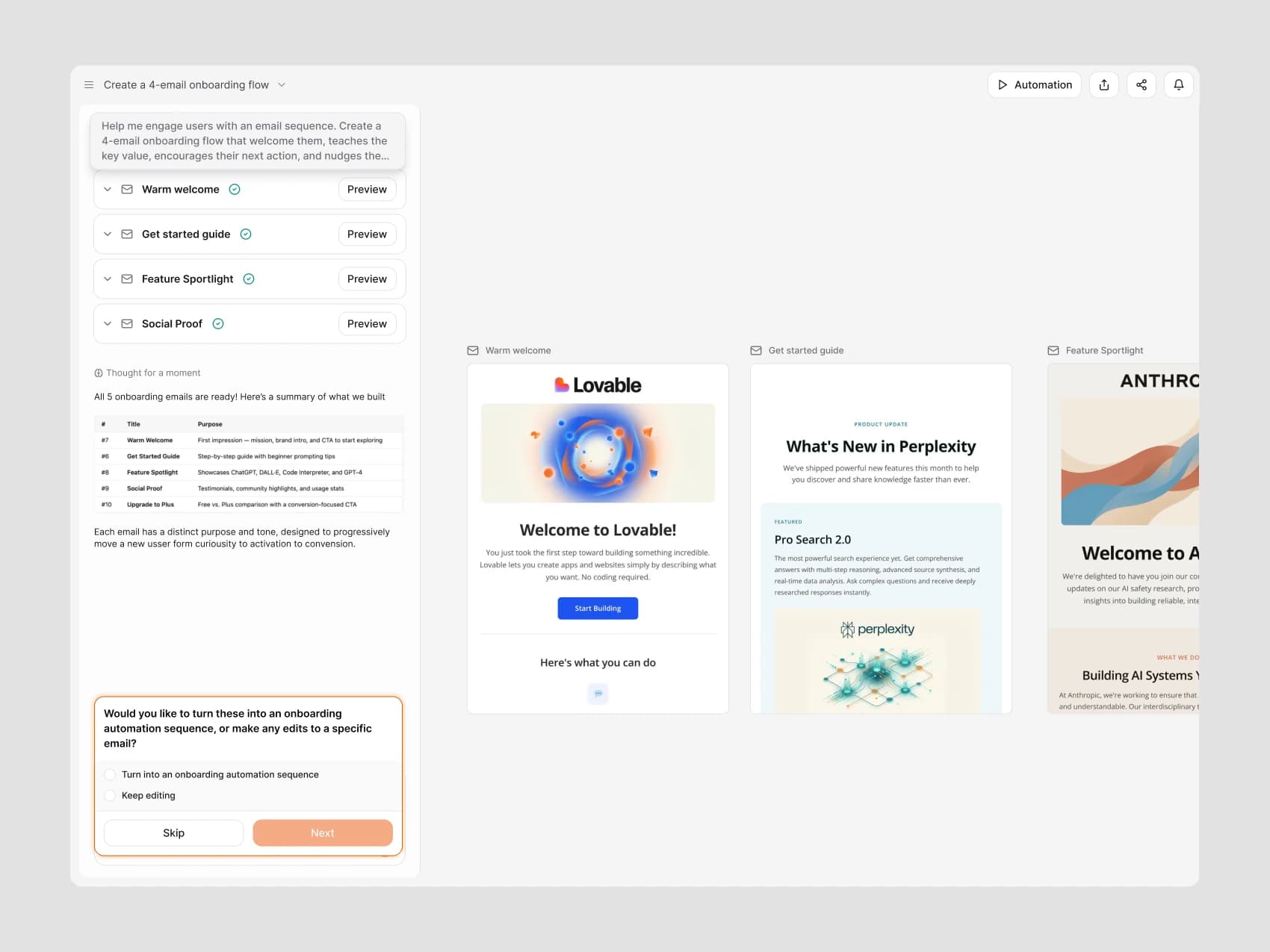
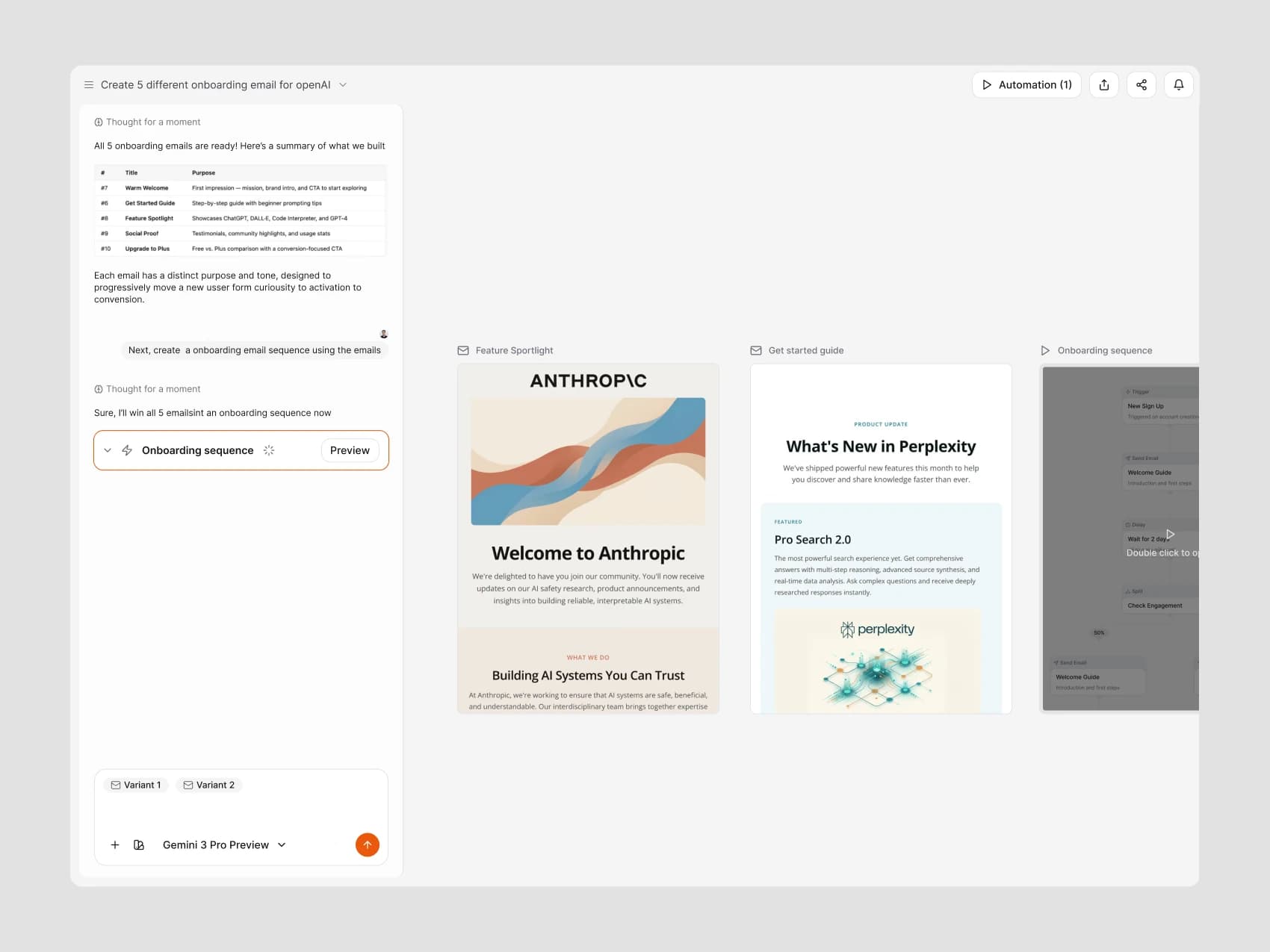
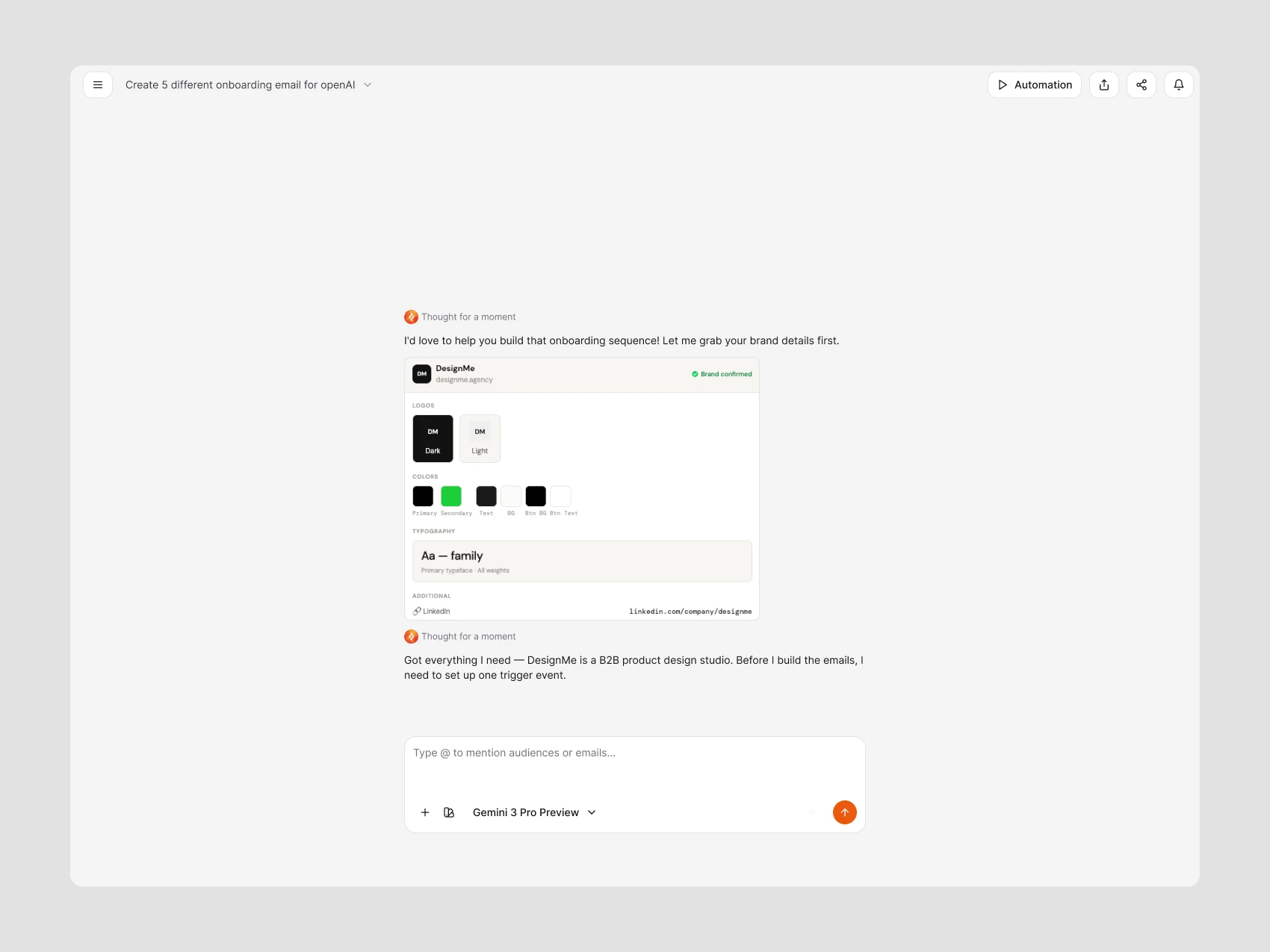
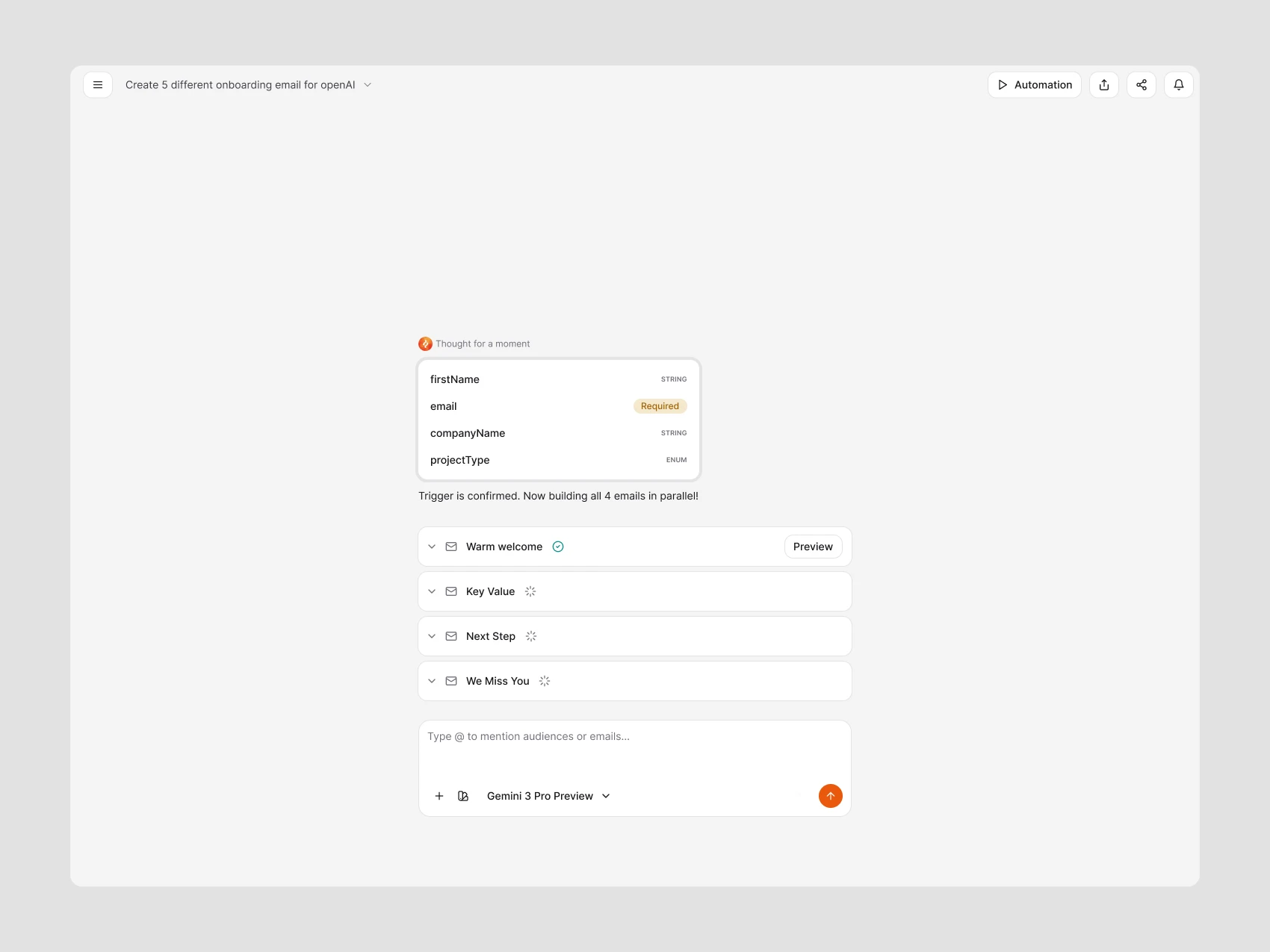
Setup makes the brand context and trigger fields explicit before AI creates the sequence. After the email drafts are generated, the conversation offers a choice: keep editing the emails or turn them into an onboarding automation. The resulting sequence remains connected to the chat that created it.
Brand Context and Email Generation
Before AI builds the sequence, people review the shared brand context. Email generation then remains visible as part of the setup conversation.
Choosing What Starts a Flow
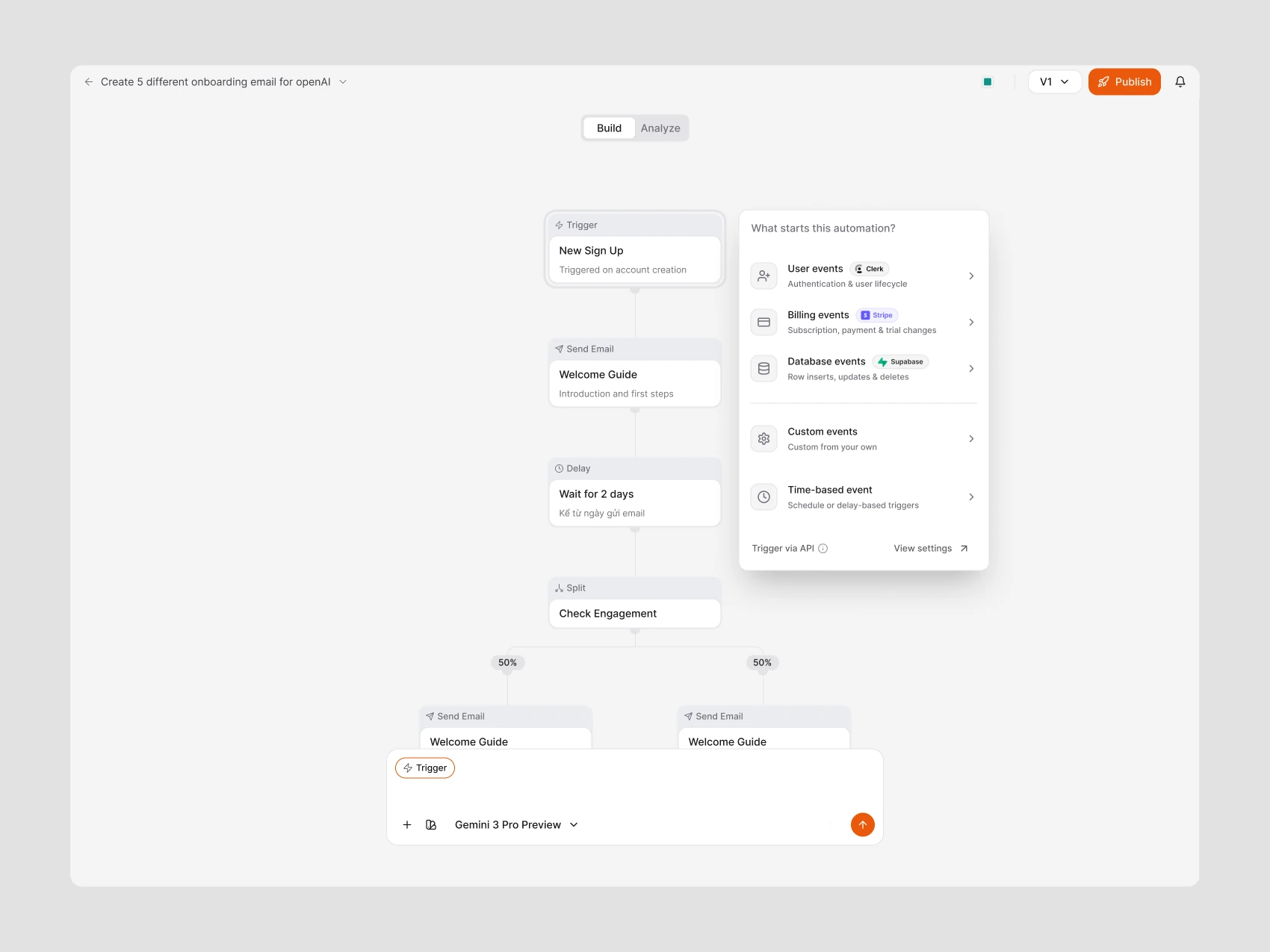
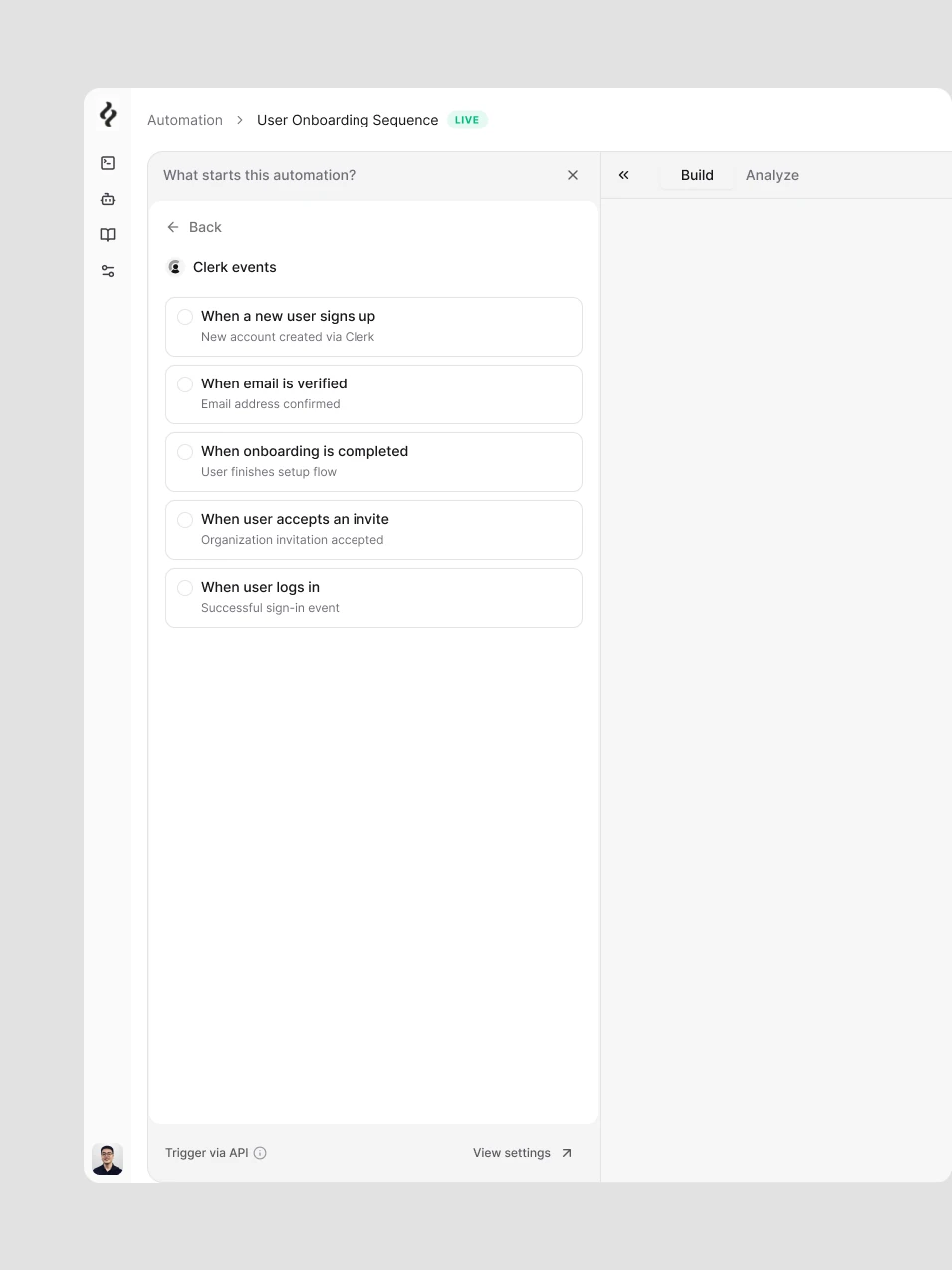
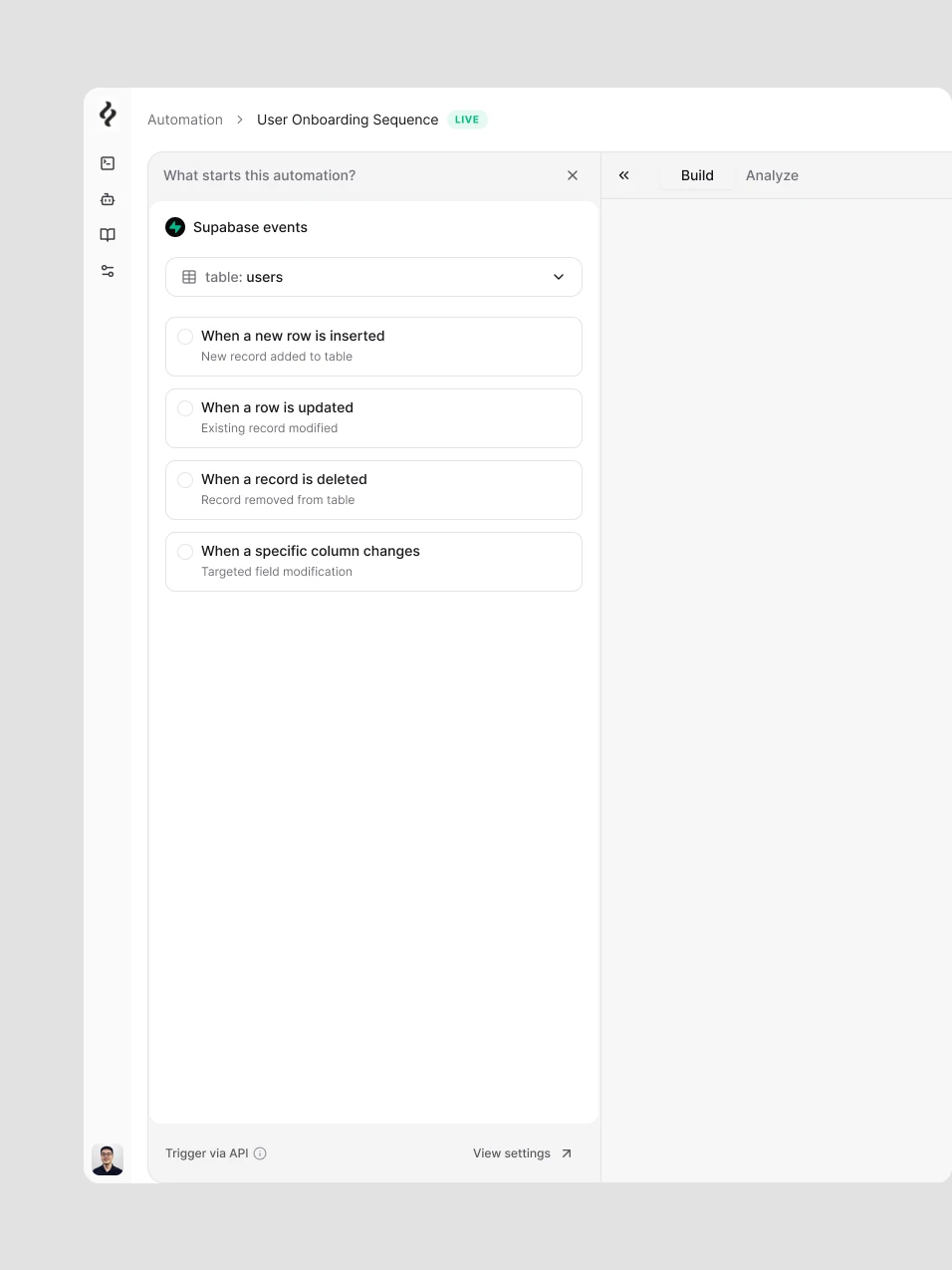
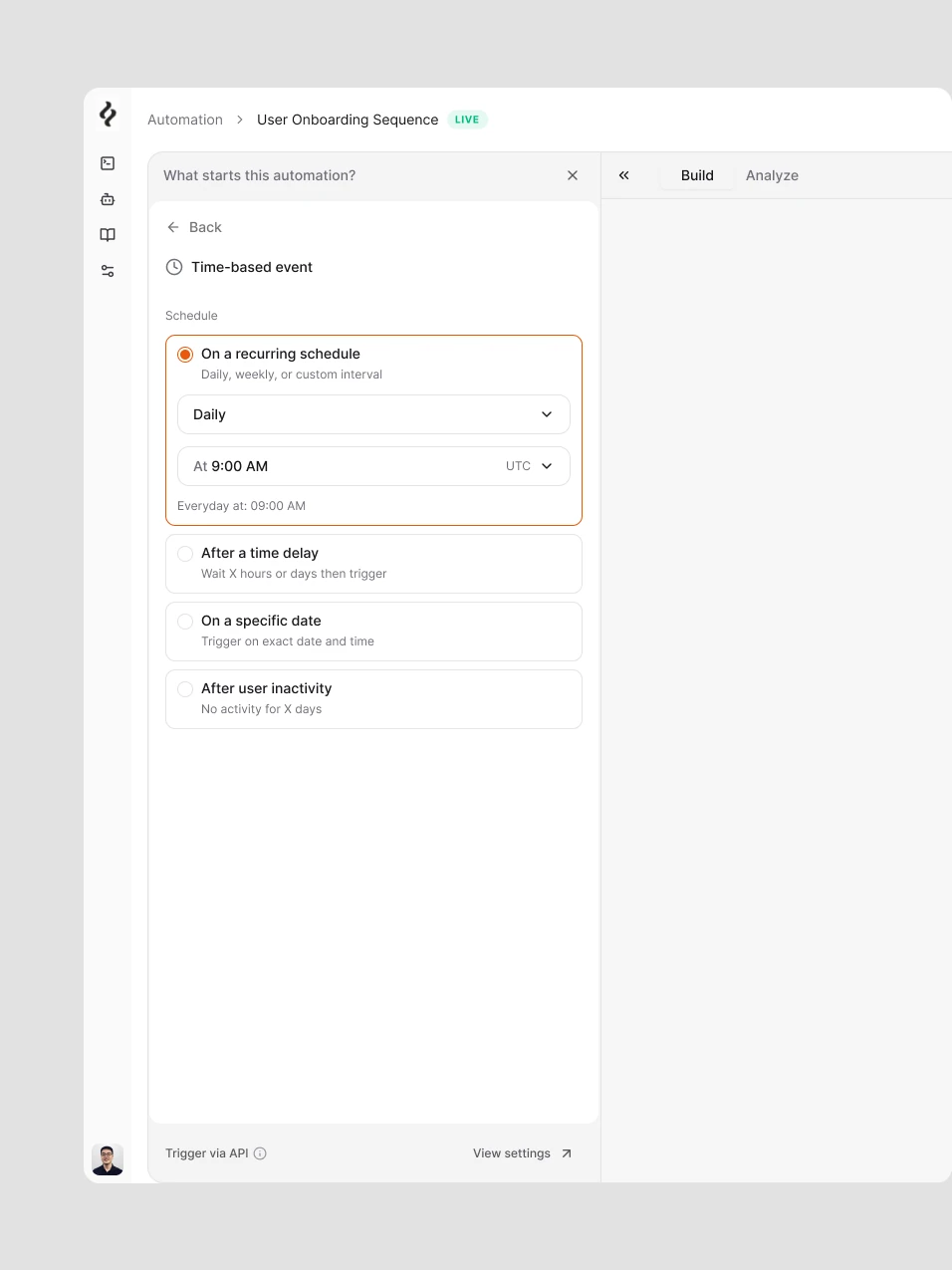
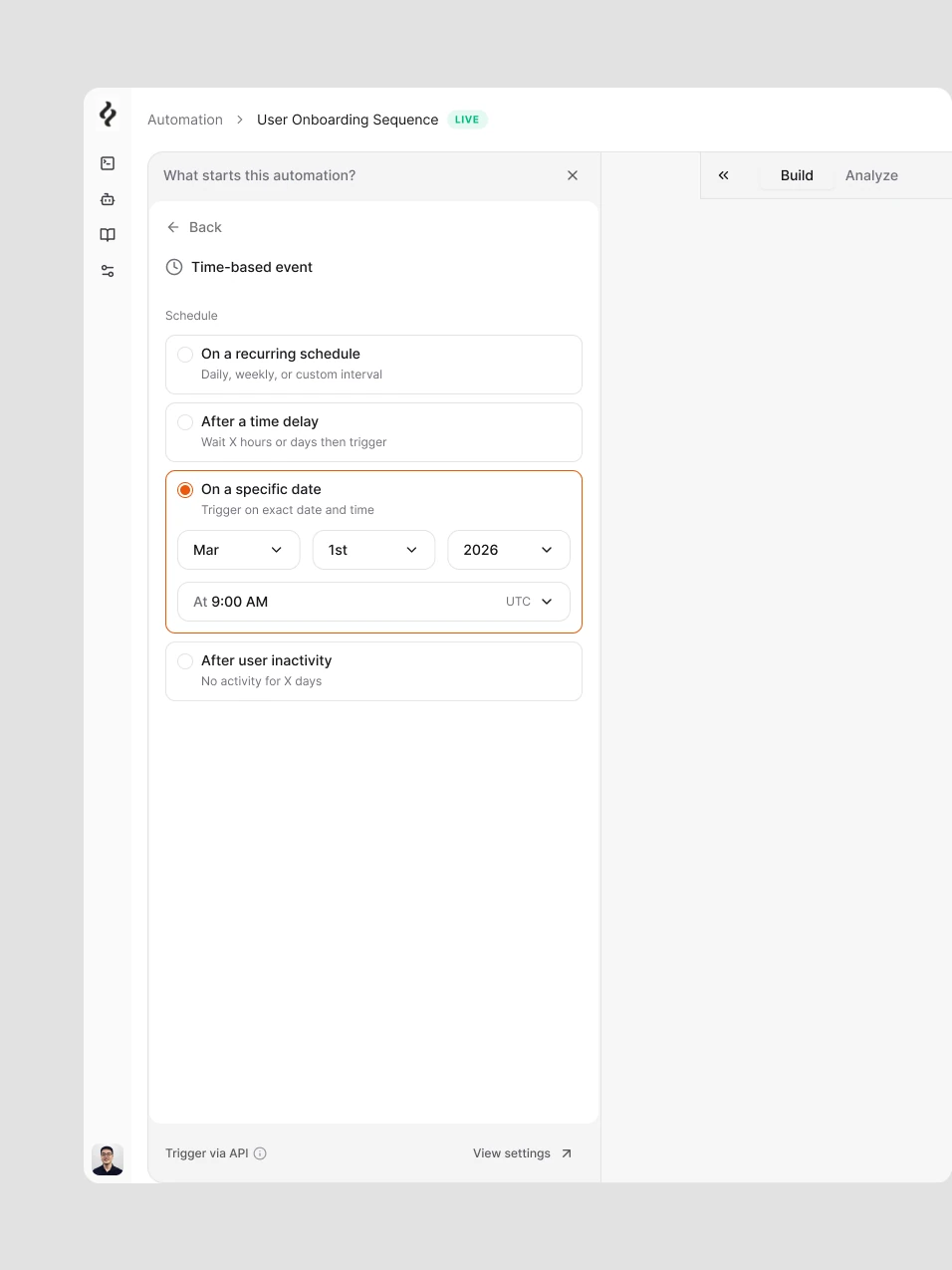
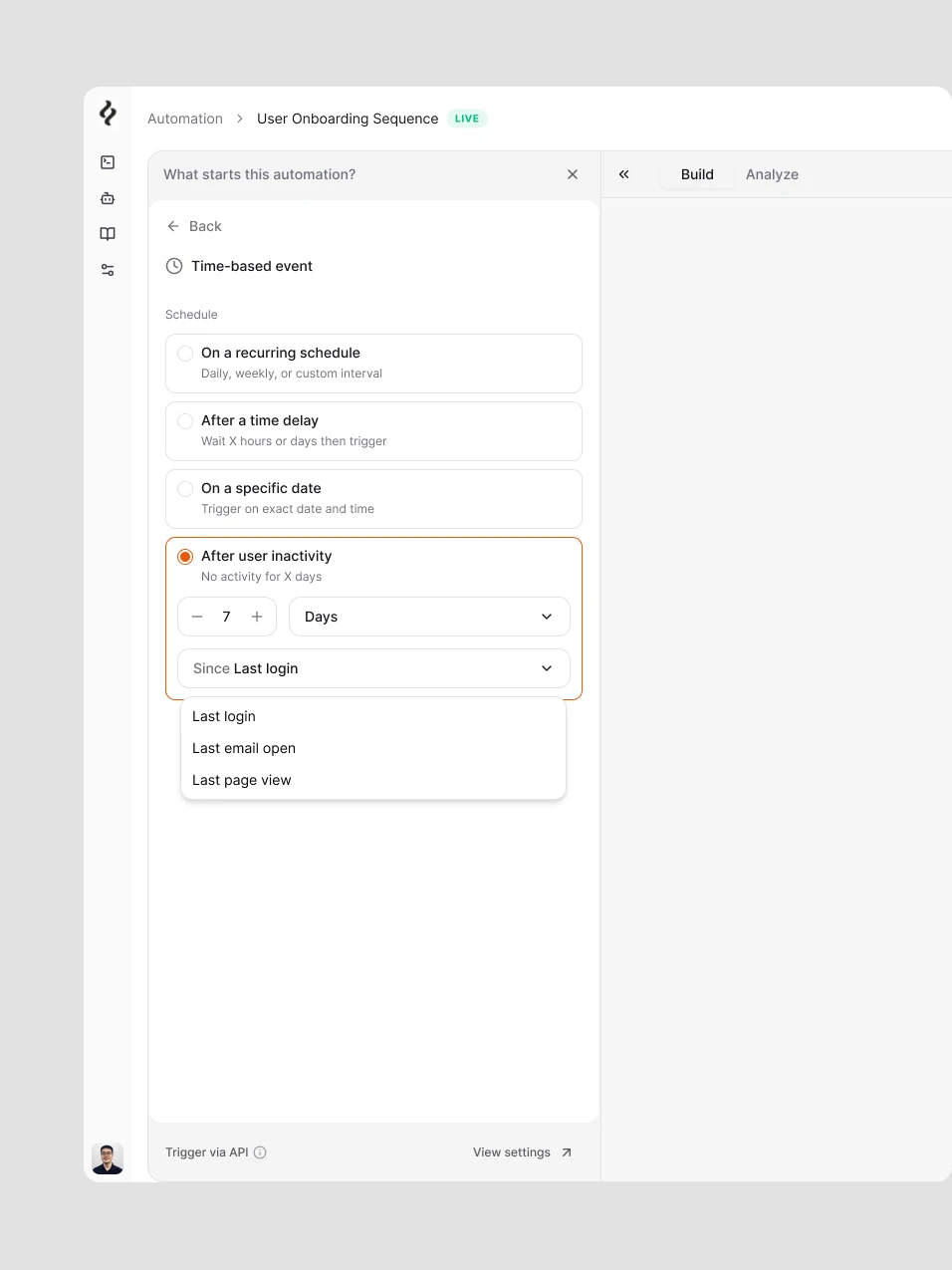
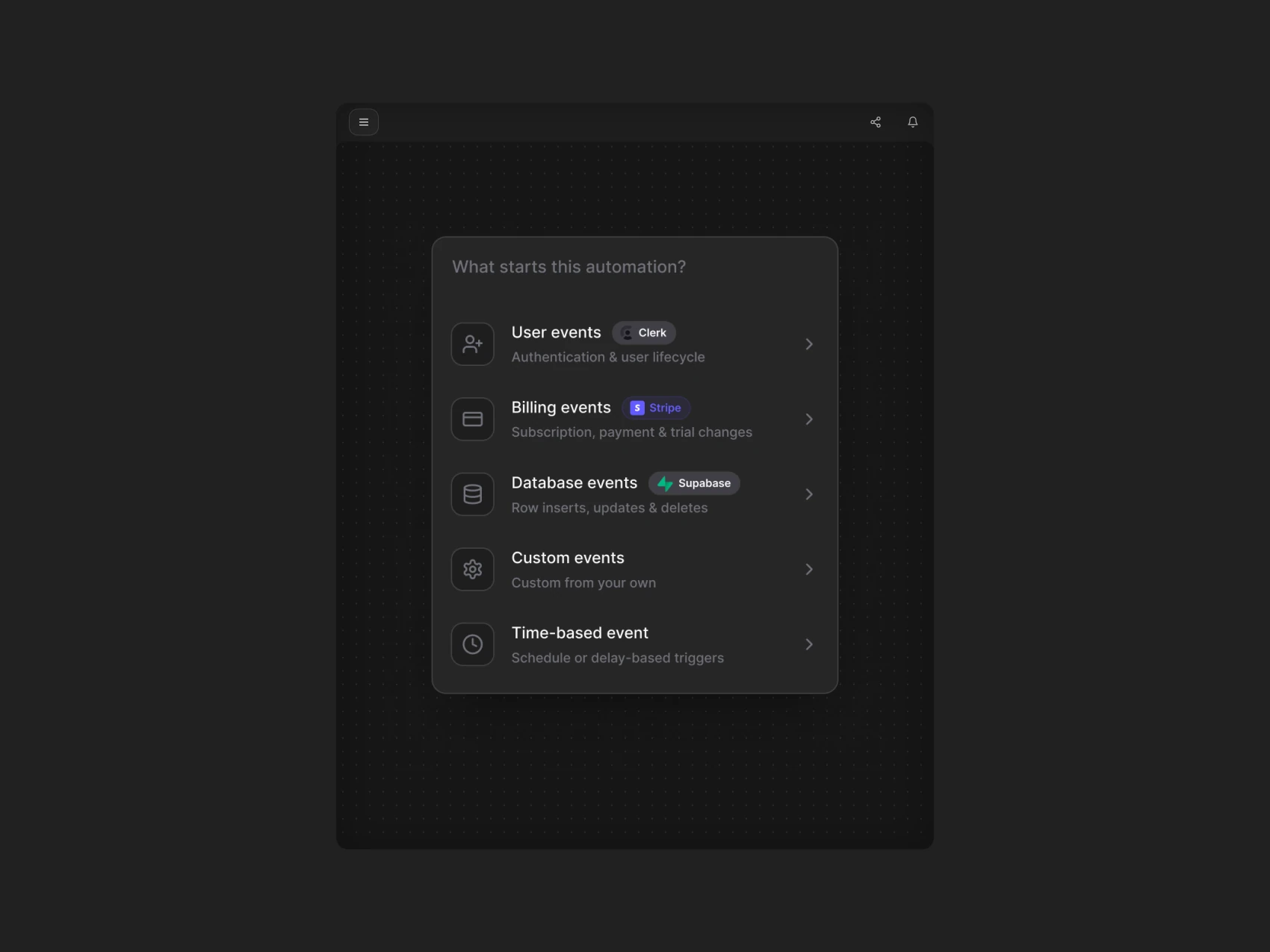
Trigger selection groups user, billing, database, custom, and time-based events. Each option uses a sentence that describes what happens. Provider-specific settings expose the relevant events and show when a connection is still needed, while schedule settings distinguish recurring, date-based, and inactivity triggers.
Provider and Time-based Triggers
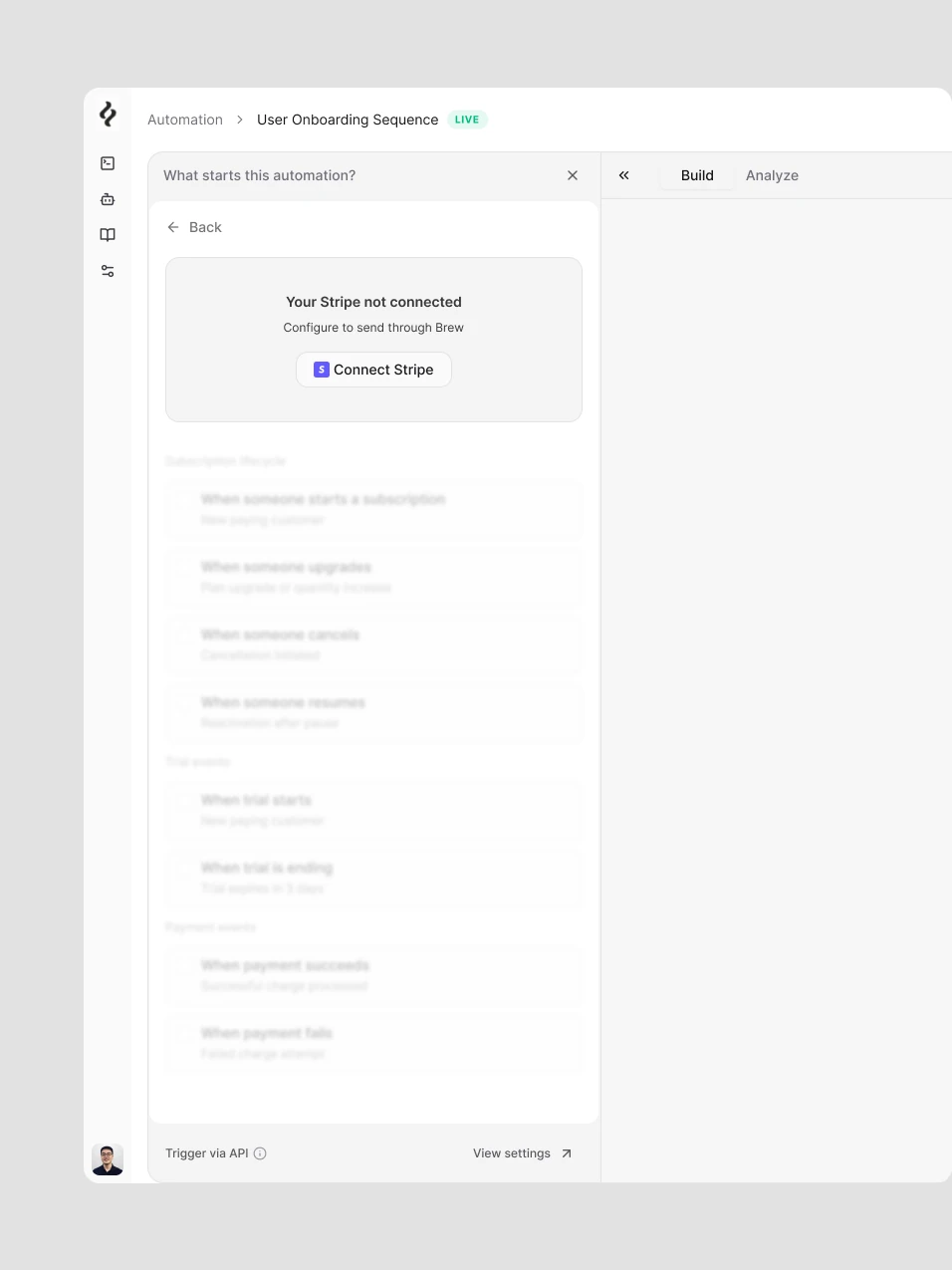
Provider settings expose relevant events and connection states. Time-based triggers distinguish recurring schedules, a specific date, and user inactivity.
Composing and Configuring Each Step
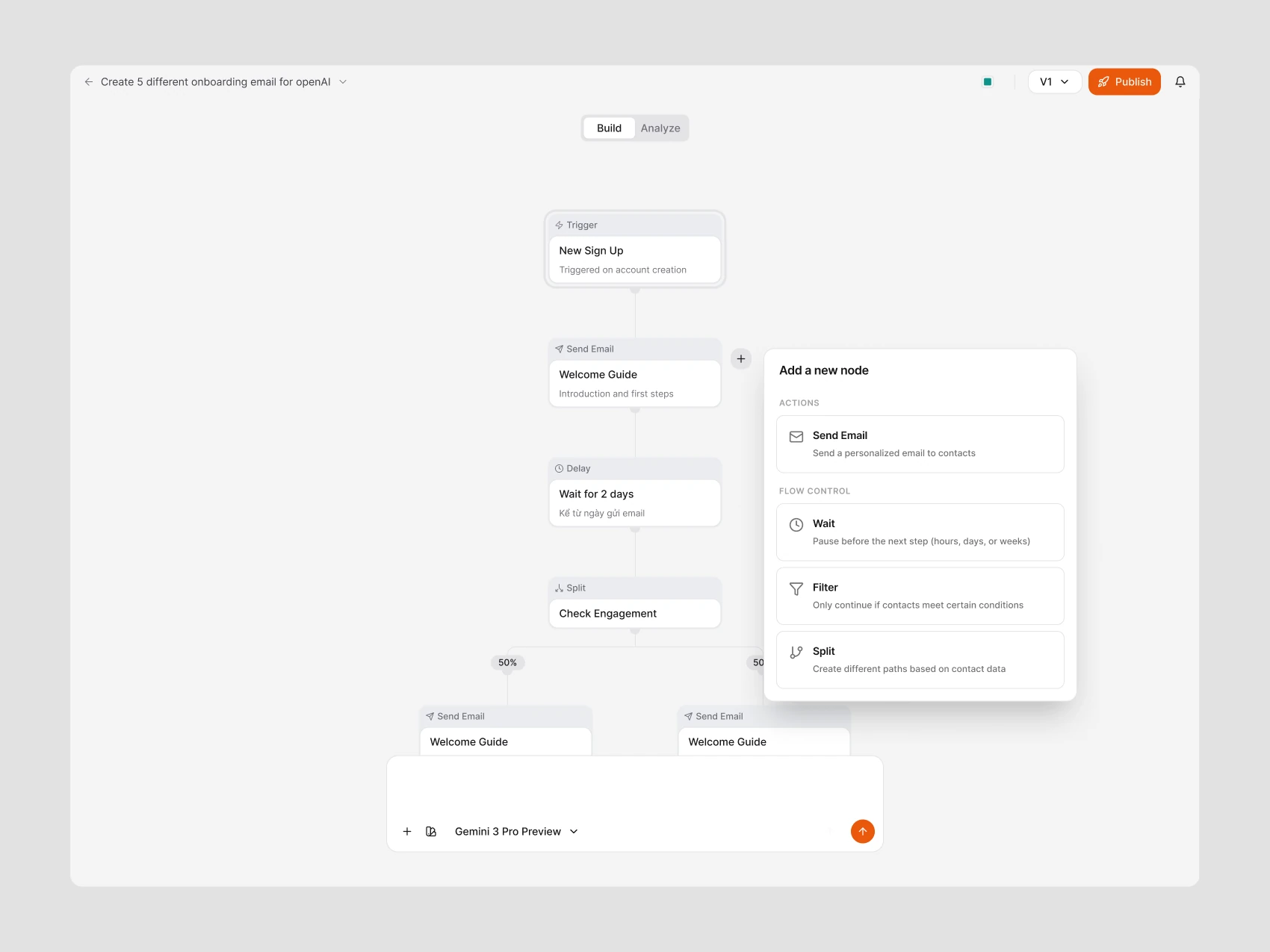
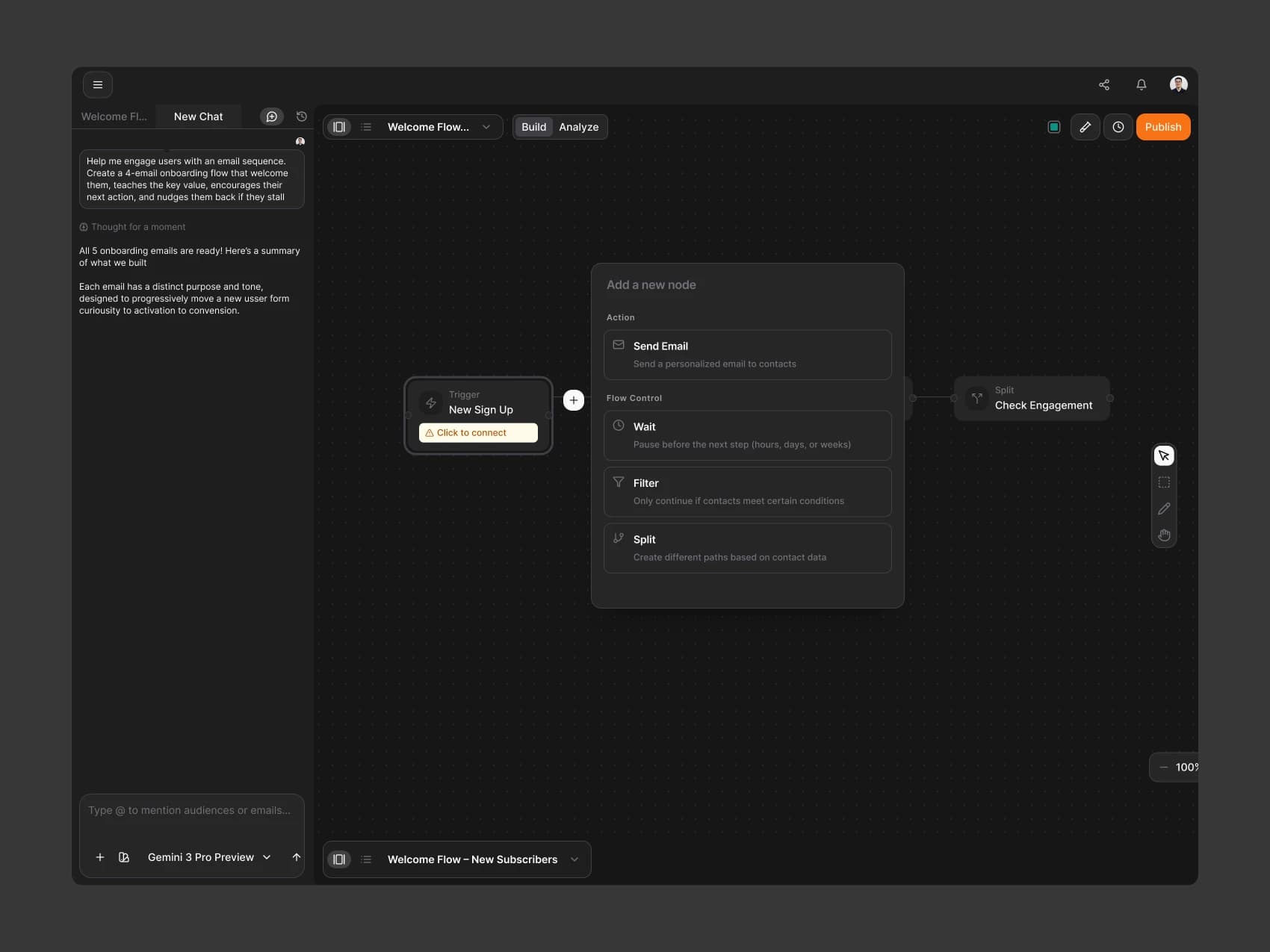
The node picker separates email actions from flow control. Send Email settings keep the sender, subject line, template, and dynamic-variable guidance together, so a person can inspect the step they are about to connect to the flow.
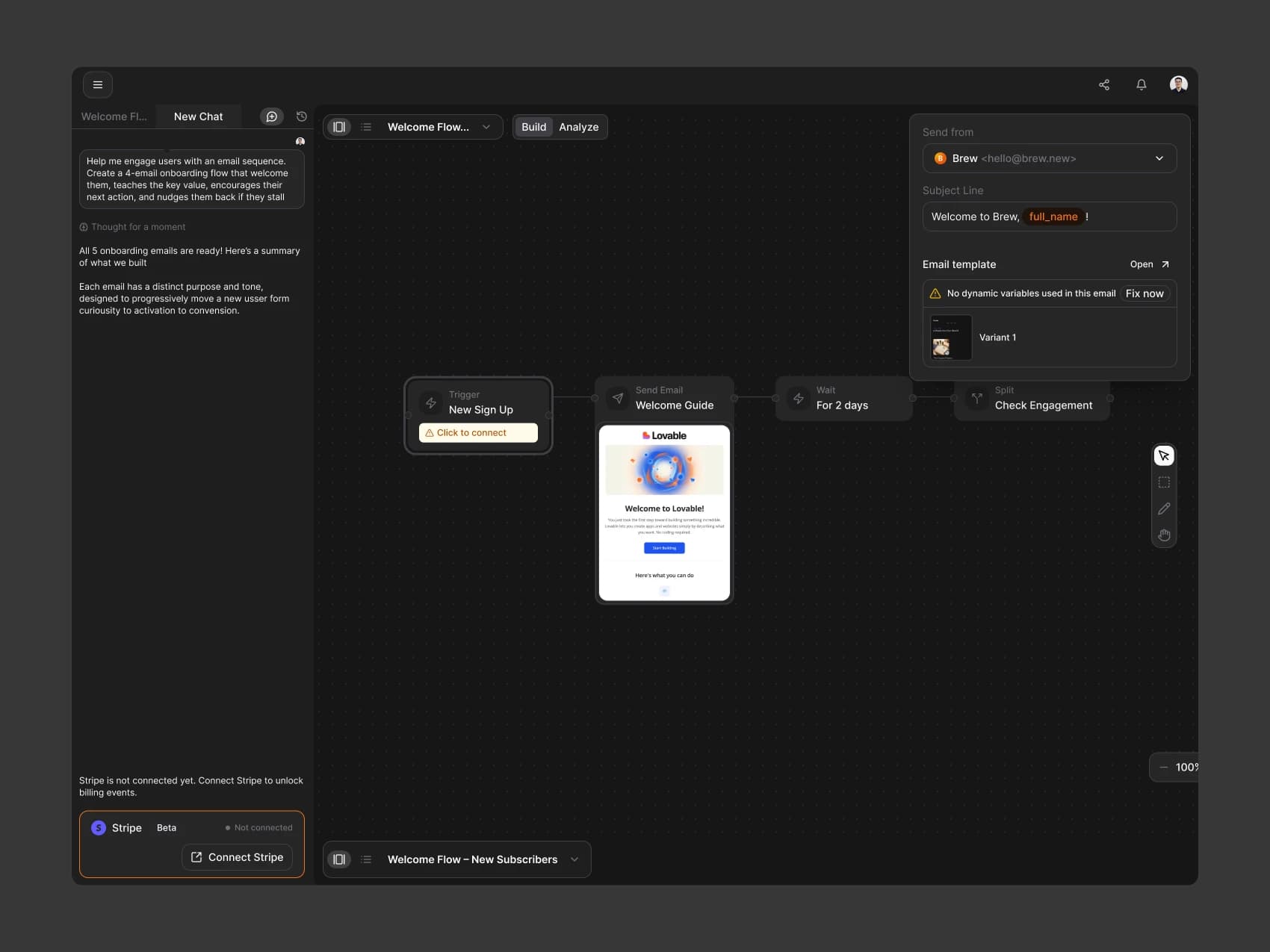
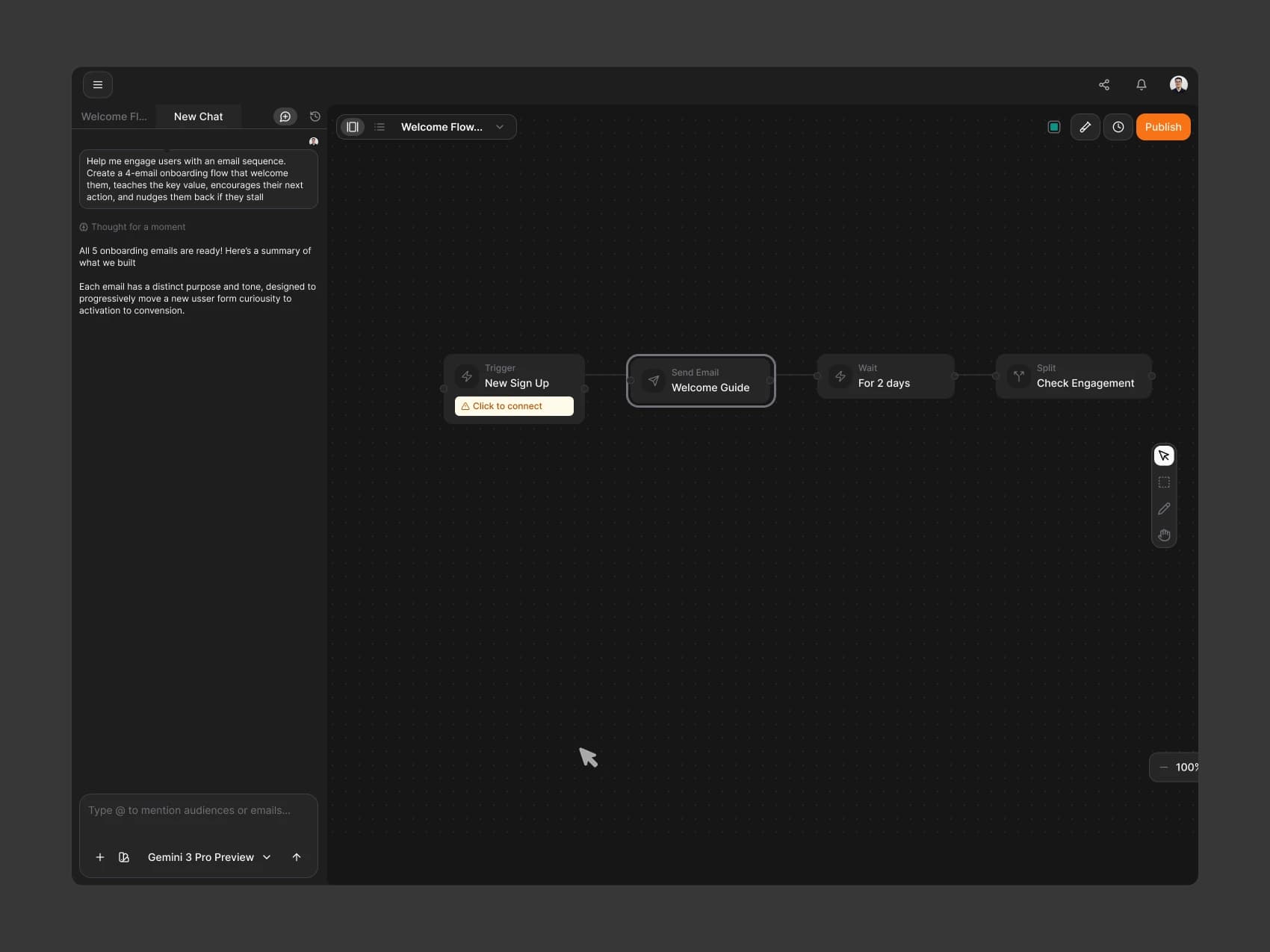
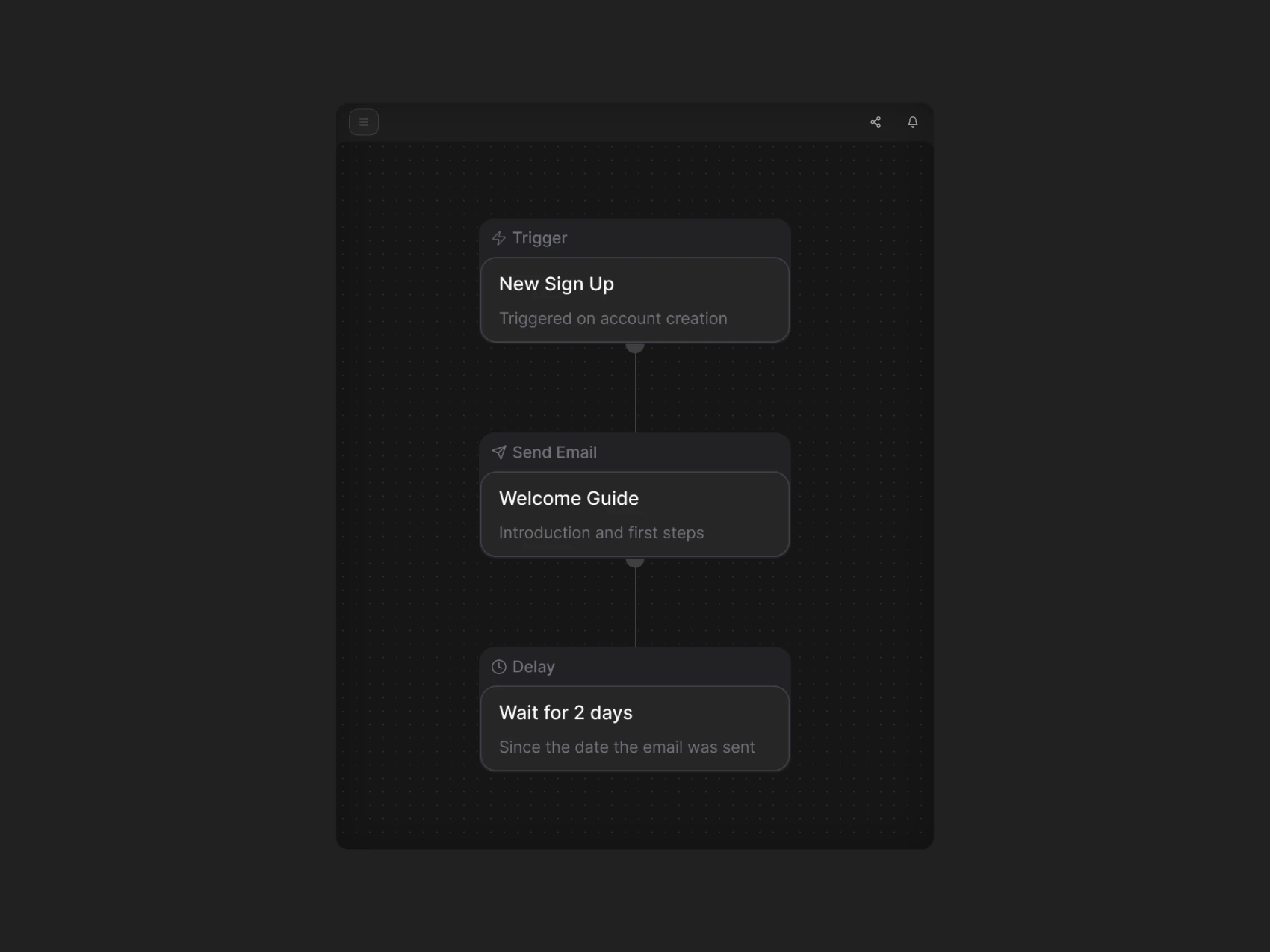
Node Picker and Workflow Details
The node picker groups available actions and flow control. The wider workflow and detail views show how those steps connect into a readable sequence.
Pre-flight Check Before Publishing
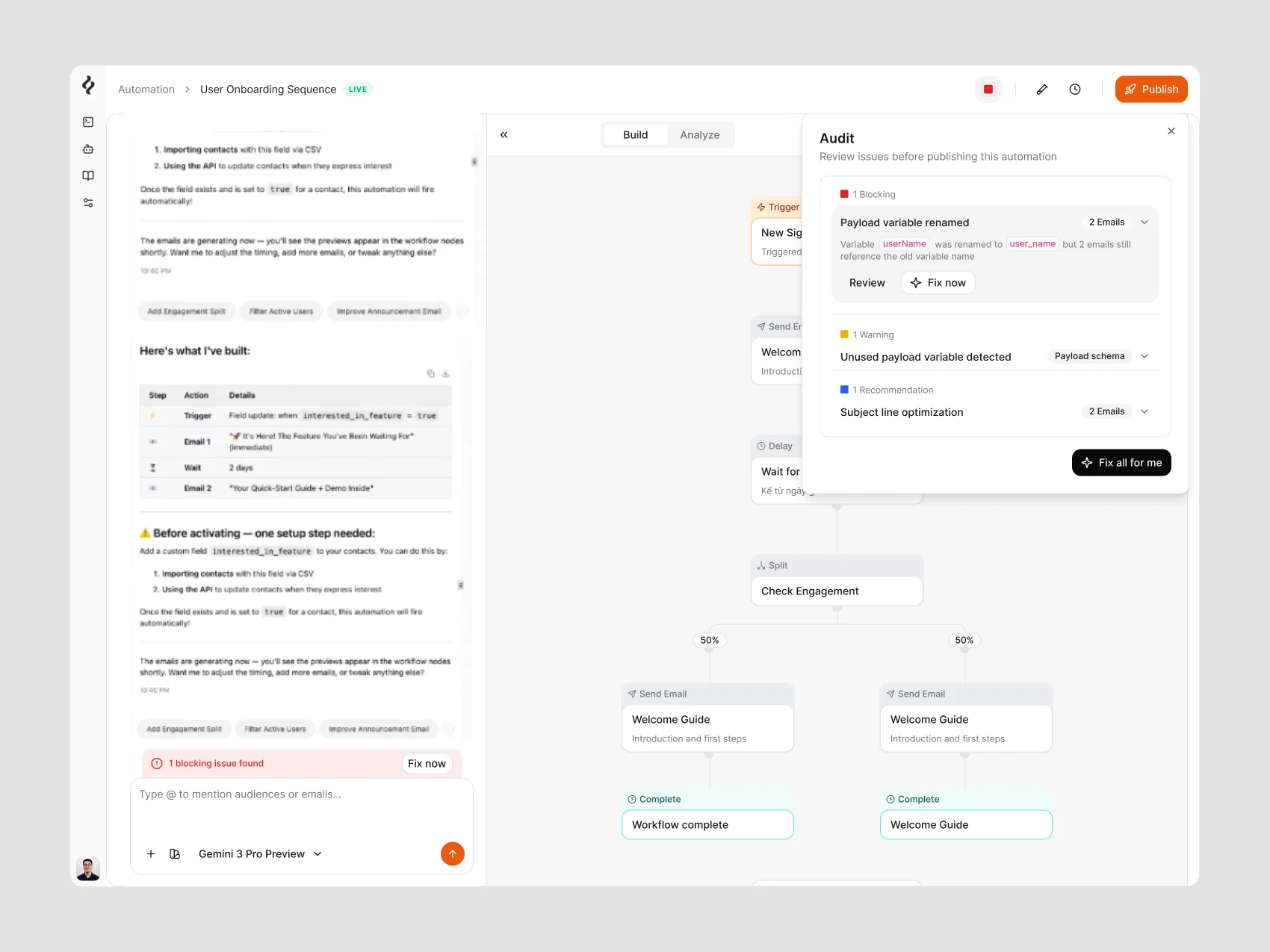
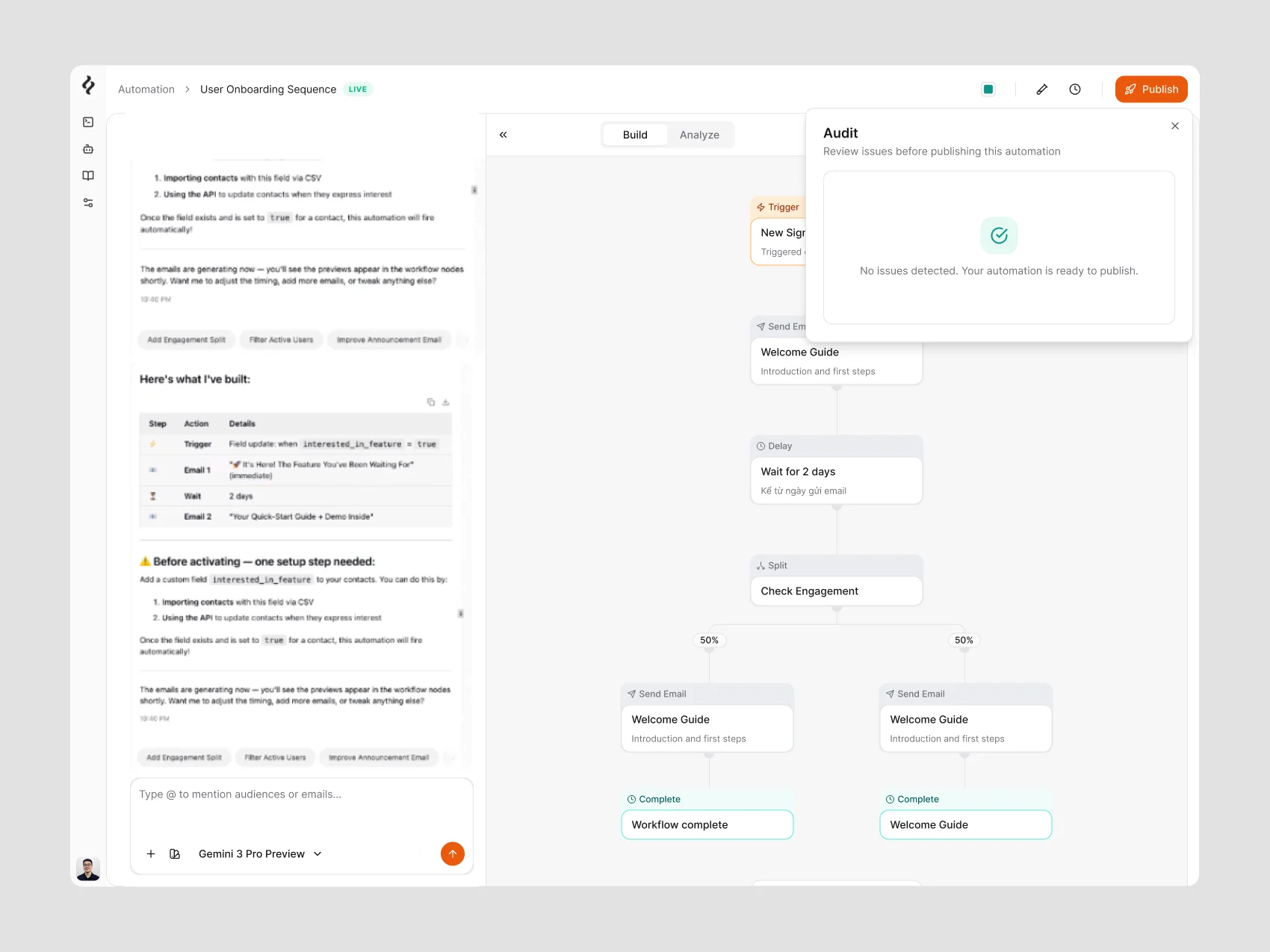
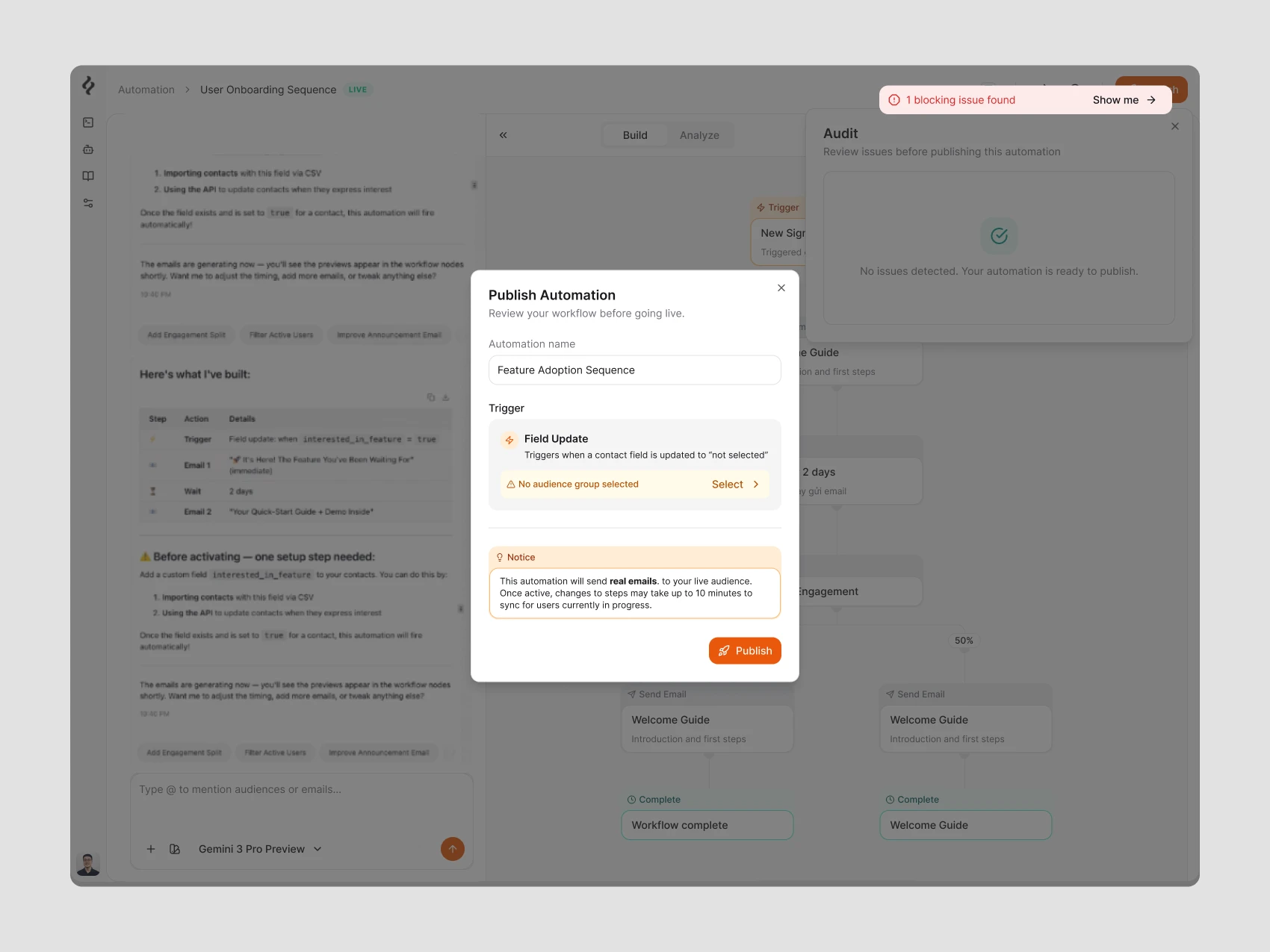
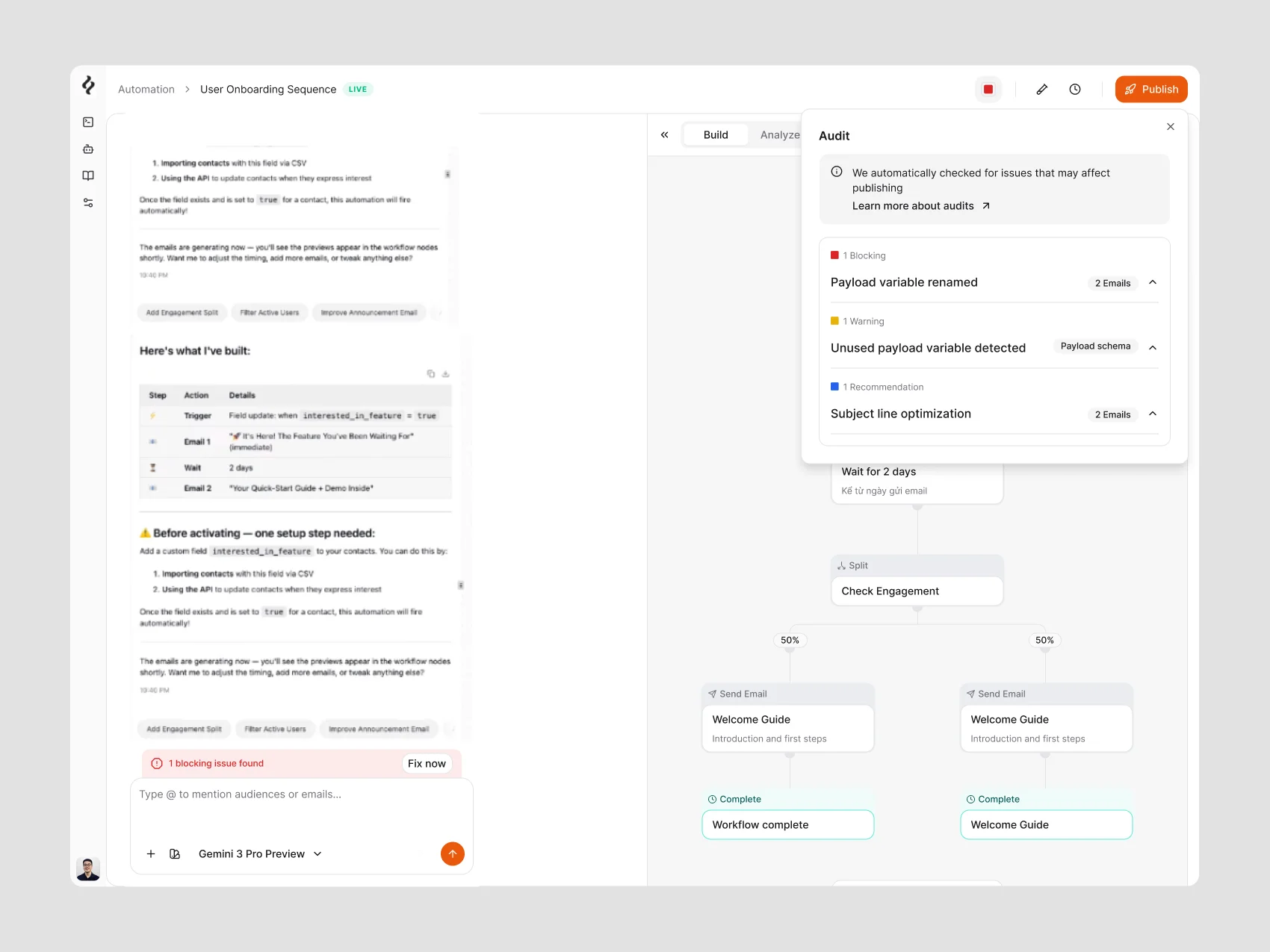
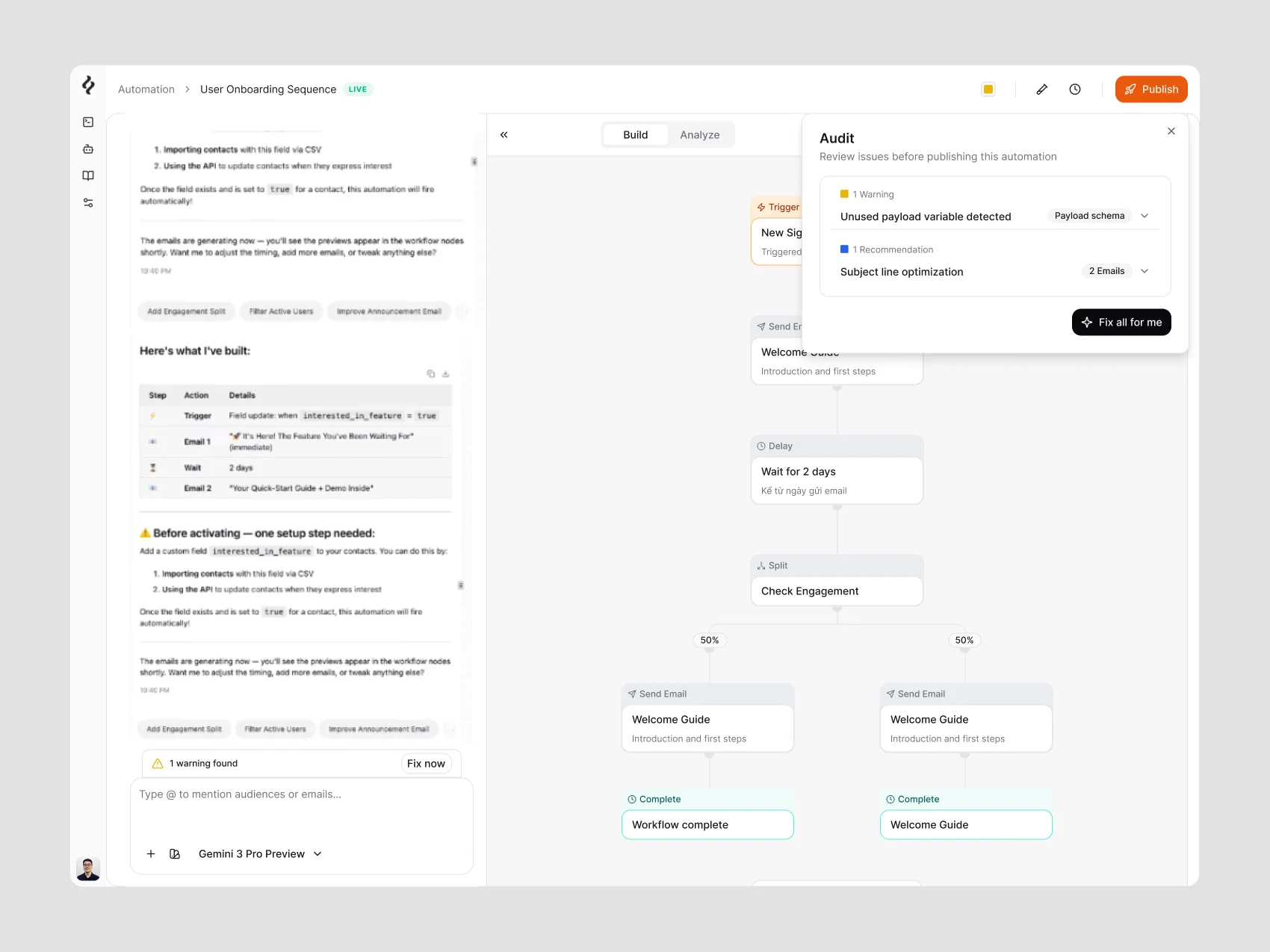
Publishing an automation is a checkpoint, not just a button. Before it runs, Brew reviews the flow at three levels: Blocking, Warning, and Recommendation. A “Show me” action takes people directly to the node that needs attention, while the publish dialog makes clear that real email will be sent to a live audience. A renamed payload variable is shown as a concrete blocking issue. Once it is resolved, the audit can move through remaining warnings to a ready-to-publish state.
Following the Pre-flight Audit
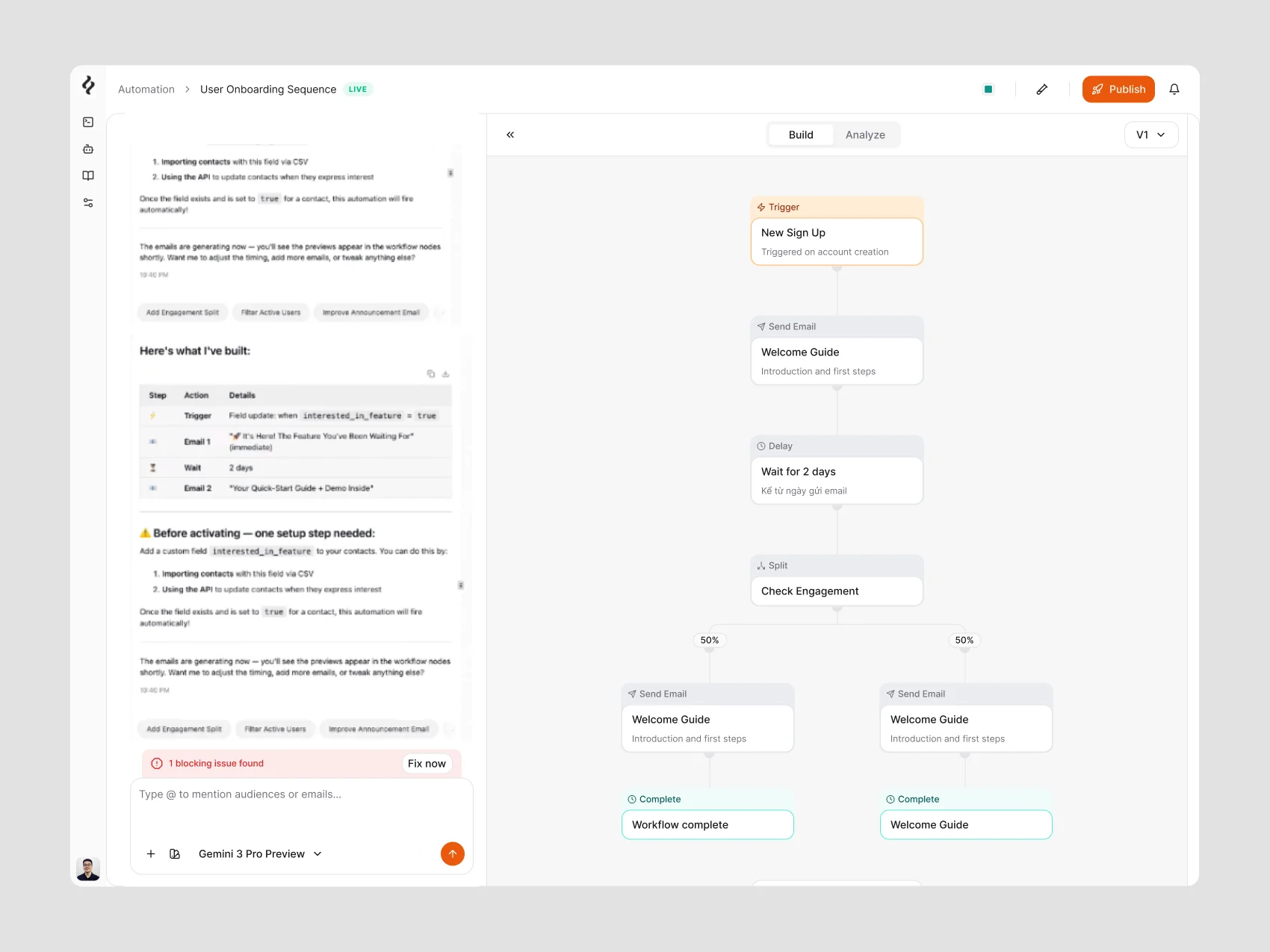
A blocking indicator leads into the audit summary. Warnings and recommendations remain visible so people can review the remaining issues before publishing.
Returning to a Draft or a Live Automation
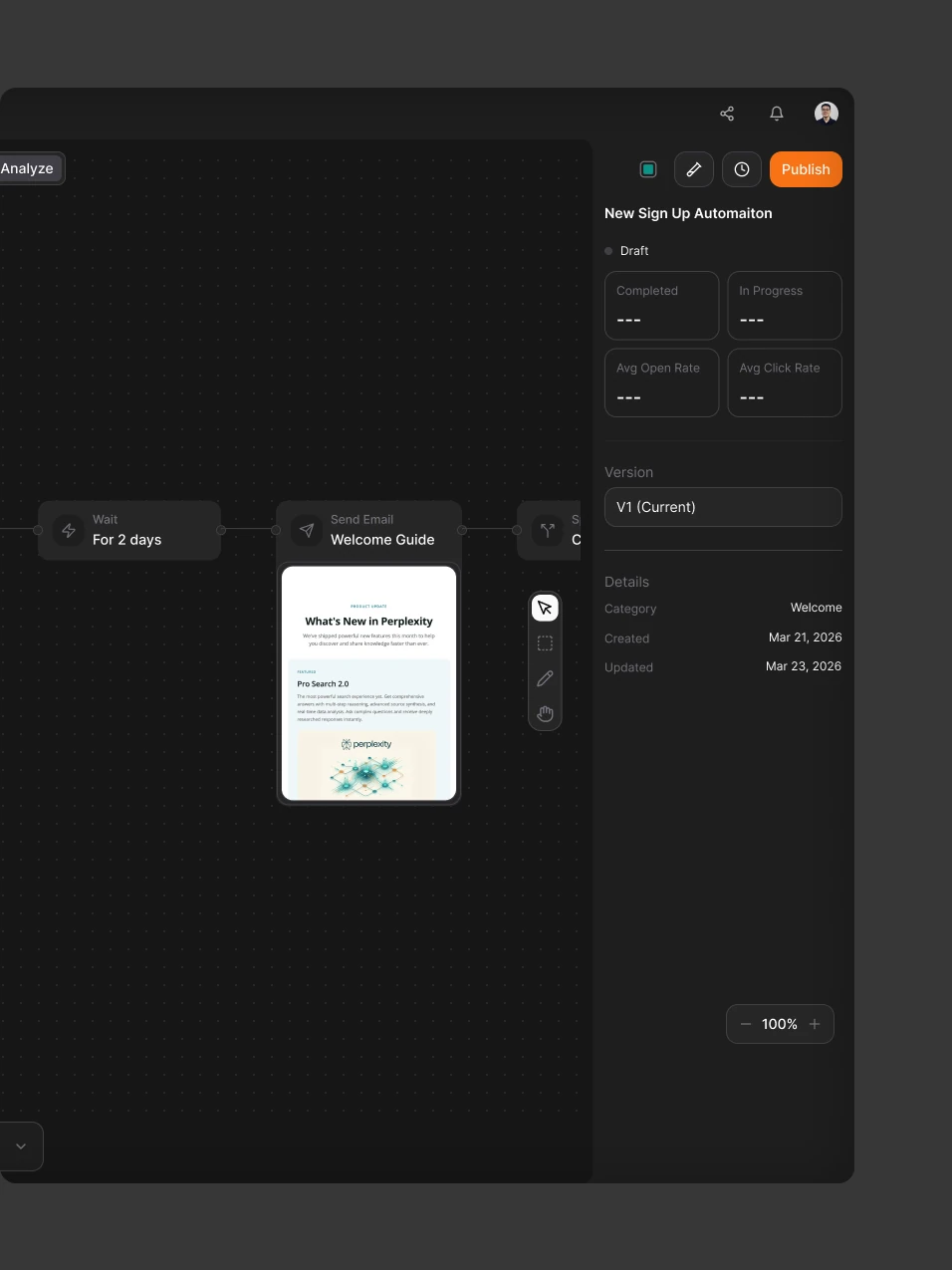
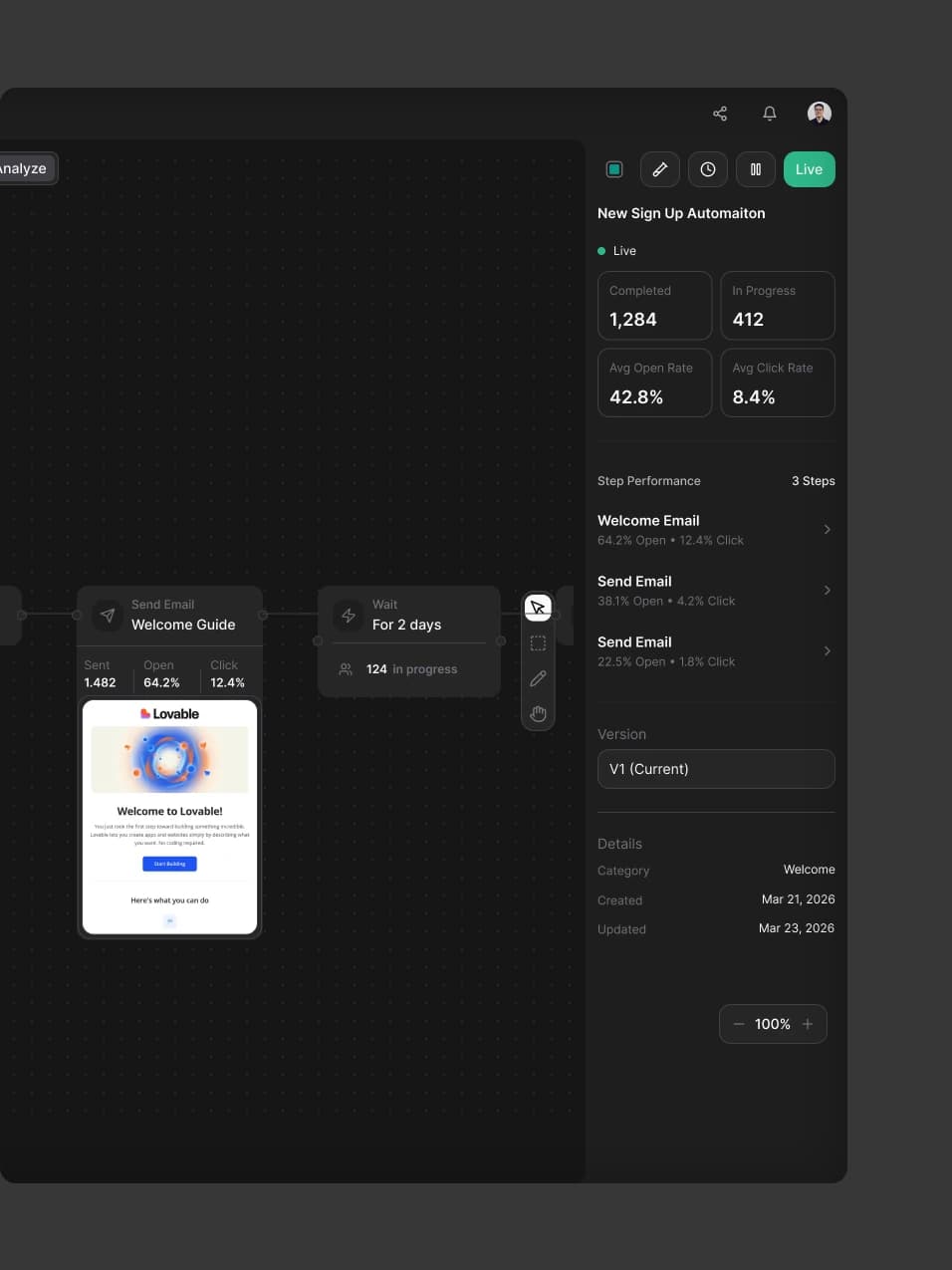
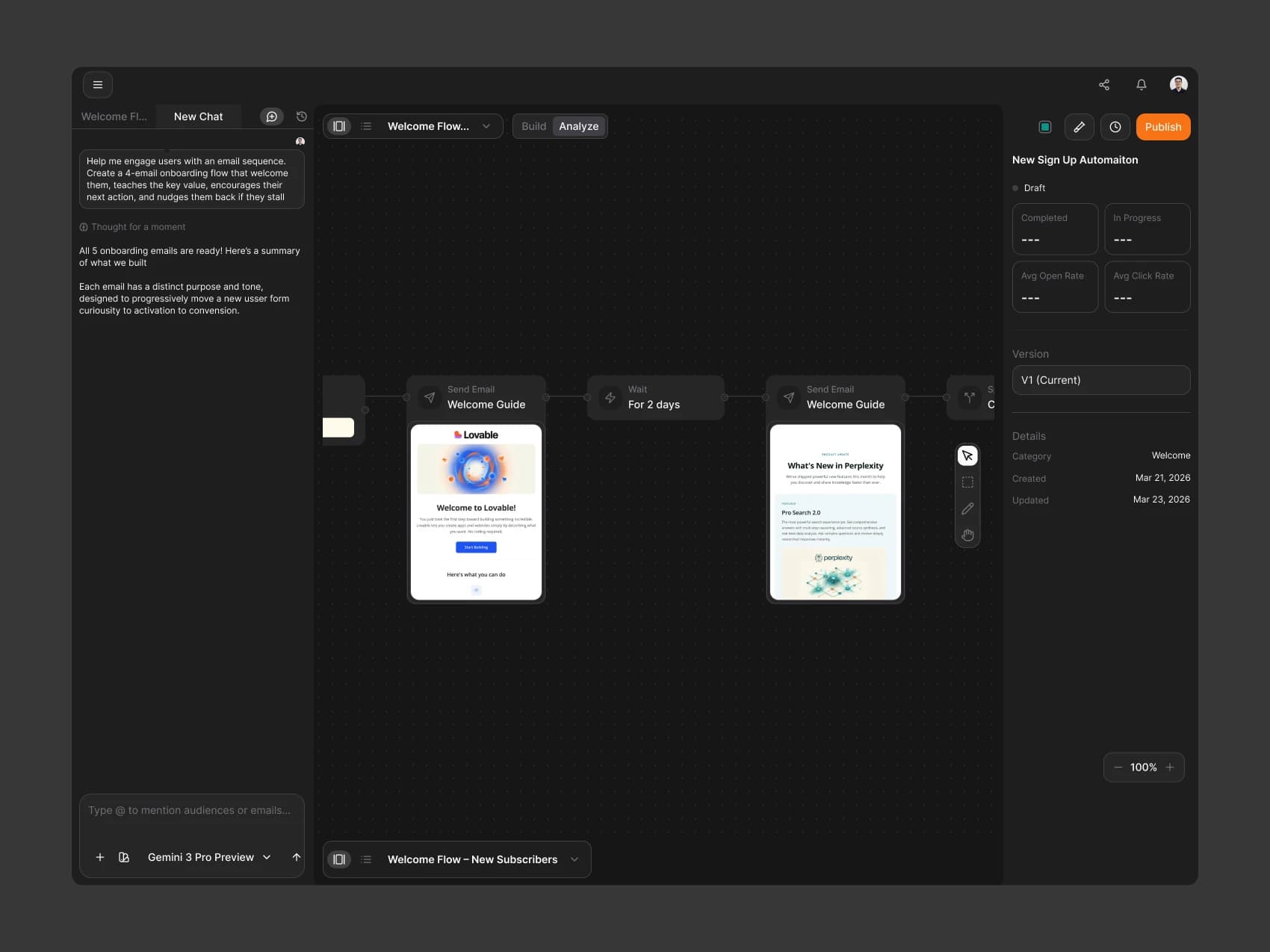
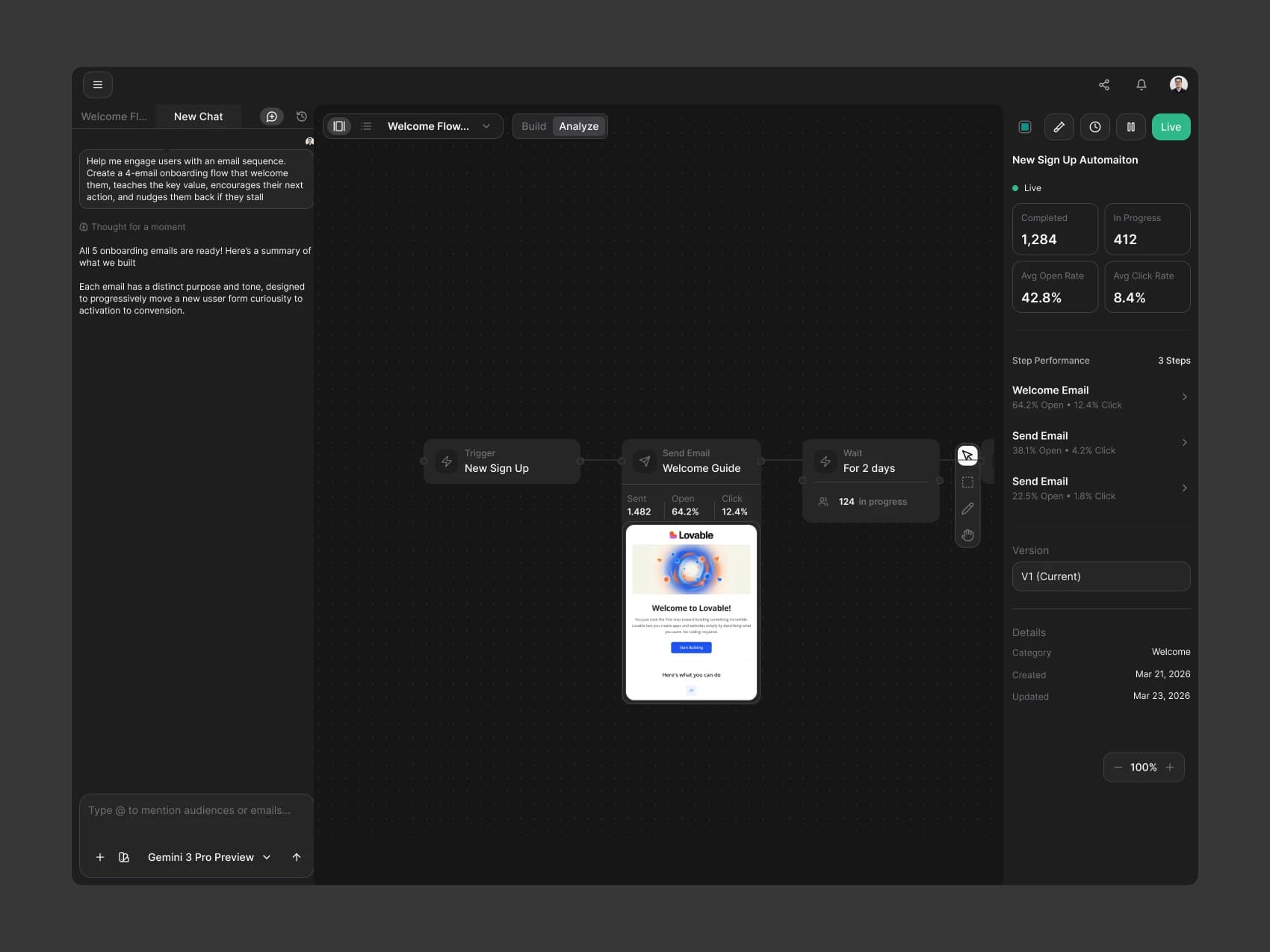
A draft shows its version and setup details before it starts running. A live automation adds step performance, completed entries, and work in progress, helping people understand the current state when they return. The figures shown here are interface examples, not measured project outcomes.
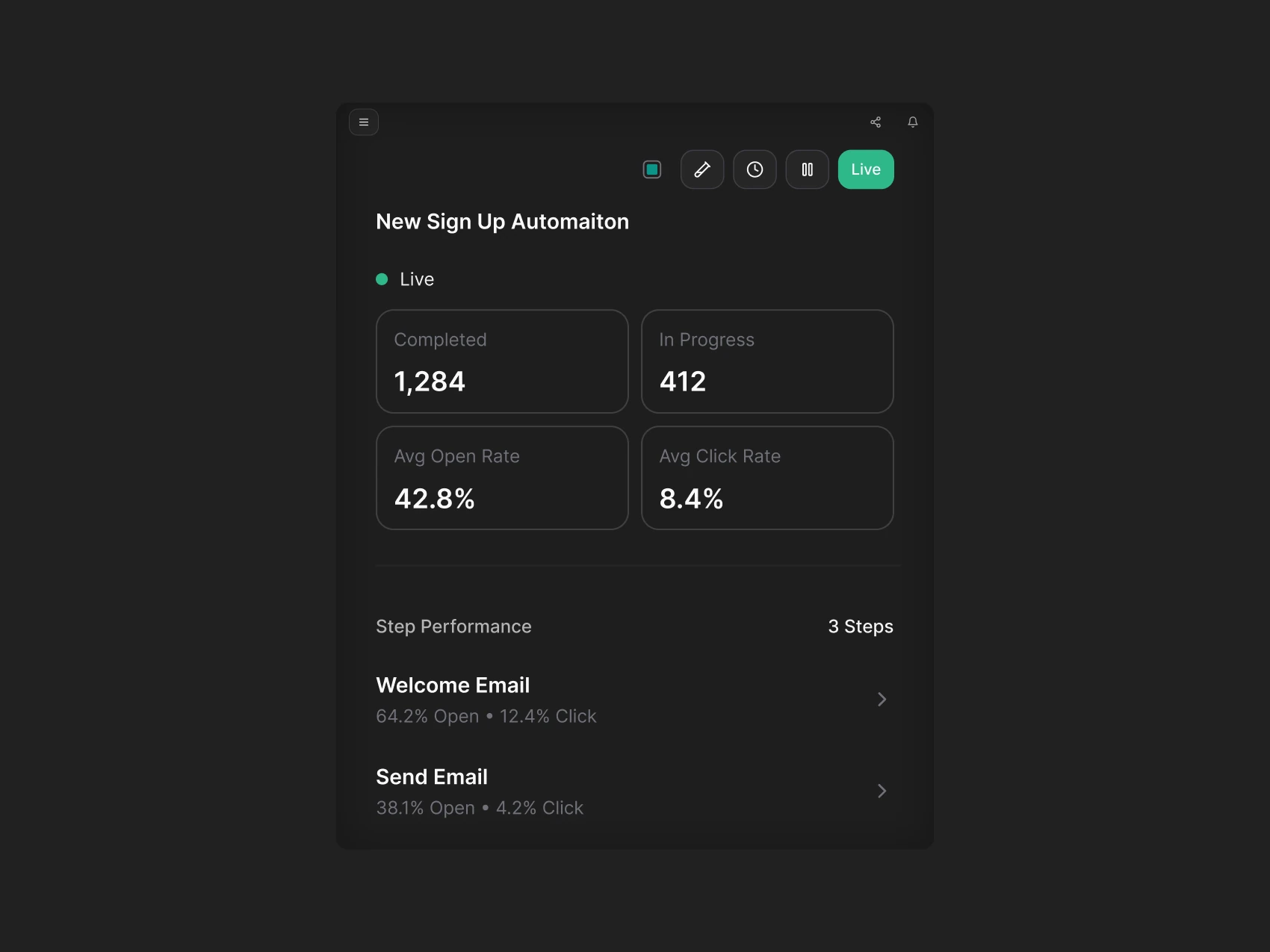
Draft and Live Performance Views
The full screens show the transition from inspecting a draft to understanding a live automation. The displayed figures are interface examples rather than measured project outcomes.
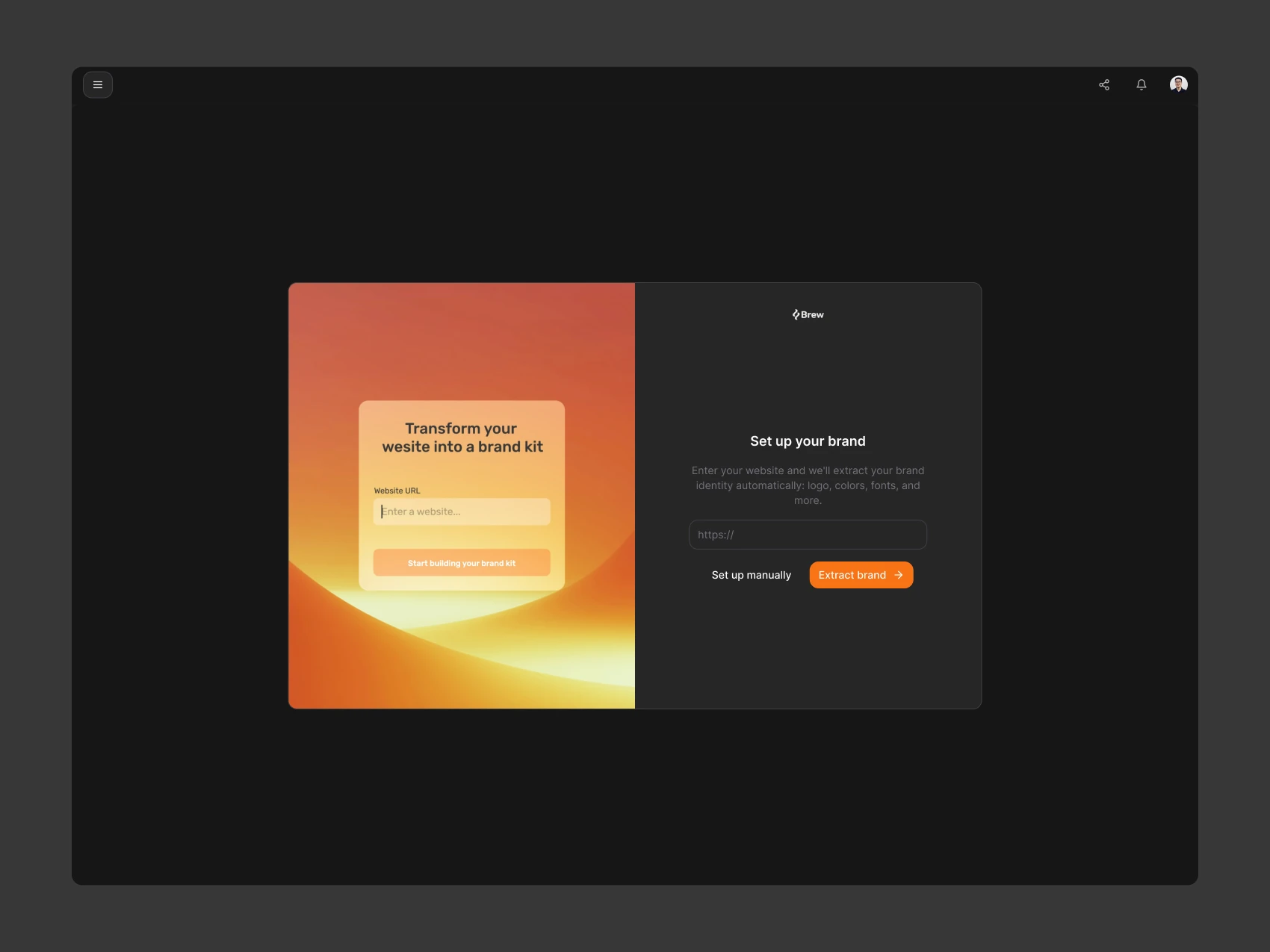
Setting Up a Shared Brand
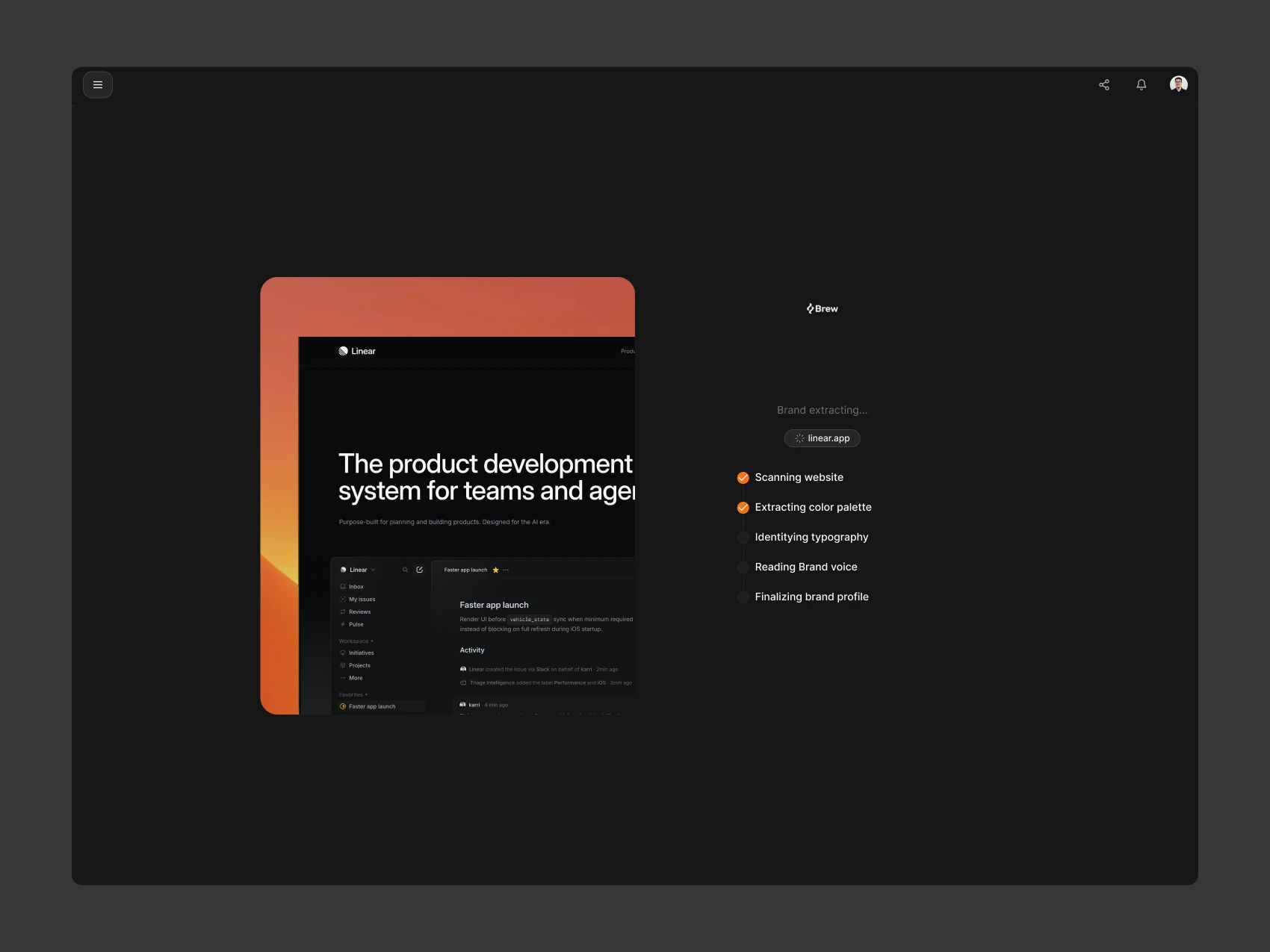
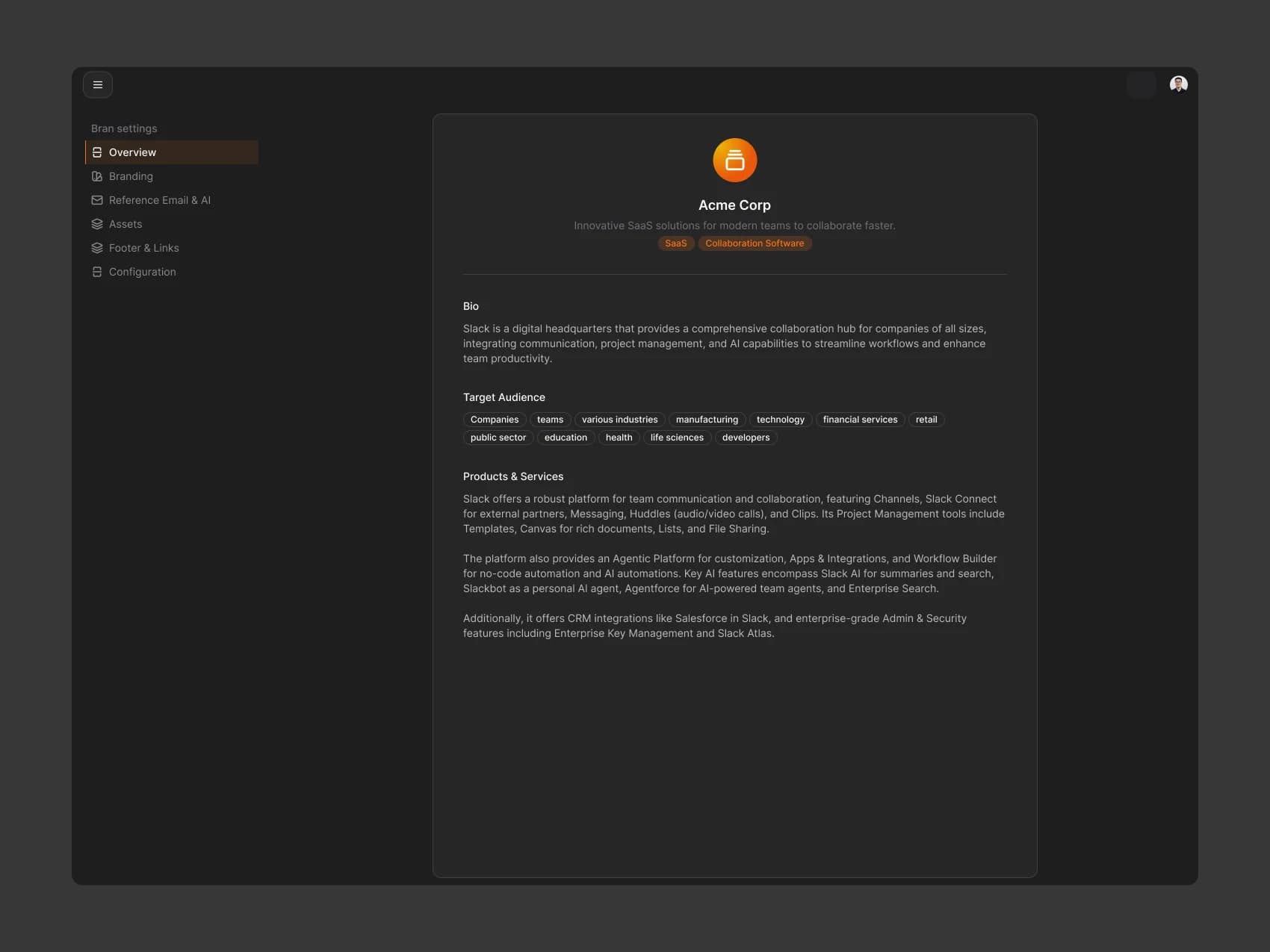
Brand setup begins with a website address and makes extraction progress visible. The resulting overview holds the brand description and voice, giving people a shared starting point to review before creating more emails.
Brand Settings
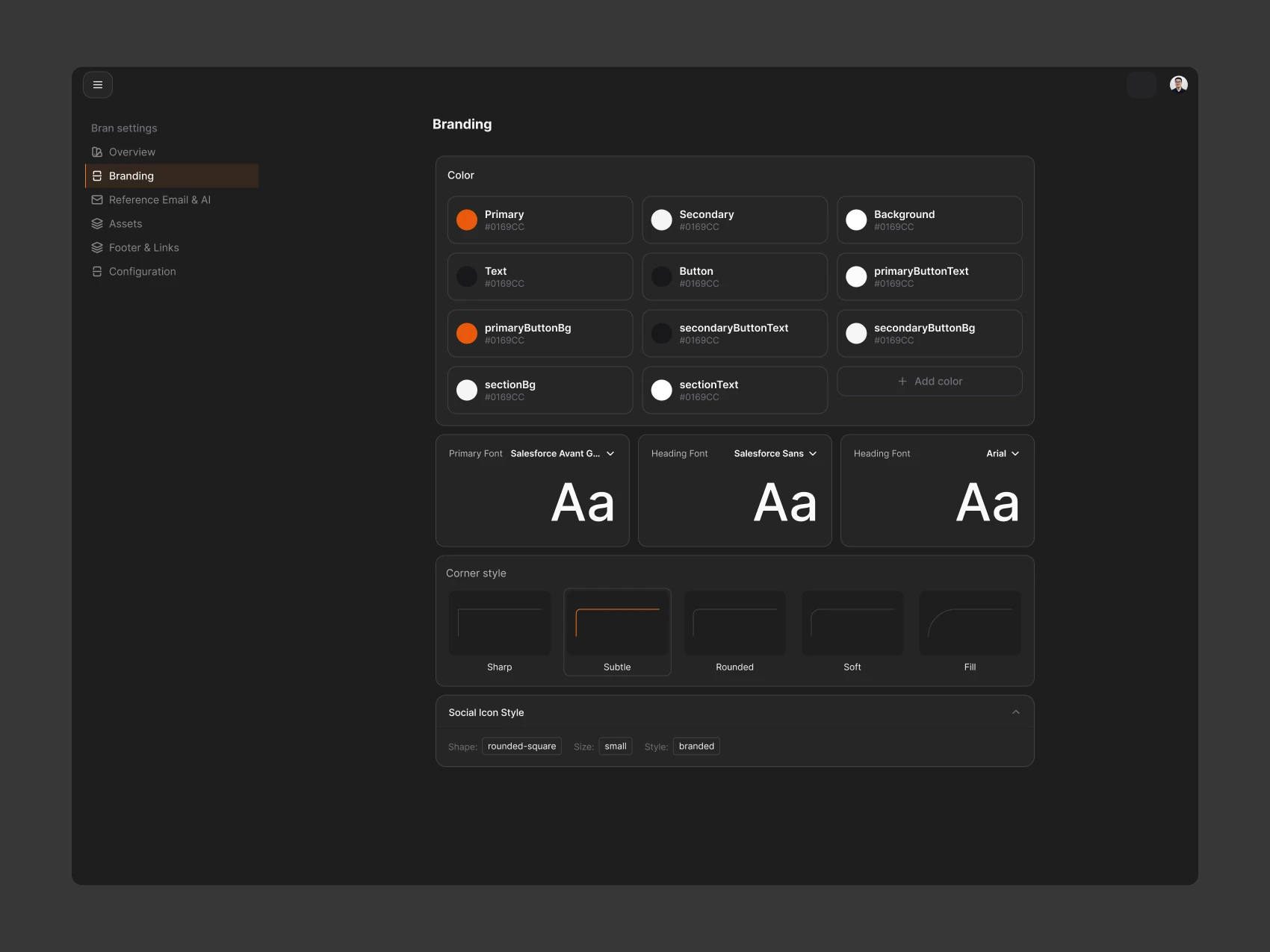
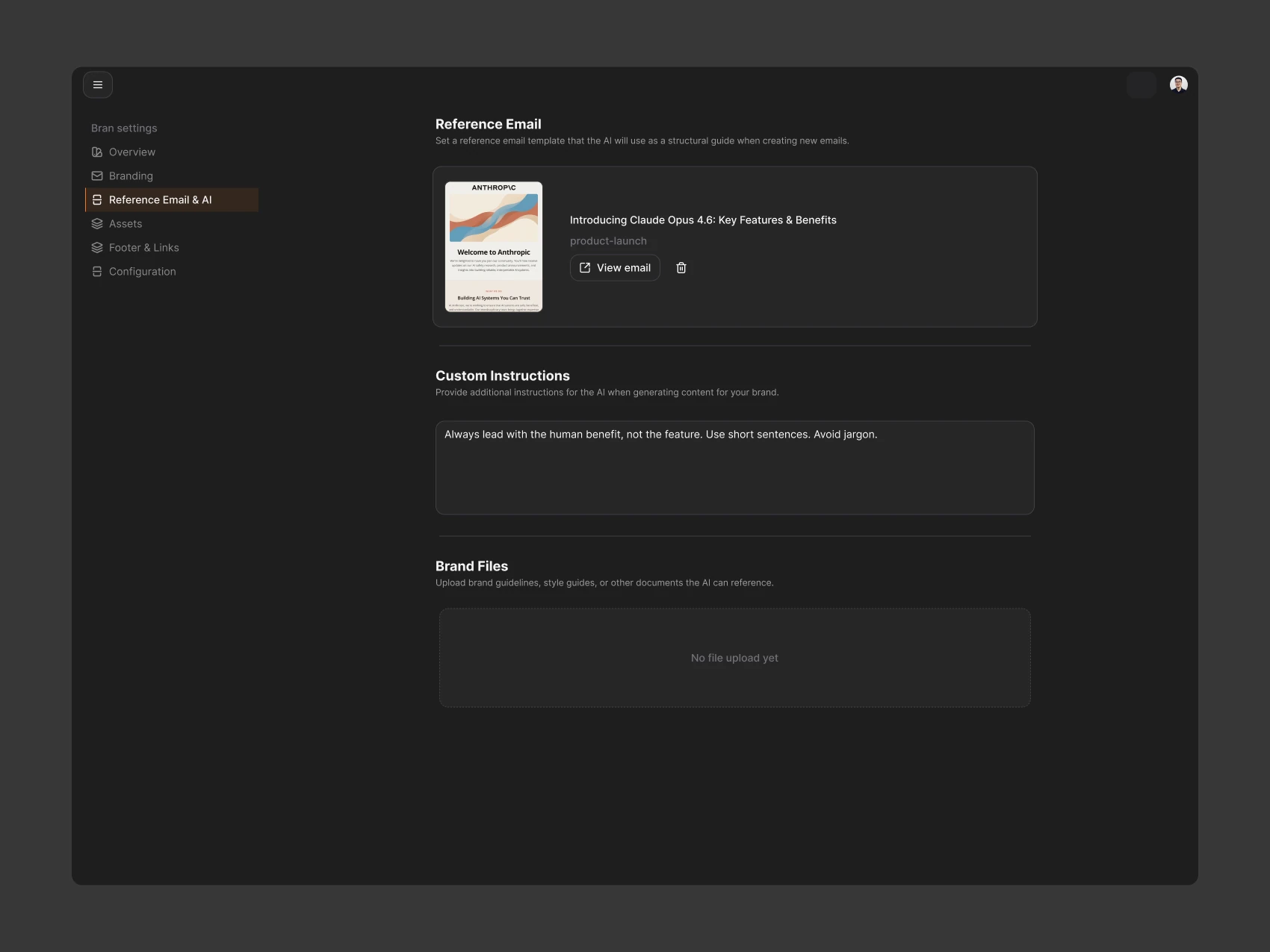
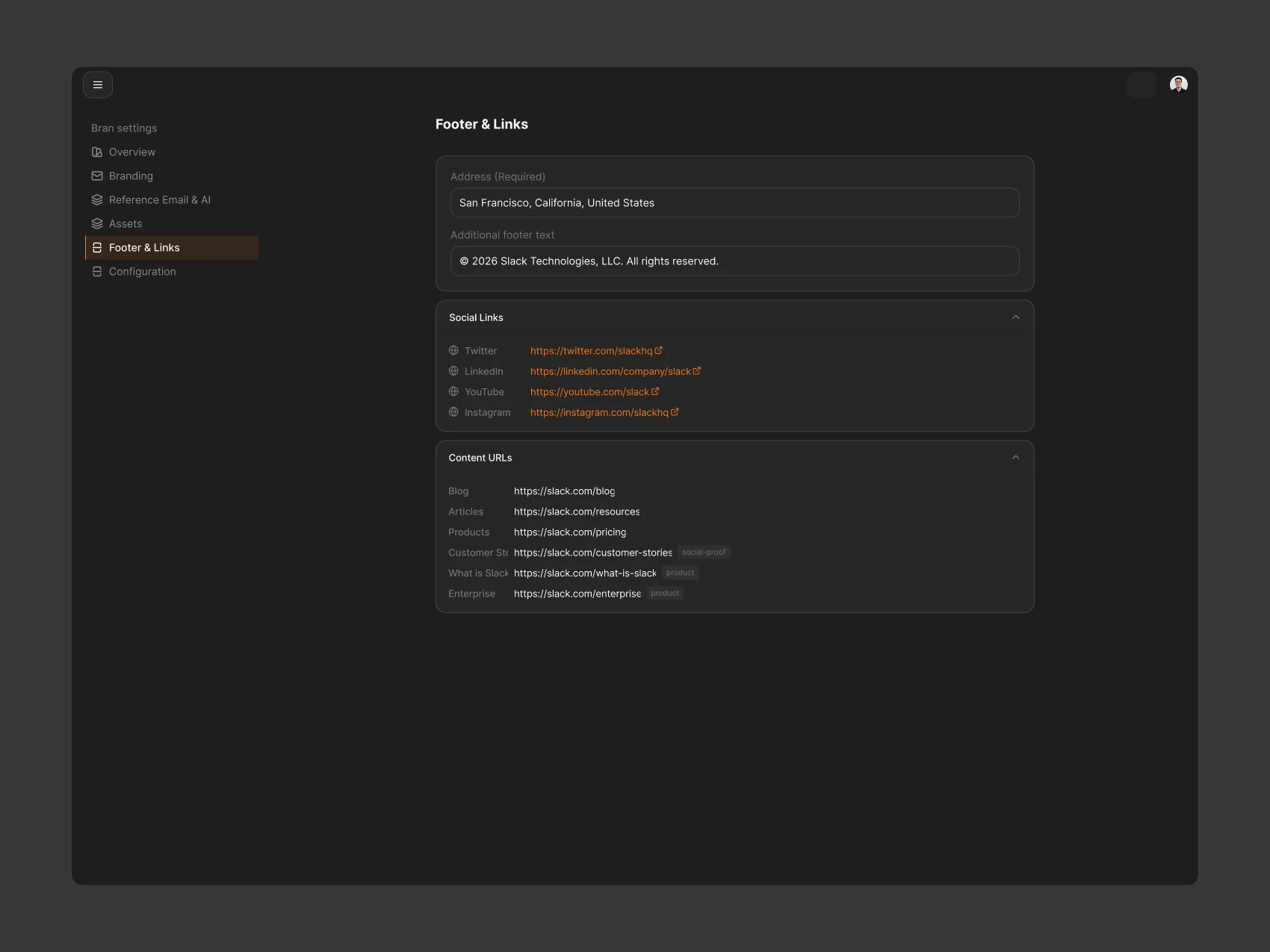
Brand is a shared workspace-level source, so campaigns and automations select a saved brand instead of repeatedly entering URLs. Theme settings focus on choices that materially affect email, with a live preview alongside them. Reference emails and AI instructions sit alongside colors, typography, footer details, and links, bringing content guidance and visual settings into the same workspace.
Domain Setup
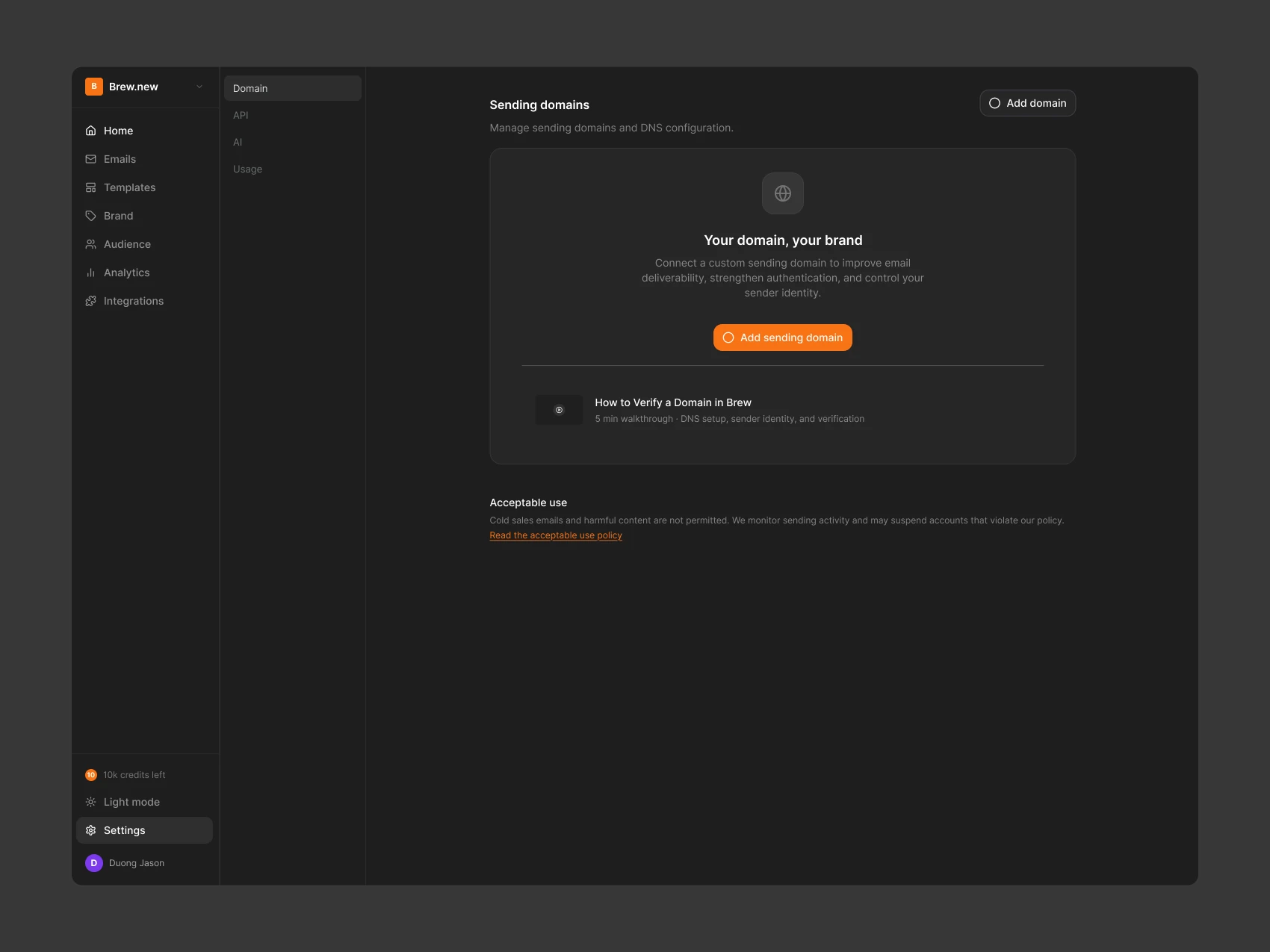
Domain setup is presented as clear steps, hiding advanced options until they are needed. Sending domains show their verification state and sender settings reuse a familiar product pattern. The screen below is a domain-settings audit reference, showing the empty state and entry point for adding a sending domain.
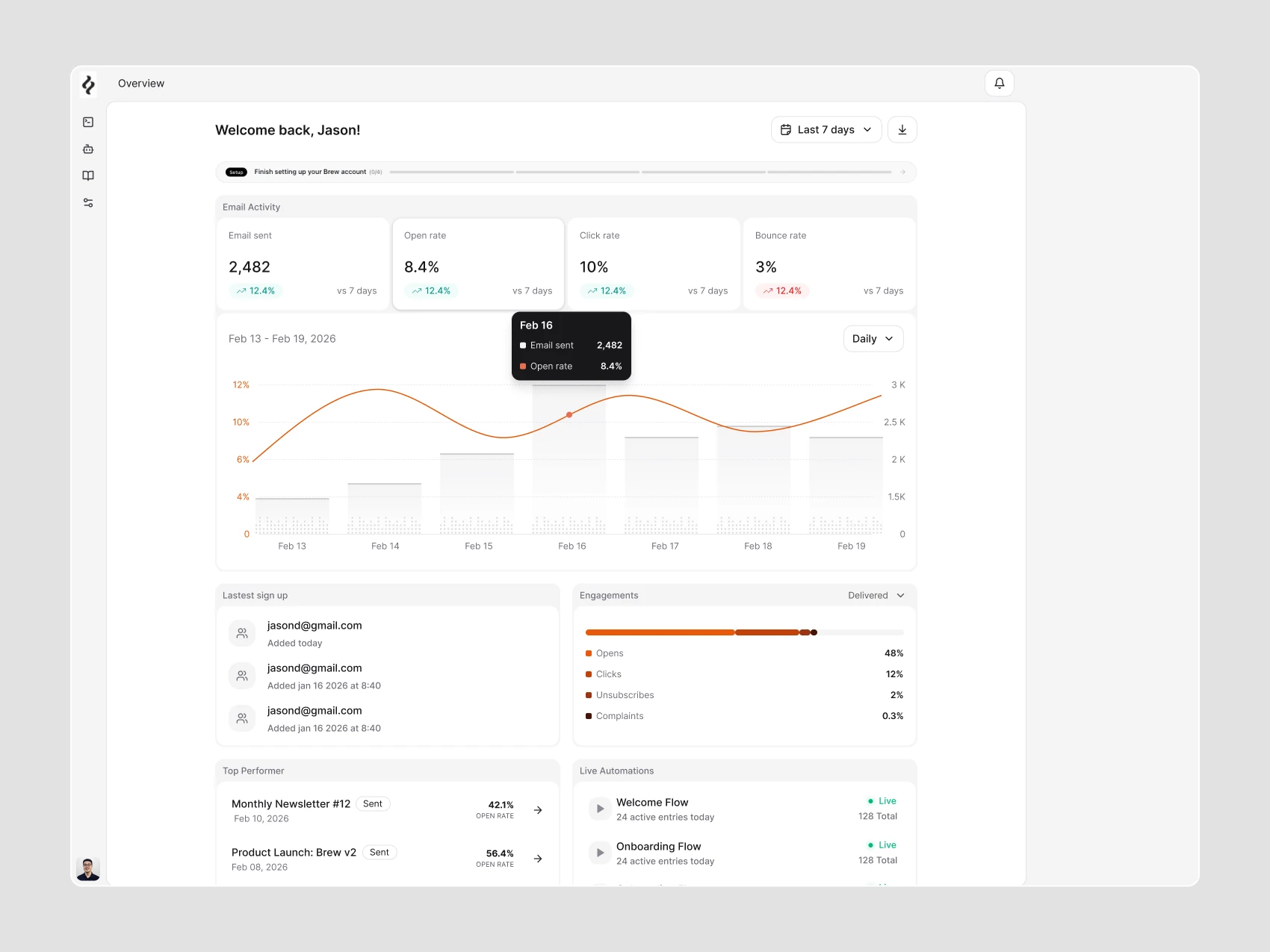
An Activity Overview for Returning Teams
The dashboard brings email activity, engagement, recent signups, top-performing emails, and live automations into one overview. Chart tooltips reveal a day's values without sending people to a separate report. The values shown are interface examples, not project results.
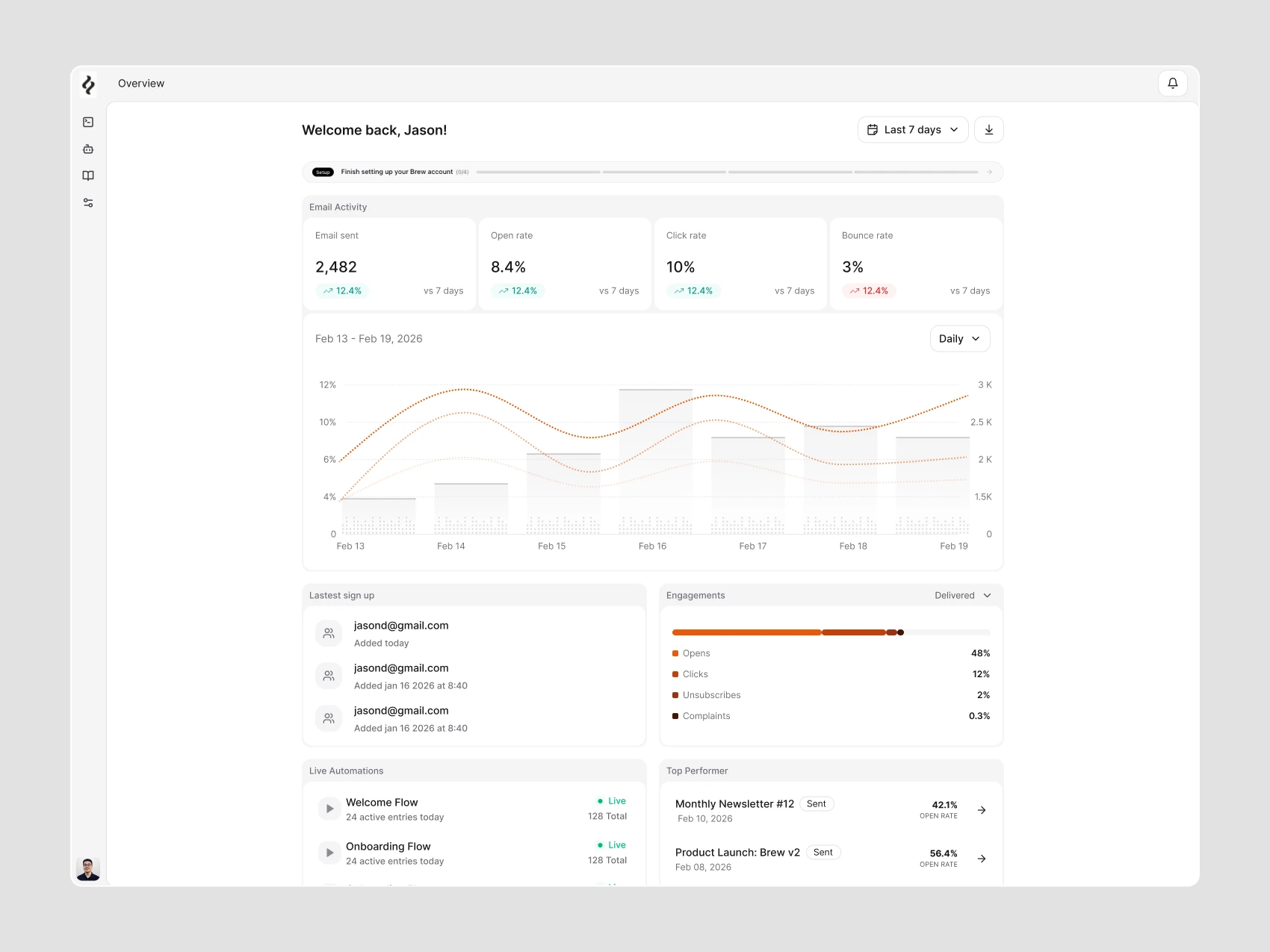
Chart and Tooltip Views
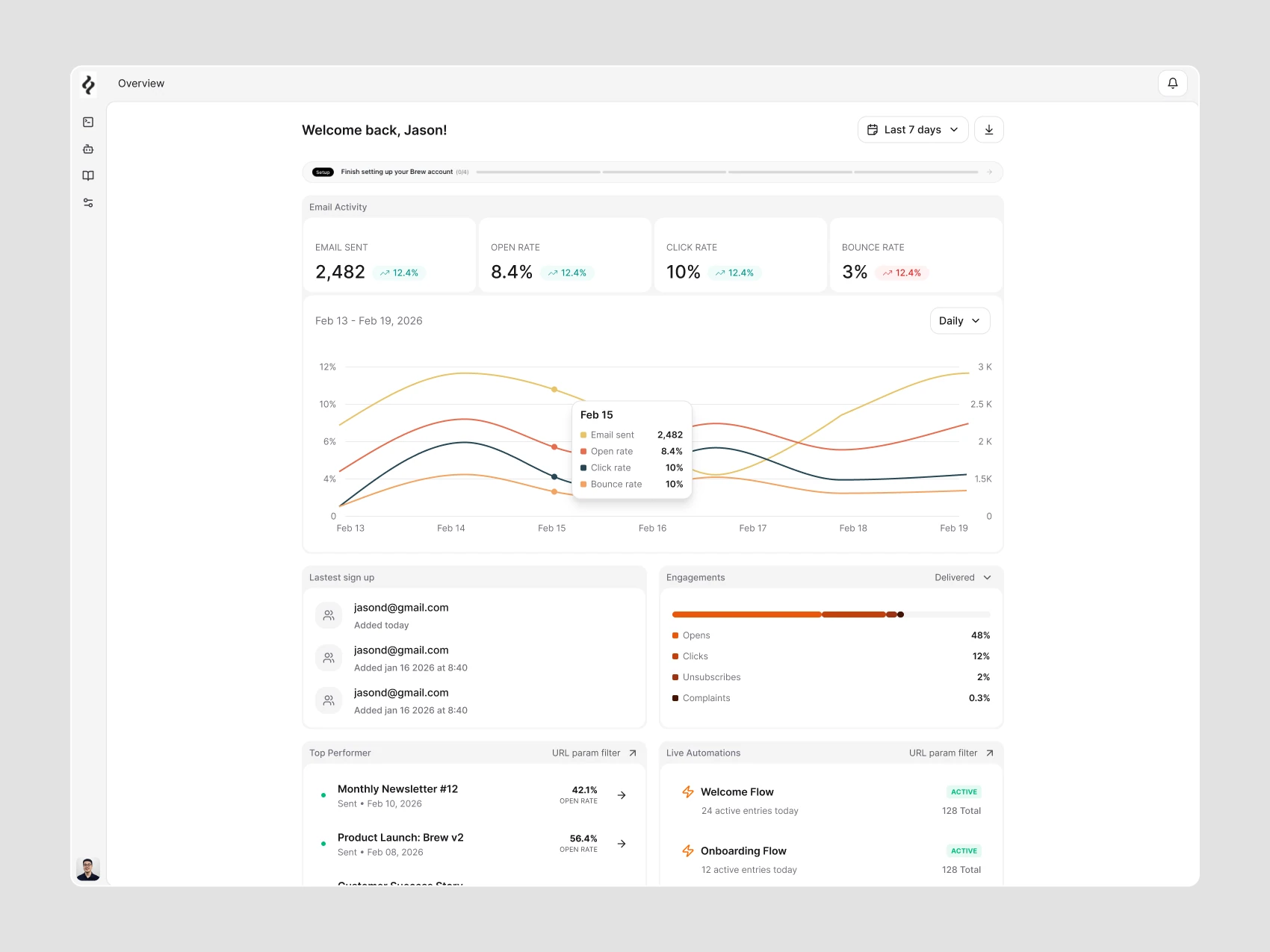
Chart variations and tooltips reveal activity and engagement values in context, without sending people to a separate report. The values are interface examples.
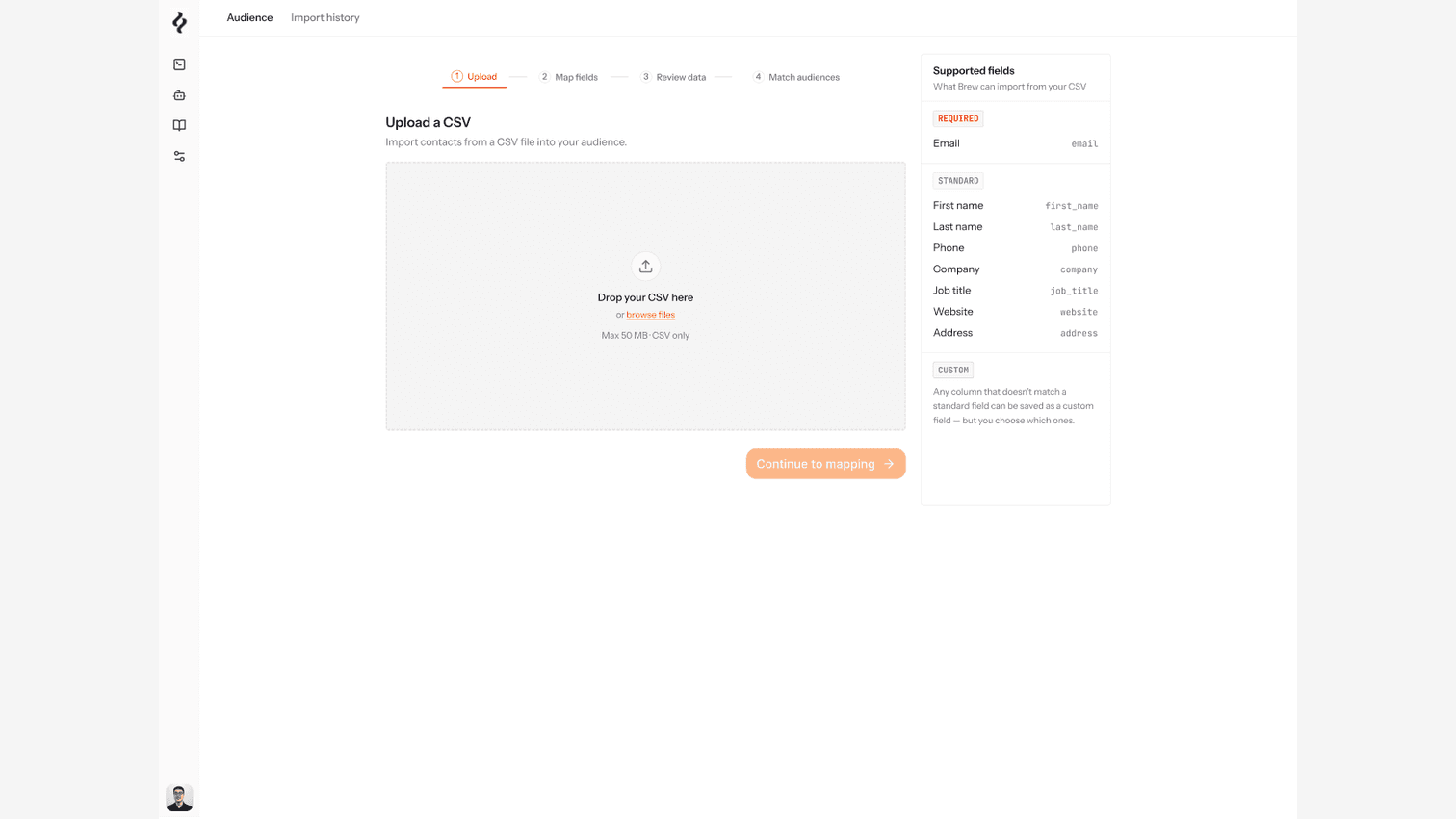
Import Audience
Importing an audience is divided into Upload, Map fields, Review data, and Match audiences. People can understand a file, catch errors before import, and see exactly what was added, updated, or skipped.
Keep exploring
Related work

Kelas SekeJap
EdTech • AI • Mobile
TalentHub
SaaS • HR Platform • B2B